
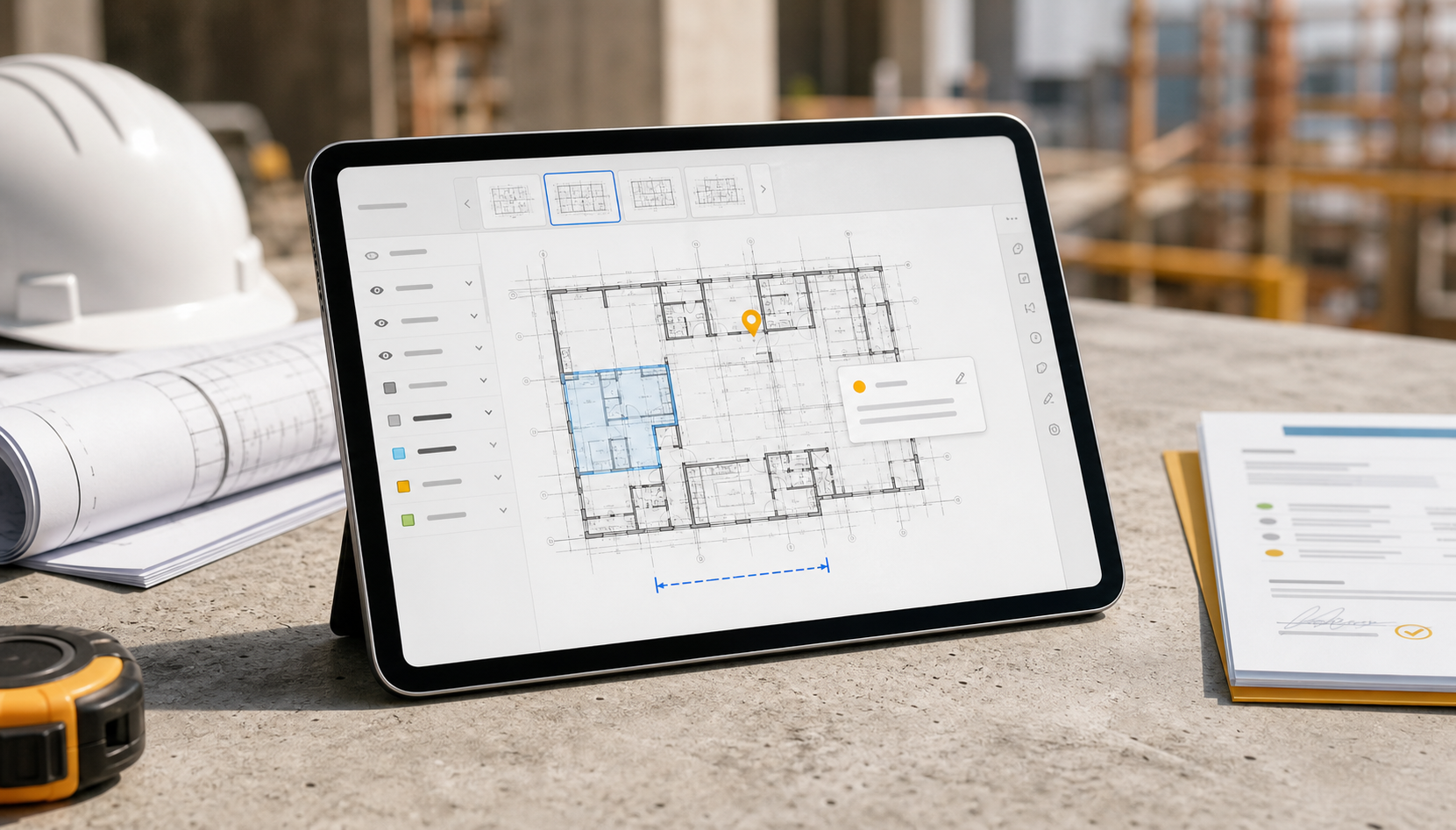
The most reliable iPad DWG review workflow is simple: open the original DWG from a local file path, confirm the right layout and visible layers, verify the measurement that matters, pin notes and photos to the drawing, then export a handoff before you leave the site. That sequence turns the iPad into a drawing-review tool instead of a PDF workaround, and it is the point where a focused app earns its download.
This article connects the whole workflow in one place so construction teams can standardize how a DWG moves from arrival on the device to a clear field result.
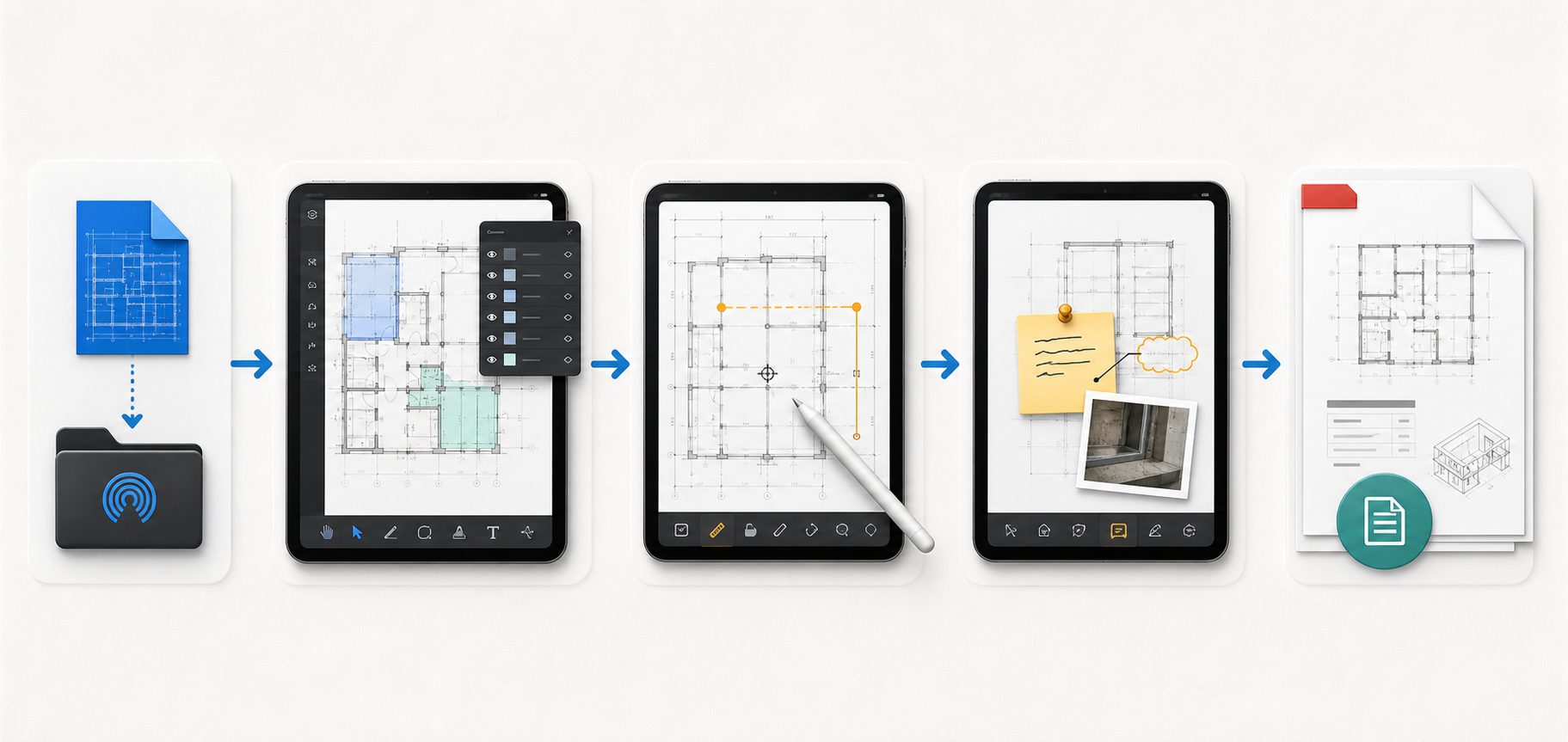
The short version of the workflow
If you only need the operating model, use this sequence:
| Stage | What to do | Why it matters |
|---|---|---|
| Import | Open the original DWG from Files, Mail, AirDrop, or your share sheet | Prevents a conversion detour before the review even starts |
| Context check | Confirm the right layout, visible layers, and file version fit | Stops false conclusions caused by the wrong sheet or drawing noise |
| Review | Zoom, isolate, and verify one measurement or field condition | Keeps decisions tied to the drawing instead of memory |
| Documentation | Pin notes, photos, and markups to exact plan locations | Makes the handoff actionable for the next person |
| Export | Generate a PDF, image, or report before leaving the site | Preserves context while the site condition is still fresh |
| Reliability check | Decide whether the workflow must stay local, offline, or no-account | Protects the team against bad signal, privacy concerns, and tool mismatch |
That sequence is what many search results miss. Pages about “DWG on iPad” often stop at opening the file. Inspection pages often skip the DWG-specific part and jump straight to tasks. Mobile CAD pages often assume the real goal is editing continuity.
For field teams, the job is narrower: keep the drawing useful from first open to final handoff.
1. Start with the file path your team already uses
Most site-review workflows fail early because the drawing reaches the iPad through one path, but the chosen app expects another.
In practice, teams usually receive drawings through one of four routes:
- the iPad Files app
- an email attachment
- AirDrop on iPad
- a document provider such as iCloud Drive or another storage source exposed through Files
That is why the first workflow requirement is not “has many CAD tools.” It is “opens the DWG from the path we already use without forcing a separate conversion ritual.”
If your team is still troubleshooting that import step, how to open DWG files on iPad without converting them is the best detailed companion. This workflow hub assumes the file can already land on the device in a predictable way.
What to test before standardizing the process:
- Open one DWG from Files.
- Open one DWG that arrived from Mail.
- Send one DWG by AirDrop from a Mac or another iPad.
- Reopen the same drawing after the device goes offline.
If the workflow becomes fragile at step one, the rest of the review process will not matter much.
2. Confirm layout, layers, and drawing context before you trust the view
A surprising amount of field confusion is not a geometry problem. It is a context problem.
The drawing may technically open, but the reviewer is looking at:
- the wrong layout
- too many noisy layers
- a dense model-space view when the field question depends on sheet context
- an older or incompatible DWG variant
Autodesk's reference on drawing file format compatibility is a useful reminder that DWG files do carry version realities. On site, though, the practical question is even simpler: “Am I looking at the right thing before I make a call?”
Use this quick context check:
- confirm the expected sheet or layout is active
- hide layers that do not matter for the immediate question
- zoom into the area you need, then zoom back out once to confirm surrounding context
- verify that text, hatches, blocks, and linework look credible enough for the task
This is the point where a generic file-open success can still fail as a field workflow. A reviewer can easily think the drawing is incomplete when the wrong layout is selected, or think a dimension is missing when the relevant layer is hidden in noise.
If your main issue is reading a dense sheet, how to review DWG layers on iPad during a site visit goes deeper on layer control. If the file opens but still feels wrong, what to check when a DWG file will not open on iPad covers the common diagnosis path.
3. Verify one field-critical measurement before you document anything
Once the drawing context is clean, the next step is not to mark everything up immediately. It is to verify the one measurement or condition that will change the discussion.
For some teams, that is a door width. For others, it is the distance from an opening to a service point, the span between structural elements, or whether a site-installed component matches the issued drawing.
This step matters because a field review is rarely just “look at the plan.” It usually answers a practical question:
- Is there enough clearance?
- Is the installed condition where we expected it?
- Is the issue really on this sheet, or are we reading the wrong detail?
- Does this need escalation now, or only a note for later?
The safest sequence is:
- isolate the geometry visually
- zoom until the intended points are unambiguous
- verify the layout and units context one more time
- take the measurement
- decide whether the result changes the field call
That protects the team from turning a rough visual impression into a formal issue too early.
How to measure distances on a DWG file from iPad is the dedicated guide when measurement confidence is the main problem. In the broader workflow, measurement is the trust checkpoint that comes before notes, photos, and escalation.
4. Capture notes and photos where the issue actually lives on the drawing
The biggest quality jump in a DWG-first workflow happens when observations stop living in a separate message thread and start living on the drawing.
That does not require a full project-management platform. It requires a review tool that lets you keep the issue tied to the exact plan location while the site context is still visible.
For a practical site review, the note should usually capture:
- where the issue is on the plan
- what the reviewer saw
- whether a photo is needed to remove ambiguity
- whether the next action is verify, revise, or fix
That is the point where a drawing-first workflow differs from both PDF-only review and task-first inspection software.
- PDF-only review often loses layer and layout context too early.
- Task-first inspection platforms can be excellent for assignment and checklist routing, but they are not always the best place to begin when the drawing itself is still the thing being interpreted.
Fieldwire's guide to creating inspections is a good example of a task-first inspection pattern: upload drawings and project references, then organize the inspection inside checklists and issues. That is useful when the process is centered on inspection management.
The DWG-first sequence is different: understand the drawing first, then document the issue with that drawing context preserved.

If this note-taking step is your main bottleneck, how to annotate a DWG drawing on iPad without changing the original file is the closest supporting article. For broader inspection thinking, how to choose a CAD viewer for site inspections explains when drawing-first review is the better fit than a general inspection platform.
5. Export the handoff before the site context disappears
A field review is only complete when someone else can act on the result.
That does not always mean sharing the original DWG. Often the best handoff is a lighter output:
- a marked-up PDF
- an image of the current view
- an observation report with notes and photos
- a compact summary sent back to the office while the reviewer is still on site
This is where many teams lose time. They finish the walk, promise to clean up the notes later, then reconstruct the reasoning from memory at the desk.
A better workflow is to export while the reasoning is still attached to the plan.
Use this export check:
| Handoff question | Why it matters |
|---|---|
| Can the recipient understand the issue without opening the DWG? | Many downstream recipients do not need the original CAD file |
| Is the marked location obvious? | The output should remove guesswork |
| Are notes concise enough to act on? | Long vague comments slow the handoff |
| Does the output preserve the drawing context that justified the issue? | A field note without plan context is easy to misread |
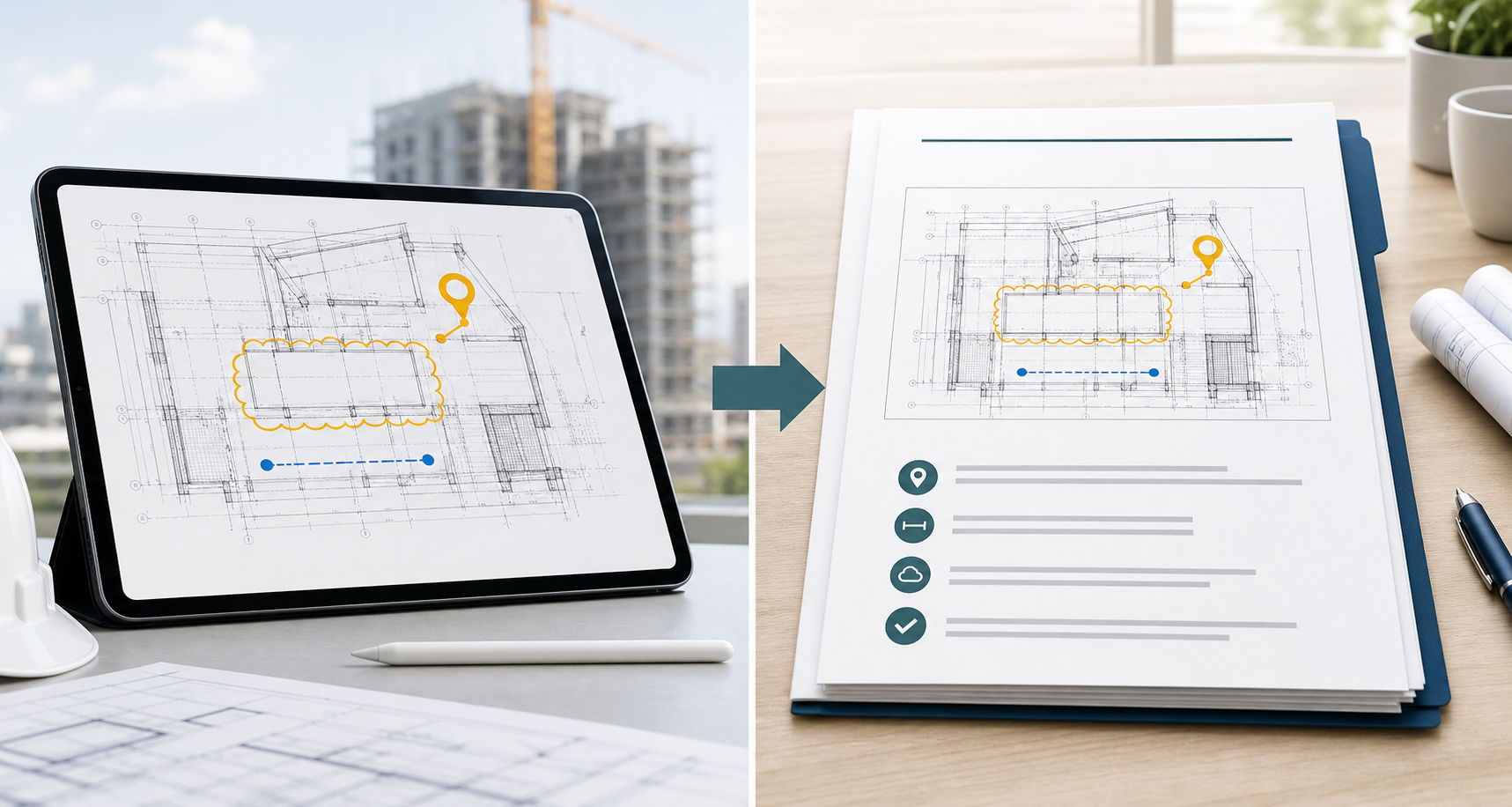
How to export DWG markups and site notes as a PDF from iPad goes deeper on output choices. In the full workflow, export is the closing step that turns a review into something another person can immediately use.
6. Decide early whether this workflow must stay local, offline, or no-account
Not every team needs the same reliability profile.
Some groups work entirely inside a cloud CAD stack and are comfortable with account-based access, sync, and later handoff. Others work in basements, remote locations, client-sensitive environments, or crews where the fastest path is local open, local review, local export.
That is why the final design decision is not just feature-based. It is operational:
- Will this review need to work with no signal?
- Are there drawings that should stay local unless someone deliberately exports them?
- Does a required account slow down field access?
- Is the iPad acting as a review surface, or as one node inside a larger cloud CAD workflow?
Autodesk's AutoCAD web/mobile overview makes sense for teams that want offline access plus later sync inside a wider Autodesk environment. That is a valid answer for some organizations.
For privacy-sensitive or local-first workflows, the criteria shift toward on-device access, simpler sharing, and fewer workflow dependencies. Apple's App Privacy Report is also useful when a team wants to understand how an app is using permissions and network activity on the device.
If those reliability and trust questions are active for your team, why offline access matters in an iPad DWG viewer and why privacy matters when opening CAD drawings on iPad are the best companion reads.
When a broader platform is actually the better fit
Not every review workflow should end in a dedicated DWG review app. Some teams genuinely need something broader.
Use this decision table:
| If your real job is... | Best-fit category |
|---|---|
| desktop-to-mobile CAD continuity, editing, and cloud collaboration | mobile CAD platform |
| checklists, assignments, compliance tracking, and issue management first | inspection / project platform |
| opening the DWG, reviewing layouts and layers, measuring, documenting, and exporting on site | drawing-first DWG review workflow |
This distinction matters because search results blend those categories together.
If your team is still choosing a category, start with how to choose a DWG viewer for iPad. If the conversation is broader than CAD and includes project workflows, what construction teams need from an iPad drawing app is the better comparison page.
A repeatable checklist for crews
If you want one field-ready checklist to standardize the process, use this:
- Receive the DWG through Files, Mail, AirDrop, or your existing storage path.
- Reopen it once before the site walk so the file path is proven.
- Confirm the right layout and hide the layers that create noise.
- Verify the one measurement or condition that changes the field decision.
- Pin notes, markups, and photos directly to the drawing location.
- Export a PDF, image, or report before leaving the site.
- Decide whether the original DWG needs to stay local or whether a cloud handoff is acceptable.
That is the workflow worth standardizing. It is specific enough to be teachable, but simple enough that crews can actually repeat it.
If you need the shorter inspection-only companion, A DWG review checklist for site inspections is the quickest version to share with reviewers.
PlanInspect is strongest when this is the job: open the original DWG locally on iPhone or iPad, switch layouts, control layers, measure, place notes with photos, and export a clear field handoff without turning the review into a full drafting session.