
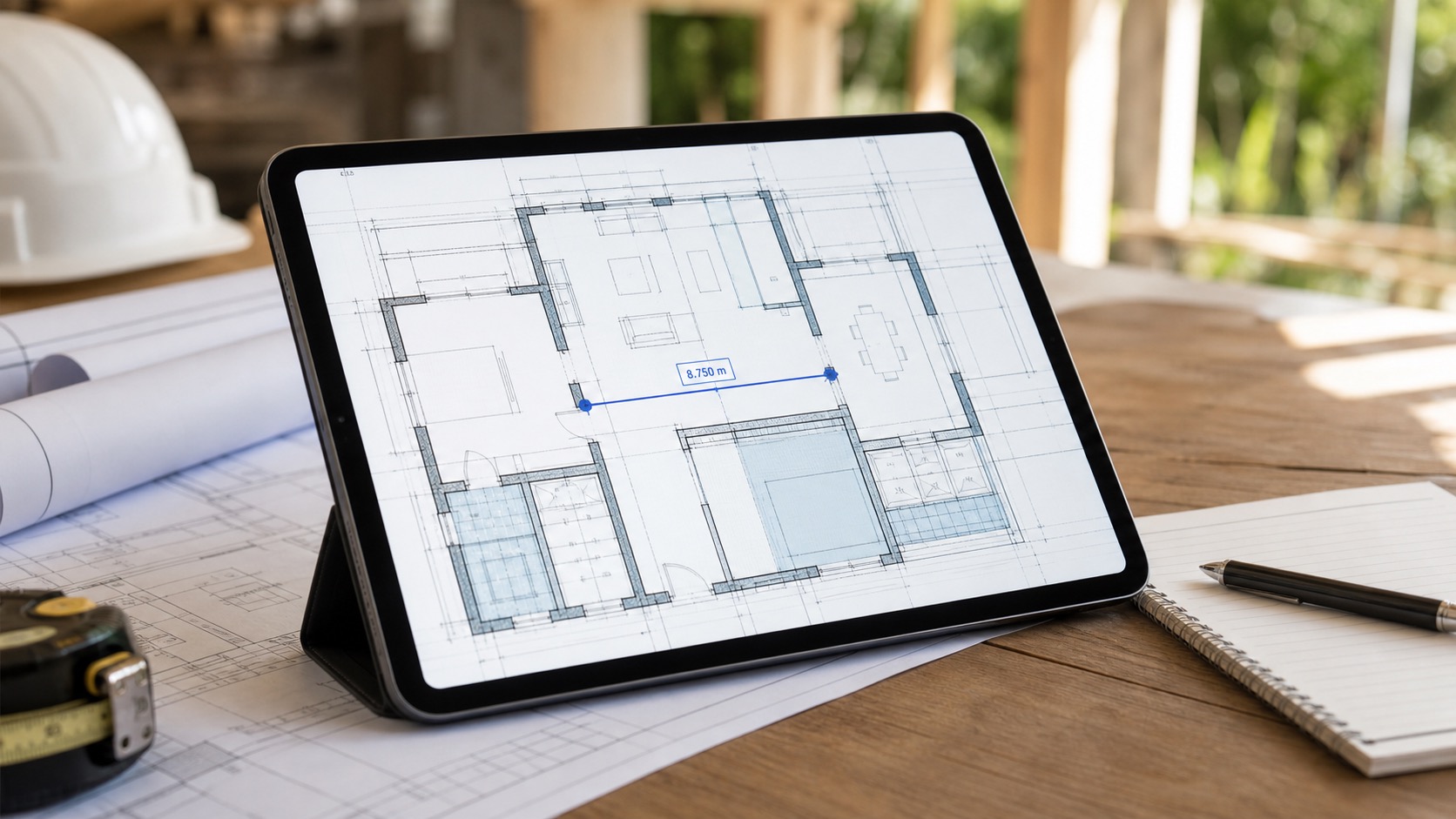
Yes, you can measure distances on a DWG file from iPad, and it can be reliable enough for real field work, but only if you measure from the original DWG and confirm the drawing context before trusting the number. The practical checks are simple: open the DWG locally, make sure the units are correct, confirm you are in the right layout or view, hide noisy layers, and place the measurement points on the right geometry.
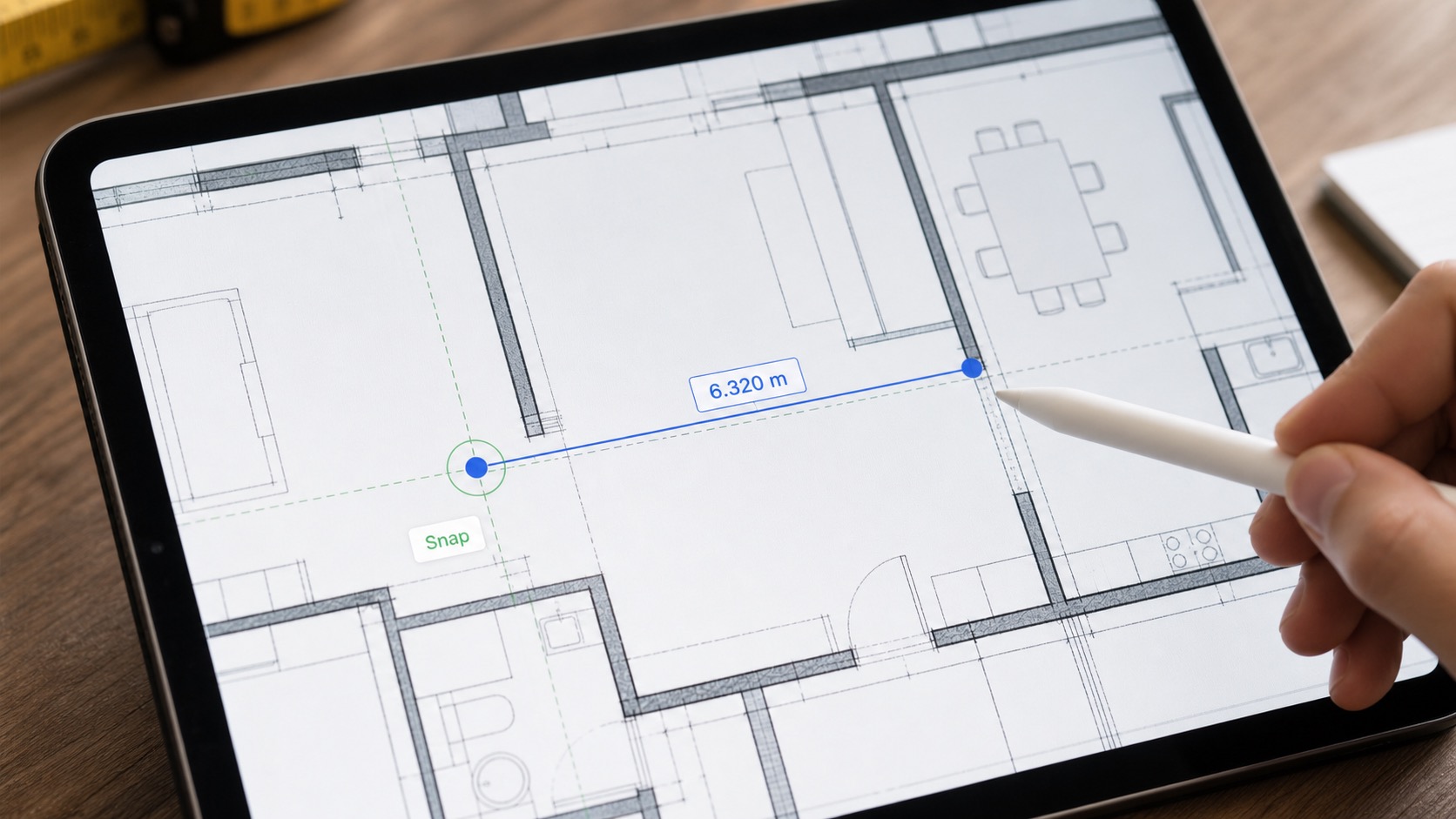
When measuring a DWG on iPad actually works
Many mobile CAD pages treat measurement as one more feature in a long checklist. That is not how people search this topic in practice. When someone looks for measure DWG on iPad, the real question is usually, "Can I trust the number enough to make a decision on site?"
The answer is often yes, especially for field checks such as:
- confirming a room width before a meeting
- checking clearance around an opening or fixture
- verifying a dimension during an inspection walk
- comparing one detail against what is built on site
The answer becomes weaker when the drawing itself is ambiguous, the layers are noisy, the wrong layout is open, or the measurement points were placed carelessly on a small screen.
Use this quick trust checklist before you rely on an iPad measurement:
| Check | Why it matters | Good sign |
|---|---|---|
| Original DWG | Converted PDFs can flatten or remove drawing context | You are measuring directly from the DWG |
| Units | Wrong source units make every result look precise but false | The drawing units match the project expectation |
| Layout / view | Model space and sheet layouts can answer different questions | You know which layout or view you are measuring from |
| Layers | Dense drawings make it easier to snap to the wrong element | Irrelevant layers are hidden before measuring |
| Point selection | Touch input is only as good as the chosen endpoints | You can clearly place points on the intended geometry |
If two or three of those checks fail, the problem is usually not "iPad measurement" as a category. It is the workflow around the measurement.
Start with the original DWG, not a flattened workaround
The fastest way to lose confidence in mobile measurement is to start from the wrong file type. If the drawing was converted to PDF just so it could open on mobile, the plan may still be readable, but you lose part of what makes DWG useful for review: layouts, layers, geometry structure, and the broader CAD context around the dimension.
That is why the first step is not "find a ruler tool." The first step is opening the actual drawing file from a local iPad workflow. Apple's Files basics for iPad are relevant here because most serious field workflows start from Files, Mail, AirDrop, or another share-sheet source.
If your current challenge is opening the file cleanly before you even measure it, the guide on how to open DWG files on iPad without converting them is the right place to start.
Autodesk's DWG drawing file format compatibility reference is also a useful reminder that DWG is not one tiny uniform file type. The drawing version, geometry complexity, layouts, text, and blocks all affect how comfortable the file will be to review on mobile.
What makes a DWG measurement trustworthy on iPad
The best mobile measurement workflow is not just "tap two points." It is "tap two points after removing the reasons those points could mislead you."
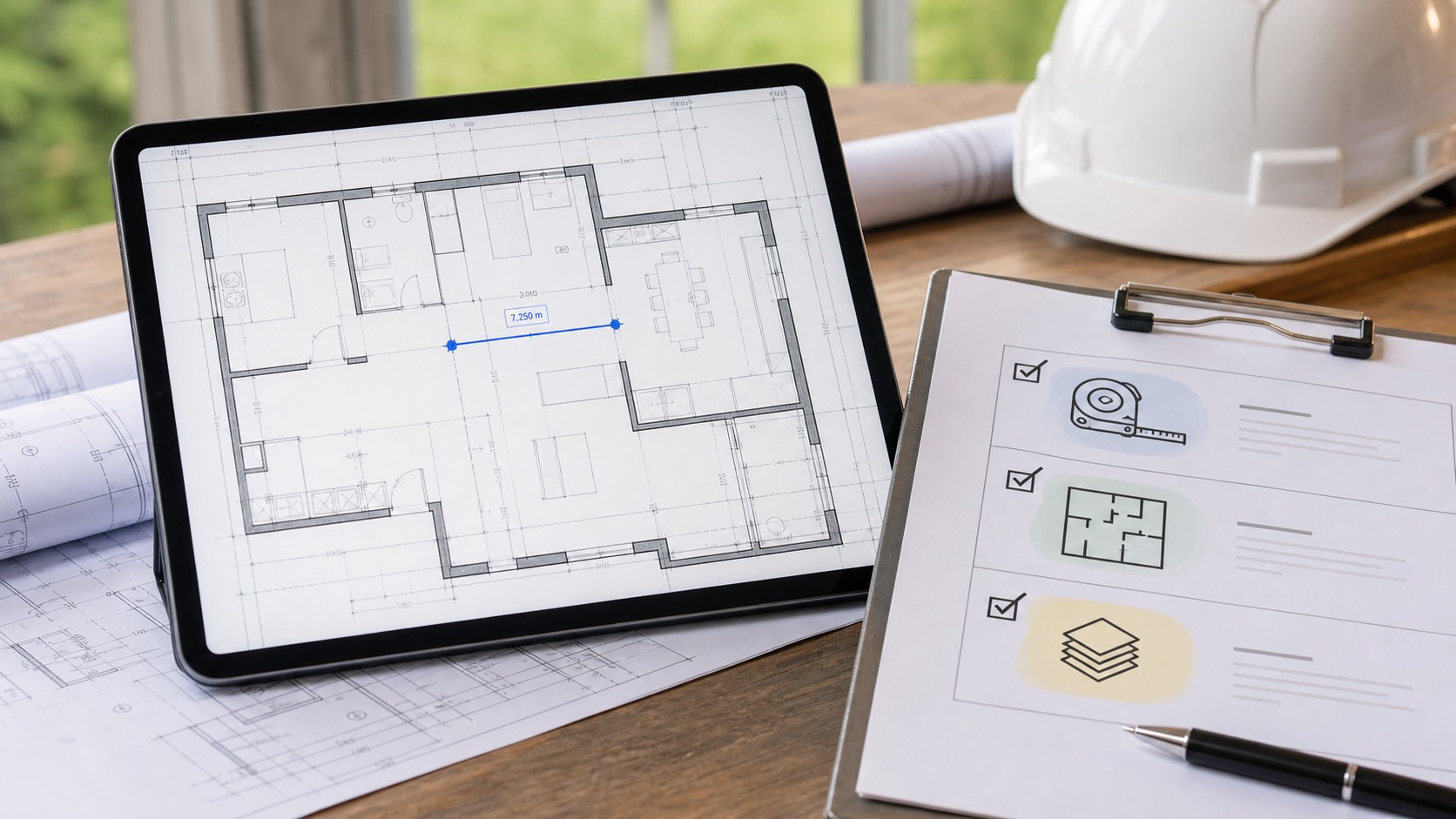
1. Confirm the drawing units before acting on the result
A measurement can look perfectly clean on screen and still be wrong if the source drawing was created with unexpected units. PlanInspect's own support copy already frames this correctly: the value comes from the drawing's coordinate system, so if it looks wrong, the first question is whether the DWG was authored with the correct metric or imperial units in the original CAD workflow.
In other words, the iPad is not usually inventing the number. It is exposing whatever the drawing's geometry and units imply.
If you want a quick product-level reminder about this behavior, the support page is the best internal reference.
2. Measure in the right layout or drawing context
A field team does not always need the same view a CAD author used. Sometimes you need a sheet layout because it matches the issued plan set. Other times you need the underlying model-space context because you want the raw geometry.
The mistake is not choosing one or the other. The mistake is measuring without knowing which one you are in.
If the number looks surprising, ask:
- am I in the intended layout?
- am I measuring the visible sheet context or the underlying geometry?
- is this the latest issued drawing?
Those checks are faster than redoing the whole walkthrough.
3. Hide noise before placing the points
On a desktop monitor, dense layer stacks are inconvenient. On iPad, they can make precise point selection much harder than it needs to be.
If a plan combines architecture, MEP, furniture, dimensions, and annotations, isolate the part of the drawing you actually need before measuring. That is one reason field reviewers care so much about layer control. Less visual noise usually means fewer accidental endpoints and a faster decision.
This is also why measurement belongs inside a larger review workflow, not as a standalone gimmick. The same layer cleanup that helps a measurement also helps notes, markups, and discussion on site.
Mobile CAD apps talk about measurement differently than field teams use it
Official product pages confirm that mobile measurement is real, but they usually frame it as part of a much broader toolset.
- Autodesk's AutoCAD Web/mobile overview emphasizes access, markups, collaboration, and offline-plus-sync as part of the Autodesk ecosystem.
- The DWG FastView mobile page emphasizes cross-platform viewing, editing, annotation, and multi-device continuity.
Those are valid priorities if your job is broader mobile CAD editing or a cloud-connected drawing workflow.
But many iPad measurement searches come from a narrower field problem: "I need to trust one dimension right now, in the room where the work is happening, without dragging the drawing through a desktop workflow first."
That is the practical gap this topic needs to answer.
A simple iPad DWG measurement workflow
For field use, keep the process boring and repeatable:
- Open the original DWG from Files, Mail, AirDrop, or another local source.
- Confirm you are in the right drawing and layout.
- Hide layers that make the endpoint harder to identify.
- Zoom in until the target geometry is obvious.
- Place the first point, then the second point, only after the endpoint is visually clear.
- If the value matters for follow-up, capture the result in the same review workflow with a note, markup, or export.
That final step matters more than most blog posts admit. A measurement that never gets turned into a note, instruction, or deliverable is easy to lose ten minutes later.
If your team is already doing structured site reviews, the DWG field review checklist is the best companion article. If you are still comparing apps at the category level, how to choose a DWG viewer for iPad explains what else to test beyond measurement alone. And if you only need a quick drawing lookup while walking, the newer DWG viewer on iPhone guide explains when the phone is enough and when the job should move back to iPad.
Where PlanInspect fits
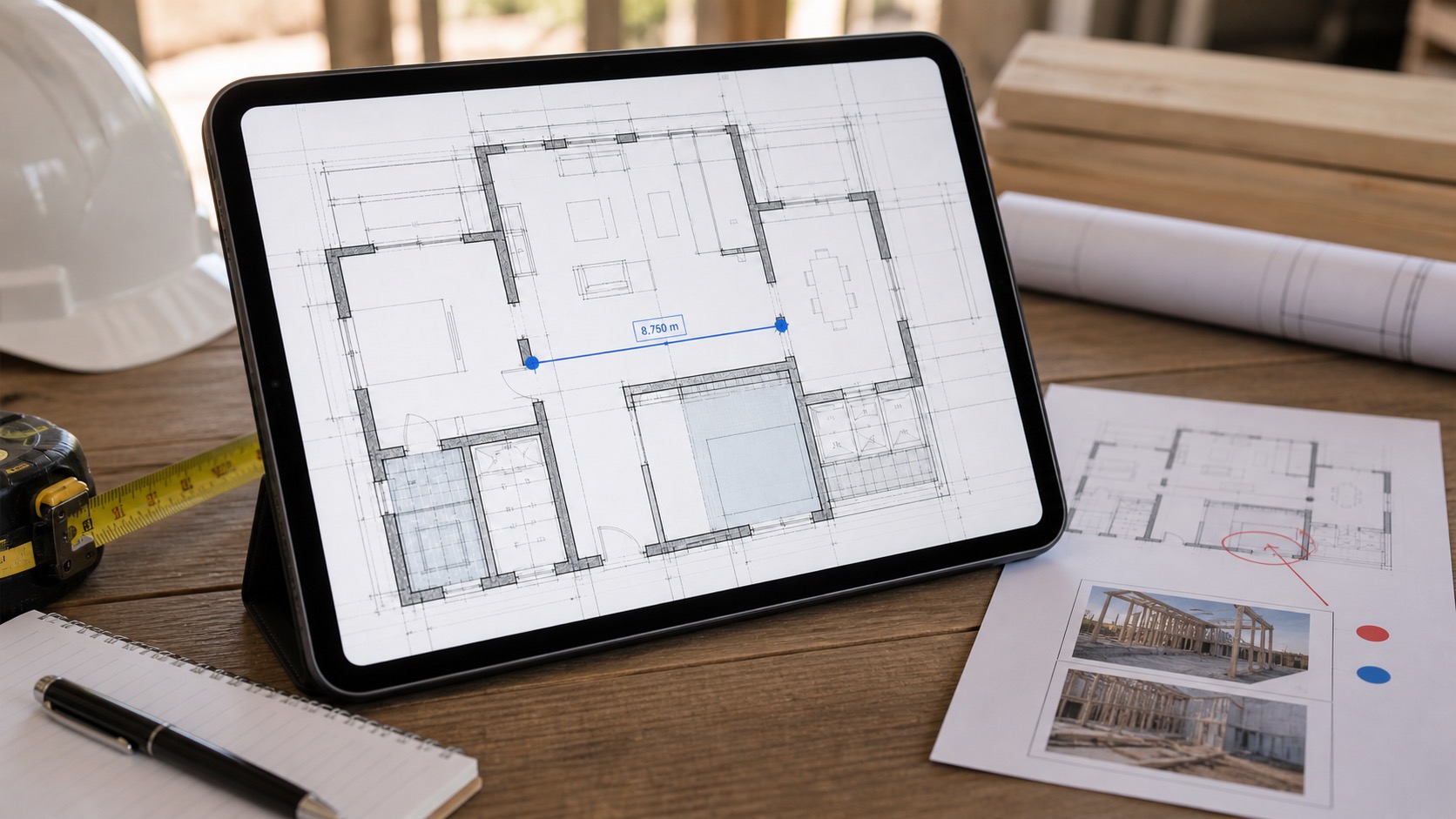
PlanInspect fits this topic best when the iPad is being used for field review rather than full desktop-style CAD editing. The current site and App Store copy support a straightforward path: open local DWG drawings, inspect layouts and layers, measure directly from the drawing, add notes or markups, and export a clean PDF or review report when the work is ready to share.
That makes it a practical choice when you care about:
- opening the original DWG locally
- measuring without leaving the drawing workflow
- isolating the right layers before placing points
- keeping the result connected to notes or reports
- staying productive when internet access is unreliable
Trust the workflow, not just the feature list
The best way to measure a DWG on iPad is not to find the app with the loudest measurement claim. It is to test a real project drawing through a workflow that keeps the result trustworthy: original DWG, correct units, clean context, careful point selection, and a clear next step after the number appears.
If an app can do that on a real site day, then iPad measurement is not a compromise. It is a practical part of the review workflow.