
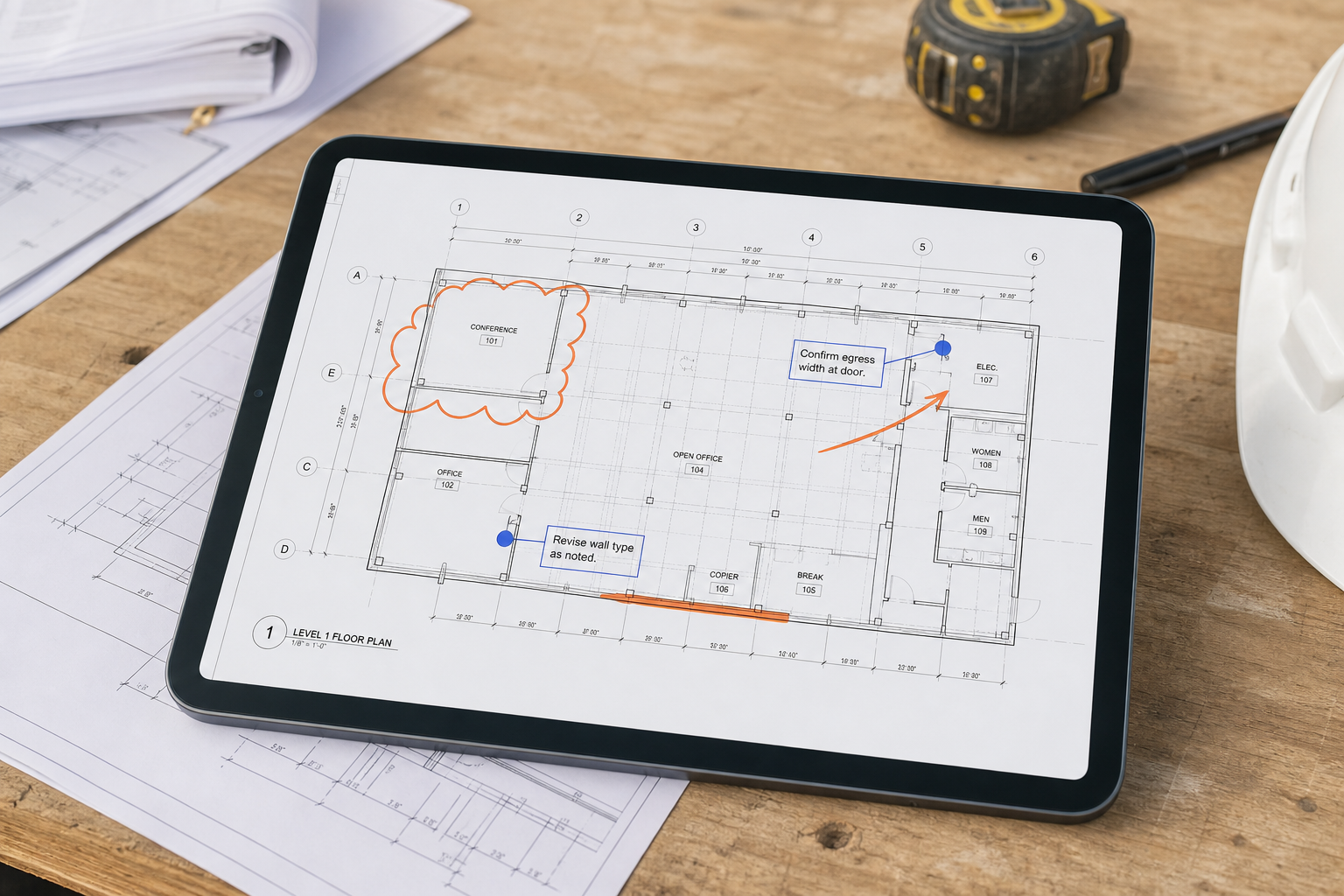
Yes, you can annotate a DWG on iPad without changing the original file, but the safest workflow is to treat annotation as review output rather than CAD editing. Open the original DWG locally, isolate the right layout and layers, add notes or markups that stay tied to the plan, then export a clean result for the team instead of overwriting the drawing itself.
That distinction is the whole point. Many mobile CAD pages blur annotation and editing together, but field teams often need something narrower and safer: mark up the plan, capture what changed on site, and leave the source DWG intact.
What annotating a DWG on iPad should mean
When people search for annotate DWG on iPad, they usually are not asking for a full mobile drafting environment. They are asking whether they can walk a site with the drawing, mark up issues, add context, and hand off something useful before they get back to the office.
That job is closer to review than to design editing.
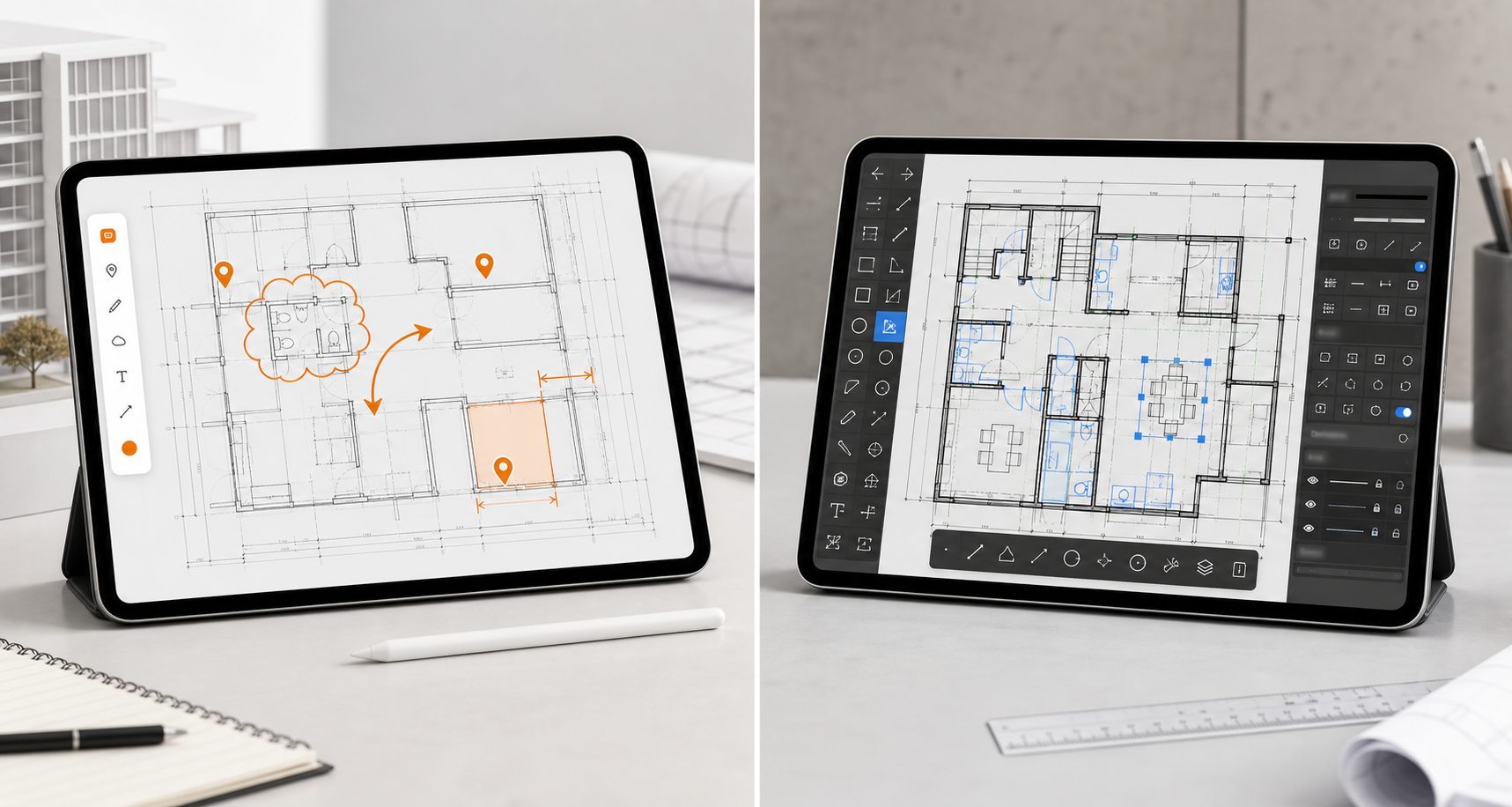
Official mobile CAD pages confirm that annotation exists inside broader products. Autodesk's AutoCAD Web/mobile overview positions mobile around viewing, editing, creating, and annotating drawings from connected storage. DWG FastView's annotation commands page highlights arrows, text, revclouds, images, and other markup tools.
Those capabilities are real, but they do not fully answer the field question. The missing answer is how to add review notes without turning the walkthrough into a geometry-editing session or creating doubt about whether the source drawing was changed.
Annotation workflow versus editing workflow
Before choosing an app or workflow, separate these two jobs:
| If the job is... | You mainly need... | Best workflow fit |
|---|---|---|
| Review, inspection, punch items, or coordination | Notes, highlights, arrows, measurements, photo-backed observations, export | Annotation workflow |
| Revising the drawing itself | Geometry tools, drafting commands, block edits, broader CAD controls | Editing workflow |
| Quick site clarification | One issue pinned to one exact location on the plan | Annotation workflow |
| Updating design intent in the file | Authoring and editing responsibility | Editing workflow |
That table matters because many teams buy the wrong mobile tool for the wrong reason. If your goal is site communication, the most useful question is not "Can it edit?" It is "Can it help me mark the issue clearly and keep the drawing trustworthy?"
If you are still comparing the broader category first, how to choose a DWG viewer for iPad is the main decision guide.
Start from the original DWG, not a flattened workaround
The cleanest annotation workflow starts with the actual DWG file. That keeps the layout context, layers, and measurement flow available while you review.
Apple's Files basics for iPad matter here because many site sessions begin in Files, Mail, AirDrop, or another local handoff flow. If the drawing only becomes usable after converting it elsewhere, you have already added friction before the first markup.
If local import is still the blocker, start with how to open DWG files on iPad without converting them. Annotation gets much easier once the file opens cleanly from the same local workflow your team already uses.
A practical 5-step workflow to annotate a DWG on iPad
1. Open the drawing locally and confirm the right context
Make sure you are in the right drawing, the right revision, and the right layout before adding anything. A markup on the wrong sheet is worse than no markup because it creates false confidence.
This is also where local/offline access matters. If the site has weak signal, you still need the drawing to open immediately and stay available while you work.
2. Hide noise before you mark up the plan
Dense drawings are harder to annotate well on a tablet if every layer is competing for attention. Before dropping notes or highlights, simplify the view enough that the issue is obvious.
The same cleanup that makes a measurement easier also makes markup clearer. If you are validating one detail before adding a note, how to measure distances on a DWG file from iPad is the closest companion workflow.
3. Use annotation to describe the issue, not redraw the project
This is the key distinction most vendor pages skip. Annotation is for review context:
- a note about a mismatch on site
- a highlight around the affected area
- an arrow pointing to the exact issue
- a measurement attached to a concern
- a photo-backed observation tied to the drawing location
Autodesk's older AutoCAD mobile annotation walkthrough is useful here because it shows how field annotation often starts from one visible condition that needs clarification, not from a full drafting session.
If you find yourself redrawing geometry, you have probably left the annotation workflow and entered editing territory.
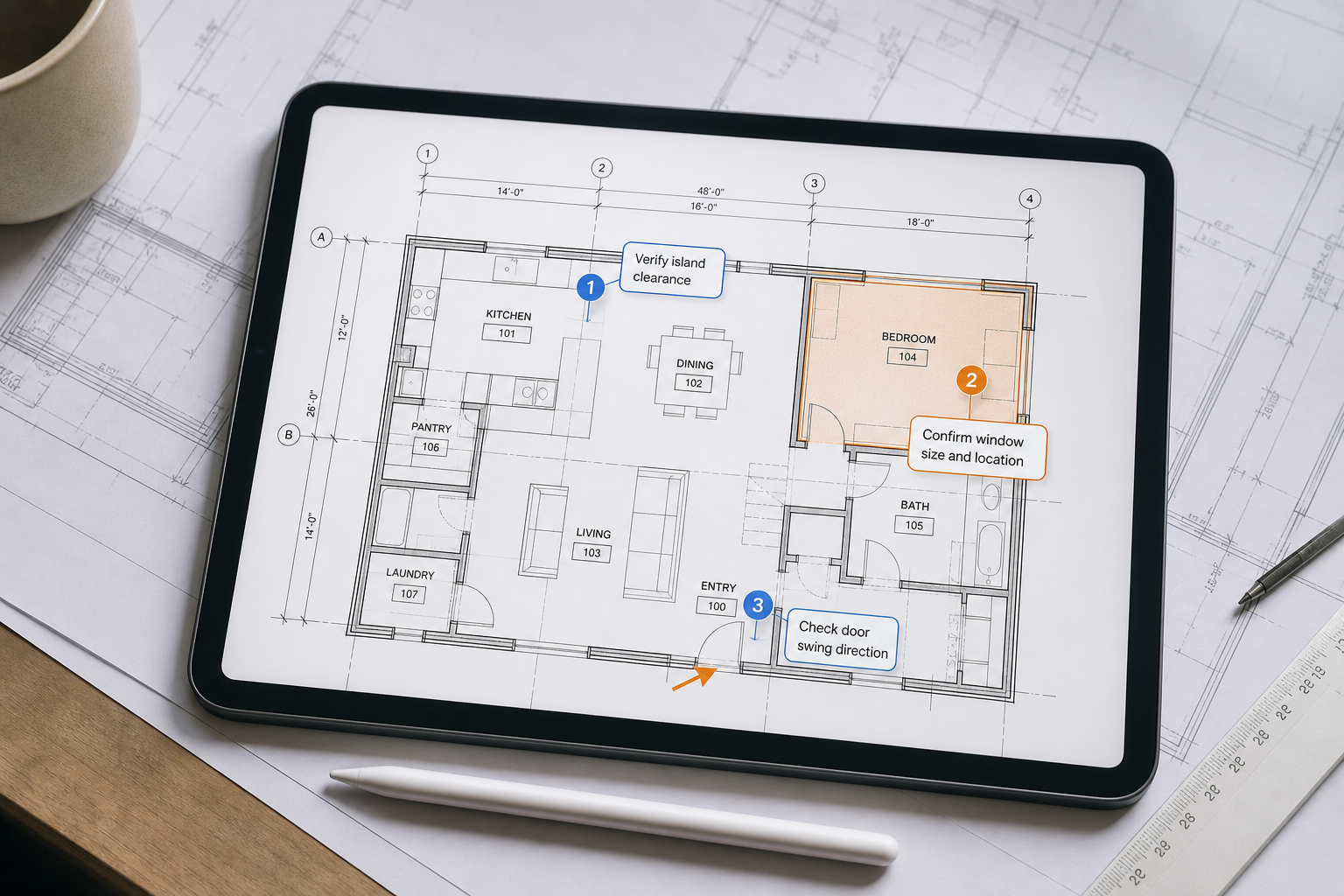
4. Keep every markup tied to a precise location
A good markup is not just visible. It is unambiguous.
For field work, that usually means:
- one issue per note when possible
- short wording instead of long paragraphs
- clear visual anchor on the plan
- photo context only when it genuinely improves understanding
- enough separation between callouts that the export stays readable
This is why the best iPad annotation workflow often feels closer to structured site review than to casual drawing on top of a plan. The note needs to survive handoff to someone who was not standing next to you when you created it.
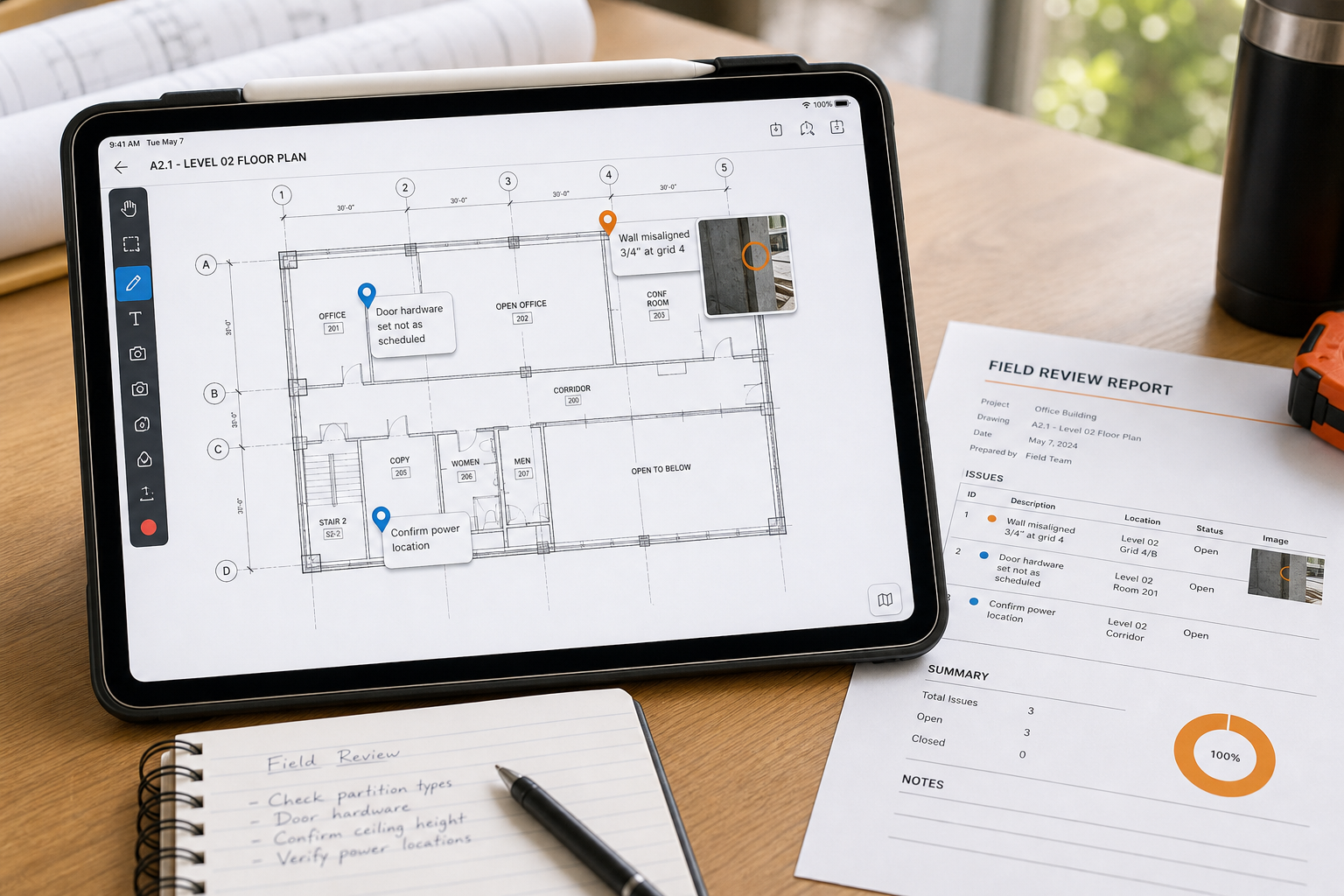
If your review also depends on attaching field photos to exact note locations, how to add site notes and photos to a DWG on iPad goes deeper on building that evidence-first workflow.
The DWG field review checklist is the best internal hub if your annotations are part of a broader inspection or punch workflow.
5. Export the result instead of overwriting the source drawing
The most practical end state is not "I marked up the file somehow." It is "I can share a clear annotated output while preserving the original drawing."
That might be:
- an annotated PDF for review
- an image export for a quick team handoff
- a notes report that lists each observation cleanly
- a follow-up package that pairs the plan with location-tied comments
This is the step that makes the original search query worth solving. Many site teams do not need mobile CAD editing. They need a trustworthy way to communicate what they saw.
Why this matters more than a generic markup feature list
Many comparison pages treat annotation as one bullet among dozens. That is too shallow for real site work.
What matters on iPad is whether the markup workflow helps you:
- preserve the original DWG
- keep local access simple
- add notes without cluttering the drawing
- connect measurements, notes, and photos when needed
- export something another person can act on quickly
If those things work, the app is doing the real job. If not, a longer feature list will not save the workflow.
Where PlanInspect fits
PlanInspect fits this topic when the goal is local DWG review on iPhone or iPad, not broad CAD editing. The current site and App Store copy support a focused workflow: open local DWG files, inspect layers and layouts, measure when needed, add notes and markups, keep everything on-device unless you choose manual iCloud backup, and export a clean PDF or report once the review is ready to share.
That is a strong fit when your checklist sounds like this:
- open the original DWG from Files, Mail, or AirDrop
- walk the site with the actual plan on iPad
- pin notes and markups at exact locations
- keep the original drawing intact
- export the annotated result without a cloud-required detour
It is a weaker fit if your primary need is full mobile CAD editing inside a larger multi-device authoring workflow. In that case, AutoCAD-style or DWG FastView-style tools may align better.
Keep the drawing intact and make the review clearer
The best way to annotate a DWG on iPad is to stay disciplined about the job. Open the real file locally, simplify the view, mark only what matters, tie each observation to the right place, and export the annotated result instead of treating the drawing like a scratchpad.
If that is your workflow, iPad annotation is not a compromise. It is a faster path from drawing to decision.