
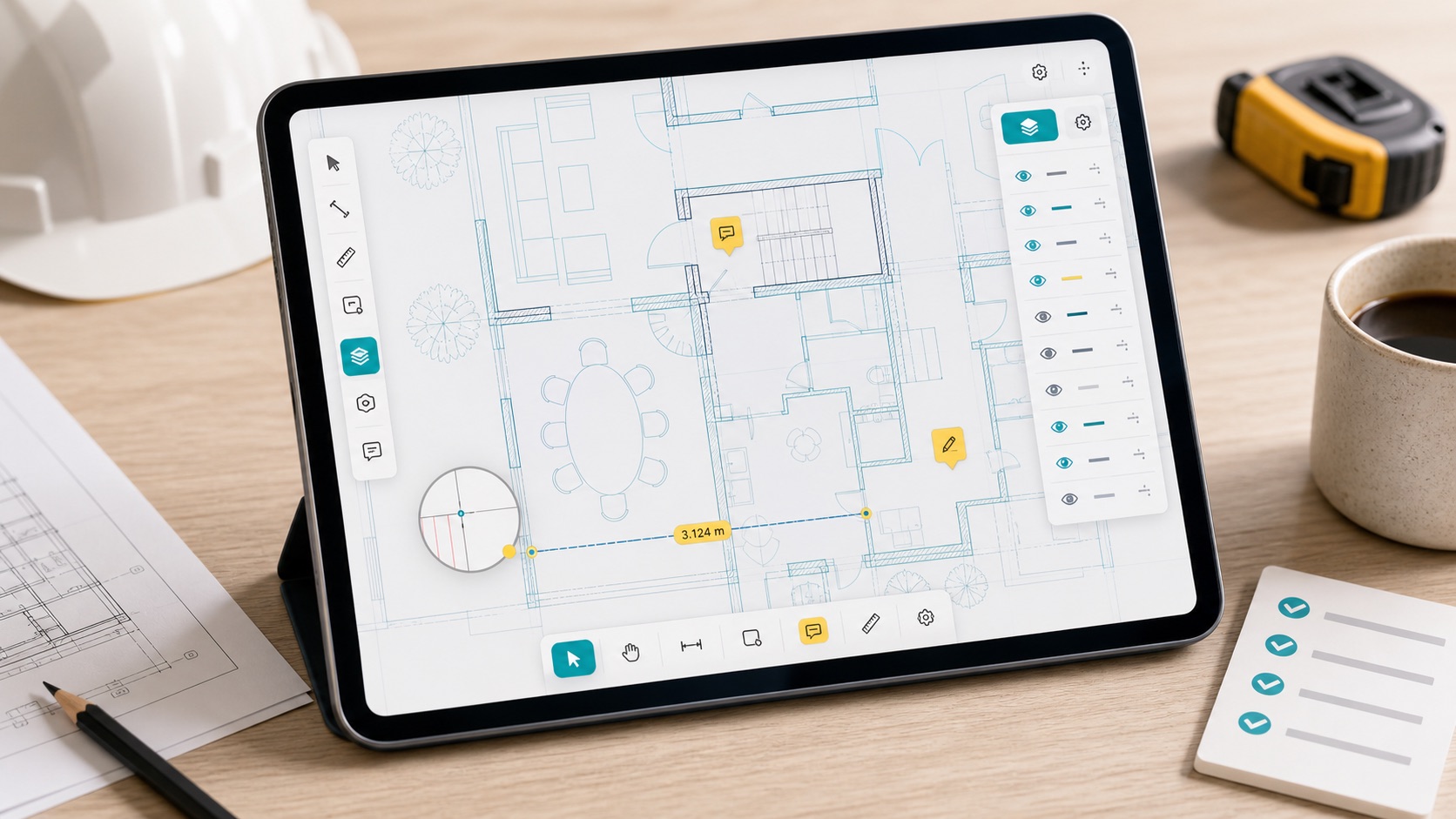
The best DWG viewer for iPad is not always the app with the longest feature list. It is the app that matches the job you are doing: quick drawing lookup, field inspection, measurement, markup, report export, or cloud-based CAD editing.
If your team mostly reviews drawings on site, start with one question: can the app keep the original DWG useful when you are away from a desk, a large monitor, and reliable internet?
Start with your real workflow
A mobile DWG workflow usually falls into one of three categories.
| Workflow | What matters most | Typical fit |
|---|---|---|
| CAD editing | Drawing commands, blocks, edits, cloud sync, desktop continuity | AutoCAD-style mobile/web tools |
| Drawing sharing | Fast viewing, account-based access, web/mobile/desktop handoff | Cross-platform viewers |
| Field review | Local files, layers, measurements, notes, markups, report export | iPad-first inspection tools |
Products like DWG FastView emphasize cross-platform viewing, editing, sharing, cloud access, measurement, annotation, and premium storage across web, mobile, and Windows. Autodesk's AutoCAD Web and mobile focuses on core AutoCAD commands, cloud collaboration, markups, layers, and mobile access that can sync later.
Those are useful directions if the iPad is part of a broader CAD editing or cloud collaboration workflow. But a site inspection has different pressure: the drawing needs to open quickly, stay readable, expose the right layers, support measurements, and leave you with something clear to send back.

Check whether it opens the original DWG
DWG is the native drawing format used by AutoCAD-based products, and each drawing can carry geometry, layers, layouts, blocks, metadata, and version-specific details. Autodesk maintains a useful reference for drawing file format compatibility across AutoCAD products.
For field work, the practical point is simple: conversion can be convenient, but it can also flatten the context you need. A PDF may be enough for a quick visual check, but it will not behave like a DWG with layers, layouts, object structure, and drawing coordinates.
Before choosing a viewer, test it with the actual files your team uses:
- one recent DWG from the current project
- one older DWG from an archive
- one drawing with multiple layouts
- one file with heavy layers, hatches, blocks, or MEP detail
- one file large enough to represent a real site day
If the viewer only works well on clean sample drawings, you have not tested the workflow yet.
Decide how much cloud you really want
Cloud workflows are valuable when several people need the same file, when edits must sync, or when drawings live in a platform such as Autodesk Drive, Autodesk Docs, OneDrive, Box, Dropbox, or Google Drive.
But the field often has a different failure mode: bad reception, a basement level, a remote site, or a meeting room where the file must open now. Apple built the iPad Files app around local and cloud locations, recent files, downloads, shared files, and file actions such as copy, move, and share. Apple's Files basics for iPad are worth understanding because most serious mobile CAD workflows start there.
For an iPad DWG viewer, ask:
- Can I open a DWG from Files, email, AirDrop, or a managed storage provider?
- Does the drawing remain available when the connection drops?
- Do I need an account before I can view the file?
- Are my files uploaded to a third-party server, or processed on device?
- Can I share an output without giving the recipient access to the original DWG?
There is no universal right answer. A cloud-first app may be best for distributed CAD collaboration. A local-first app is often better for inspection, privacy-sensitive drawings, and predictable field access.
Make layers and layouts a first-class test
On a desktop, a noisy drawing is annoying. On an iPad, it can make the file unusable.
A good mobile DWG viewer should let you move through the drawing without fighting the interface. Layer visibility matters because field users rarely need every discipline on screen at the same time. Layout support matters because teams often issue drawing sets with sheets, title blocks, and viewports that are more useful than raw model space.
When you test an app, do not just pinch-zoom the plan. Check whether you can:
- switch between layouts
- inspect the layer list
- hide irrelevant layers
- keep annotation layers separate from the original drawing
- zoom into dense geometry without losing context
- read the plan comfortably in landscape and portrait orientations
This is where a field-focused viewer can be more useful than a general CAD tool. You may not need to edit a block on site, but you do need to isolate the right information fast.
Look for field outputs, not just viewing
Viewing the DWG is only the first step. The real value comes from what happens after the walkthrough.
For construction and inspection teams, the output is usually a decision, a note, a measurement, a photo, a punch item, or a report. That means the viewer should support the last mile of the workflow:
- measure a distance or area from the drawing coordinates
- place a note at the exact location of an issue
- add photos or short descriptions where the context matters
- mark up the drawing without changing the source file
- export a PDF, image, or observation report that someone else can understand
This is the gap PlanInspect is built around. It is a native iOS DWG viewer for iPhone and iPad, designed to open DWG drawings locally, review layouts and layers, measure, add notes and markups, then export clear reports from the field.
If your current problem is simply opening a file, start with the guide on opening DWG files on iPad without converting them. If your team is already doing site reviews, the DWG field review checklist is a useful companion.
A quick evaluation checklist
Before you standardize on any iPad DWG viewer, run this test with one real project file.
| Test | What to look for |
|---|---|
| Import | The file opens from Files, email, AirDrop, or your storage provider |
| Fidelity | Layers, layouts, geometry, text, hatches, and blocks are readable enough for the job |
| Speed | The drawing stays responsive on the iPad model your team actually uses |
| Offline | The file still opens when the device is offline |
| Layers | You can hide noise and focus on the discipline or scope being reviewed |
| Measurement | Distances and areas are usable for field checks |
| Notes | Observations stay tied to locations on the plan |
| Export | The output can be sent to someone who does not have the app |
| Privacy | You understand whether files stay local, sync to your cloud, or pass through vendor servers |
Do this once with a small sample file, then again with a messy real drawing. The second test is the one that matters.
Choose for the job, not the brochure
If you need mobile CAD editing and cloud collaboration, choose a viewer/editor built around that ecosystem. If you need a cross-platform viewer for web, Windows, and mobile, compare apps like DWG FastView carefully.
If your day is built around walking a site with an iPad, the priorities are different: local access, readable layouts, layer control, measurements, notes, markups, and exports. A DWG viewer that is excellent for editing may still be the wrong tool for inspection.
The best test is not whether the app opens a demo file. It is whether it helps you make a clear decision on a real drawing, while you are standing where the work is happening.