
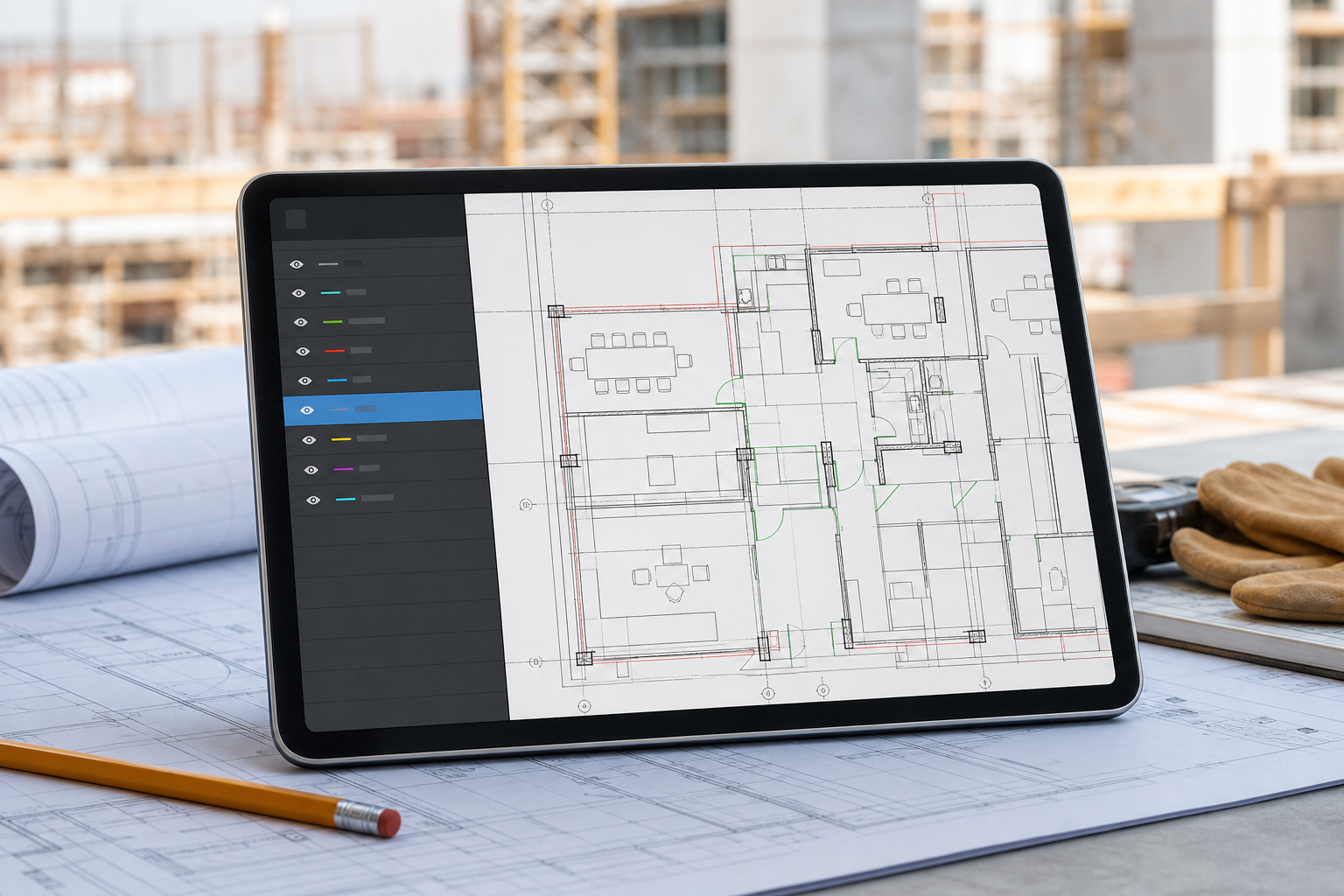
Yes, you can review DWG layers on iPad during a site visit, and that is often the fastest way to make a dense drawing usable in the field. The practical workflow is simple: open the original DWG locally, confirm the right layout, hide the layers that do not matter for the task in front of you, then measure, annotate, or export from the cleaner view.
That is the real job behind this query. Most people searching for DWG layers on iPad are not trying to admire the layer palette. They are trying to remove drawing noise fast enough to answer a question on site.

Why layers matter more on iPad than on a desktop
On a large desktop monitor, extra layers are annoying. On an iPad in the middle of a walkthrough, they can make the drawing unreadable.
Field reviewers usually need only part of the DWG at one time:
- the architectural walls, not every annotation layer
- one MEP system, not all services at once
- the issued layout that matches the printed set, not every model-space detail
- the geometry around one issue, not the whole sheet in full density
Current mobile CAD products validate that layer control is a real requirement. Autodesk's AutoCAD Web/mobile overview highlights local file access, offline work, and flexible layers. Autodesk's older mobile layer tutorial shows the layer workflow explicitly. DWG FastView's mobile layer guide and the ARES Touch iPad listing make the same point: mobile reviewers expect to manage layers, not just zoom around a flat drawing.
What those pages rarely explain is the field reason behind the feature. Layers are how you turn "this drawing is too busy to use" into "I can answer the question in front of me."
What a good layer review workflow solves on site
Use layers to simplify the drawing around the decision you need to make now.
| Site task | Layers to focus on | Why it helps |
|---|---|---|
| Check wall or opening dimensions | Architectural walls, doors, dimensions | Reduces accidental measurement points |
| Review one system clash | One MEP discipline at a time | Makes the conflict easier to see |
| Add a site note | Relevant geometry plus note context | Keeps the markup attached to the right place |
| Walk an issued plan set | The correct layout and sheet layers | Matches the drawing everyone else is discussing |
| Prepare an export or report | Only the layers needed for the handoff | Produces a cleaner PDF or image |
If you are still comparing category options first, how to choose a DWG viewer for iPad is the broader guide. If the main problem is getting the file open from iPad storage, start with how to open DWG files on iPad without converting them.
Start with the original DWG and the right layout
Layer review works best when you are working from the actual DWG, not a flattened fallback. Apple's Files basics for iPad matter here because real field workflows usually begin in Files, Mail, AirDrop, or a managed storage folder.
Before changing visibility, confirm two things:
- You opened the right drawing revision.
- You are in the right layout or drawing context for the conversation on site.
That second step matters. If the team is discussing a sheet layout and you are looking at a different context, the cleanest layer list in the world will not save the walkthrough.
A practical iPad workflow for reviewing DWG layers
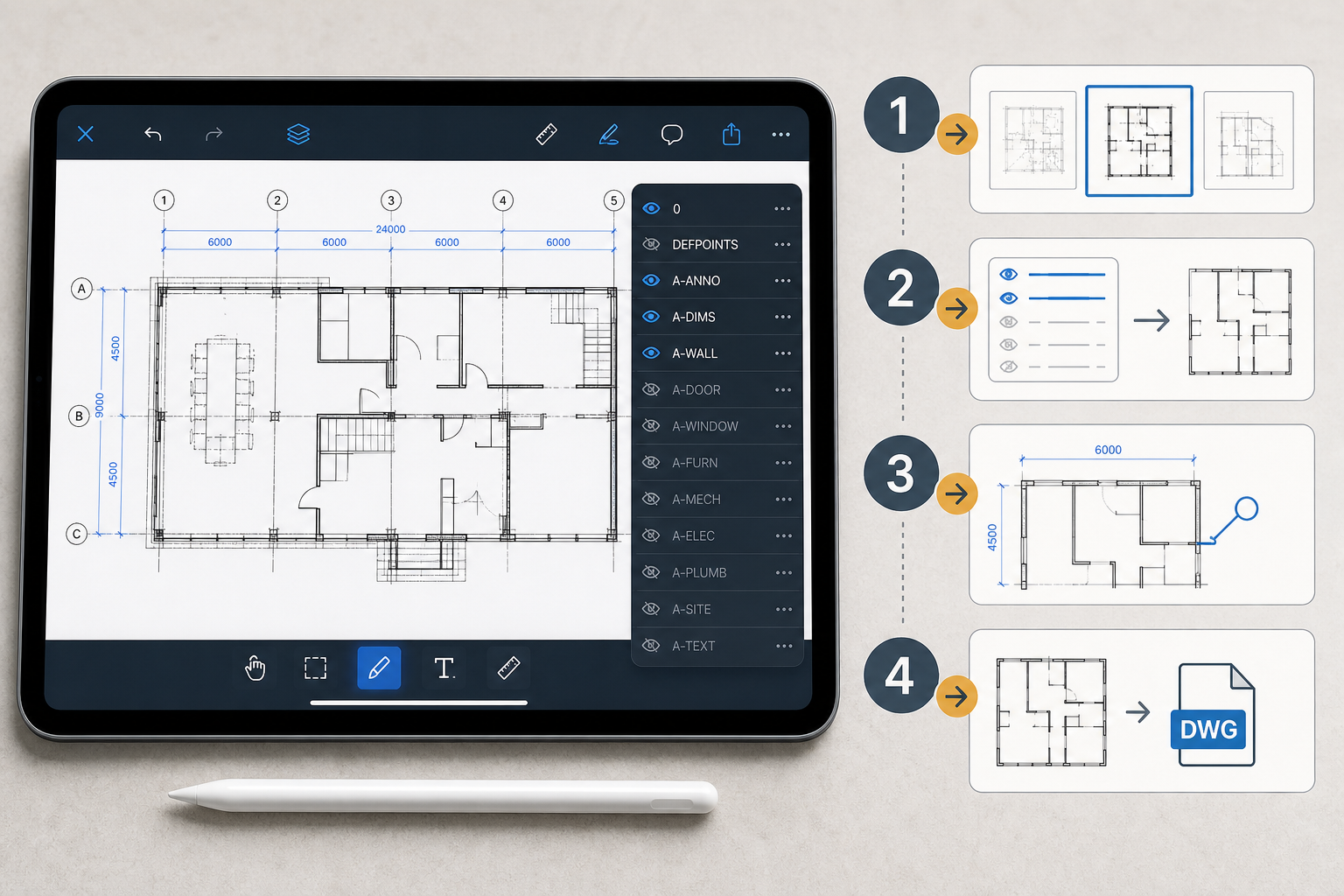
1. Scan the layer list before you zoom everywhere
When a drawing looks crowded, most people start pinch-zooming immediately. That usually wastes time.
A faster move is to inspect the layer list first and identify the obvious noise:
- dimensions you do not need yet
- text-heavy annotation layers
- furniture or fit-out layers unrelated to the current issue
- MEP systems outside the discipline being discussed
- hatch-heavy layers that hide the geometry you actually need
This is where a layer-aware viewer becomes much more useful than a simple drawing viewer.
2. Hide noise before you measure or mark up anything
Layer review is not an isolated task. It sets up the next action.
If you need to measure, a cleaner layer set reduces bad point selection and makes endpoints easier to trust. The companion guide on measuring a DWG from iPad goes deeper on that workflow.
If you need to add a note or markup, a cleaner plan keeps the comment readable and tied to the right location. The same pattern carries into annotating a DWG on iPad without changing the original file.
3. Isolate the drawing information that answers one question
Do not try to create the perfect universal layer preset during the walkthrough. Focus on the one decision in front of you:
- "Is this opening wide enough?"
- "Which ceiling layer is causing the clash?"
- "Where exactly should this site note land?"
- "What should be visible in the report we send after the meeting?"
Good layer review on iPad is usually about fast simplification, not about recreating the whole desktop CAD management workflow.
4. Treat "missing" elements as a visibility check first
When people say part of the drawing is missing, the first explanation is often simpler than a parser failure: the layer may be hidden, off, or frozen in the source workflow.
PlanInspect's own support page already frames this the right way. If some layers or elements seem absent, first check the layer panel and make sure the drawing element is not simply on a hidden or off layer.
That habit matters because it separates two very different situations:
- the geometry exists, but the current visibility state is hiding it
- the drawing contains entities that still need broader renderer support
Checking the layer state first is the quickest field-safe diagnosis.
5. Carry the cleaner view into the handoff
The layer step only matters if it makes the next handoff clearer.
After you isolate the right view, you can:
- confirm one measurement
- place one note exactly where it belongs
- show the right layout during the meeting
- export a cleaner PDF or review output for the team
That is why layers belong inside a broader field-review workflow, not as a standalone feature bullet. The DWG field review checklist is the best hub if your site walk includes measurements, markups, and reporting together.
Where PlanInspect fits
PlanInspect fits this topic when the real job is local DWG review on iPad, not broad mobile CAD authoring.
The current site, App Store listing, and product screenshots support a practical workflow:
- open DWG files from Files, Mail, iCloud Drive, AirDrop, or the iOS share sheet
- inspect the layer list and hide noisy layers
- switch layouts when the issued sheet matters more than the raw drawing context
- measure, add notes, and mark up the cleaned-up view
- export a clearer result once the review is ready to share

That makes PlanInspect a strong fit when your iPad workflow sounds like this:
- "Open the DWG locally and keep it usable on site."
- "Hide the layers that are making this detail unreadable."
- "Measure or annotate only after the view is clean."
- "Export a result another person can understand quickly."
Simplify first, then decide
The best way to review DWG layers on iPad is not to chase every control in a mobile CAD app. It is to simplify the drawing until the next decision becomes obvious.
Open the real DWG, confirm the right layout, hide the noise, check whether missing elements are really hidden layers, and only then move into measurement, notes, or export. When that flow works, iPad layer review stops feeling like a mobile compromise and starts feeling like the fastest way to make the drawing usable on site.