
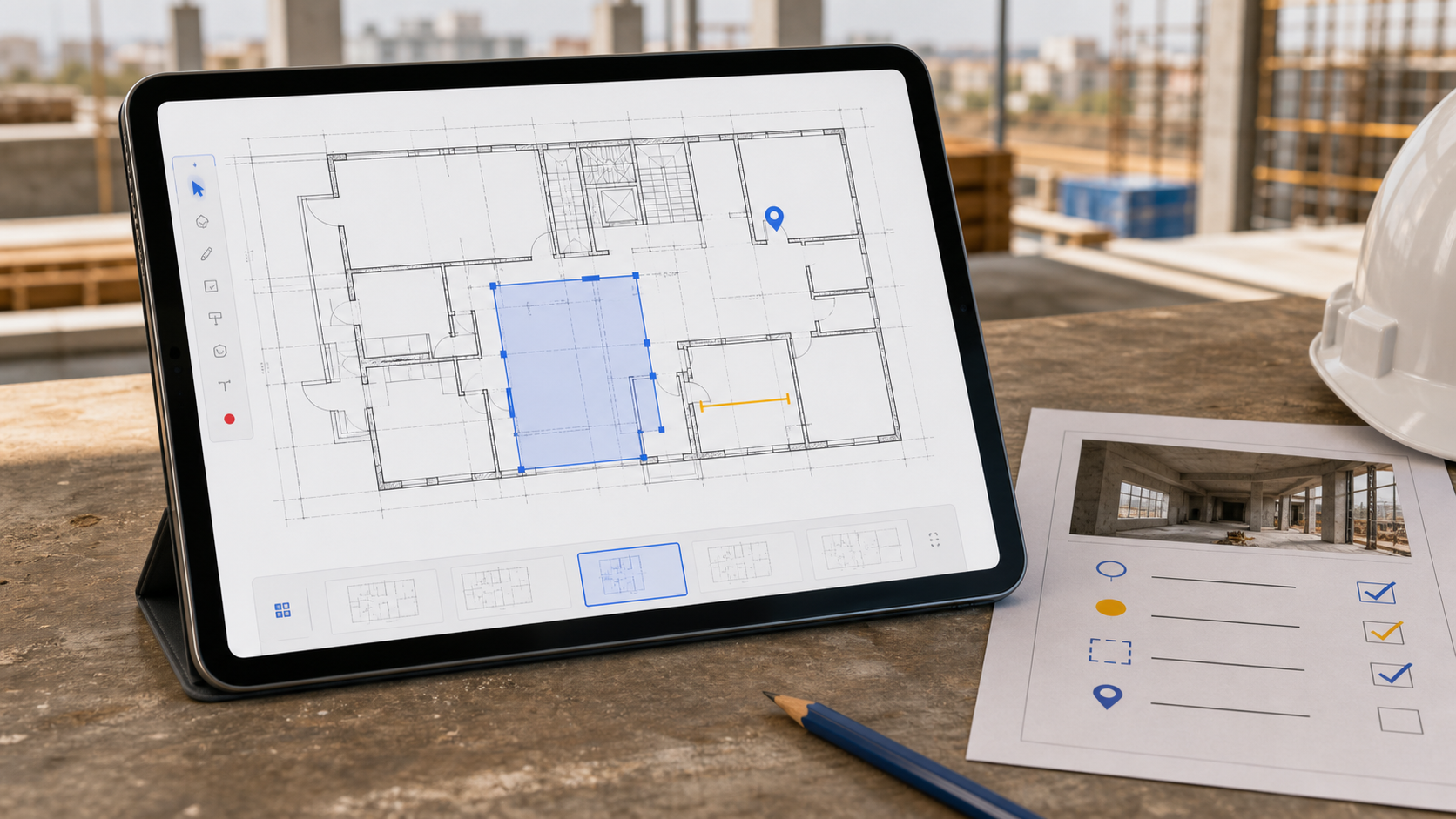
The most reliable iPad site walkthrough workflow is simple: open the original DWG, confirm the right layout and visible layers, verify the condition that matters, capture notes and photos on the drawing, then export the handoff before you leave the area. If the team still needs the real plan during the walk, a generic checklist app or PDF viewer is usually not enough. You need a drawing-first review flow.
That is the gap many walkthrough search results leave open. They explain inspection apps, reporting tools, or broad mobile CAD platforms, but they do not show how the drawing, the observation, and the handoff fit together as one practical sequence on iPad.
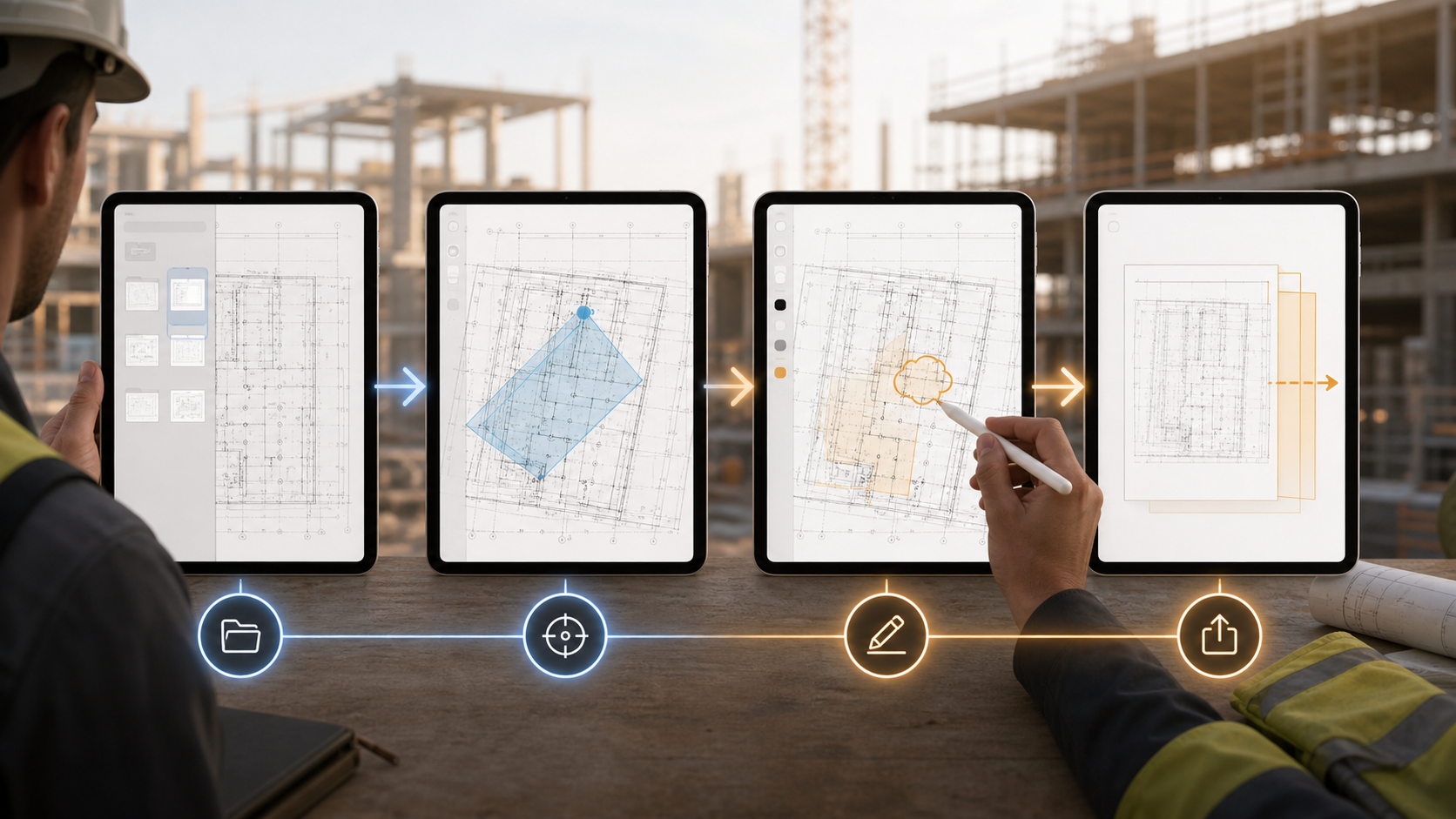
The short version of the walkthrough
If you need the operating model first, use this table:
| Stage | What the team does | Why it matters |
|---|---|---|
| Open | Load the original DWG from Files, Mail, AirDrop, or another provider in Files | Prevents a conversion detour before the walkthrough starts |
| Orient | Confirm the right layout, visible layers, and drawing context | Stops false conclusions caused by the wrong sheet or too much visual noise |
| Verify | Check the one condition, dimension, or detail that matters at that location | Keeps the walkthrough grounded in the drawing instead of memory |
| Capture | Add notes, markups, and photos at the exact plan location | Makes the issue understandable later without rebuilding the context |
| Handoff | Export a PDF, image, or report before leaving the area | Preserves the field reasoning while it is still clear |
If that sequence sounds familiar, it is because a site walkthrough is not really a separate workflow from drawing review. It is the field version of drawing review under time pressure. The drawing still matters, but the team also needs an output someone else can act on right away.
If your broader question is still how a whole iPad review flow fits together, A complete iPad DWG review workflow for construction teams is the main hub. This article narrows that system to the moment when people are physically walking the site with the plan in hand.
Why walkthrough searches get mixed up
Search results for walkthrough apps and plan workflows tend to mix together at least four different product categories:
- construction platforms focused on synced plans, tasks, and team coordination
- documentation apps focused on photos, progress records, or issue tracking
- broad mobile CAD products focused on viewing, editing, and sharing across devices
- drawing-first review apps focused on opening the original DWG, reading it clearly, and turning observations into a clean handoff
That is why walkthrough content often feels incomplete. One category may be excellent at progress documentation. Another may be excellent at cloud CAD continuity. Another may be strong for task routing after the walkthrough is over. But the practical field question is narrower:
How do we walk the site with the actual drawing, make one trustworthy call, and leave with a handoff that still makes sense later?
Fieldwire's construction app for iPad is a good example of a field-management answer. It emphasizes blueprint distribution, tasks, synced photos, and project coordination. Autodesk's mobile apps page is a good example of a broad mobile-CAD answer. It separates DWG editing/viewing from construction workflow tools such as ACC and BIM apps. The JobWalk App Store page shows a documentation-first answer built around 360-degree progress capture.
Those are real jobs, but none of them automatically explain a DWG-first walkthrough on iPad.
1. Start with the drawing path the team already uses
The walkthrough breaks down early if the drawing does not open cleanly from the path your team already uses.
In real projects, plans often arrive through:
- the iPad Files app
- an email attachment
- AirDrop from a nearby Mac or iPad
- a storage provider surfaced inside Files
That first open matters more than many buyers expect. If the workflow depends on conversion, a vendor-specific workspace, or a delayed sync before anyone can even see the plan, the site walk starts with friction. A walkthrough is usually time-sensitive. Crews do not want to rebuild the file path in the field just to get to the first observation.
For many teams, that is why the right question is not "Which walkthrough app has the most features?" It is "Which app can open the same DWG we already receive, from the same path we already use, and keep it usable on iPad while we move through the site?"
If the import step is still the real blocker, how to open DWG files on iPad without converting them is the direct companion guide.
2. Confirm the sheet context before you trust what you are seeing
A surprising number of walkthrough mistakes are not caused by bad observations. They are caused by bad drawing context.
The file may open, but the reviewer might still be looking at:
- the wrong layout
- the wrong sheet
- too many noisy layers
- a view that hides the detail the conversation actually depends on
That is why a good walkthrough has a short orientation step before anyone starts capturing notes.
Use this checklist:
- confirm the active layout matches the sheet being discussed
- hide the layers that are only adding clutter to the current decision
- zoom into the condition, then zoom back out once to keep the surrounding plan context
- make sure text, linework, blocks, and hatches look credible enough for the field call
This step matters because walkthroughs happen fast. If the team is reading the wrong sheet context, every later note can be technically clear and still practically wrong.
That is one reason the walkthrough sequence deserves its own article instead of being folded into generic inspection advice. The drawing is not just background. It is the thing being interpreted.
If the file opens but still looks wrong, how to switch layouts and paper space on a DWG from iPad is the next troubleshooting read. If the problem is visual clutter inside a dense plan, how to review DWG layers on iPad during a site visit is the better companion.
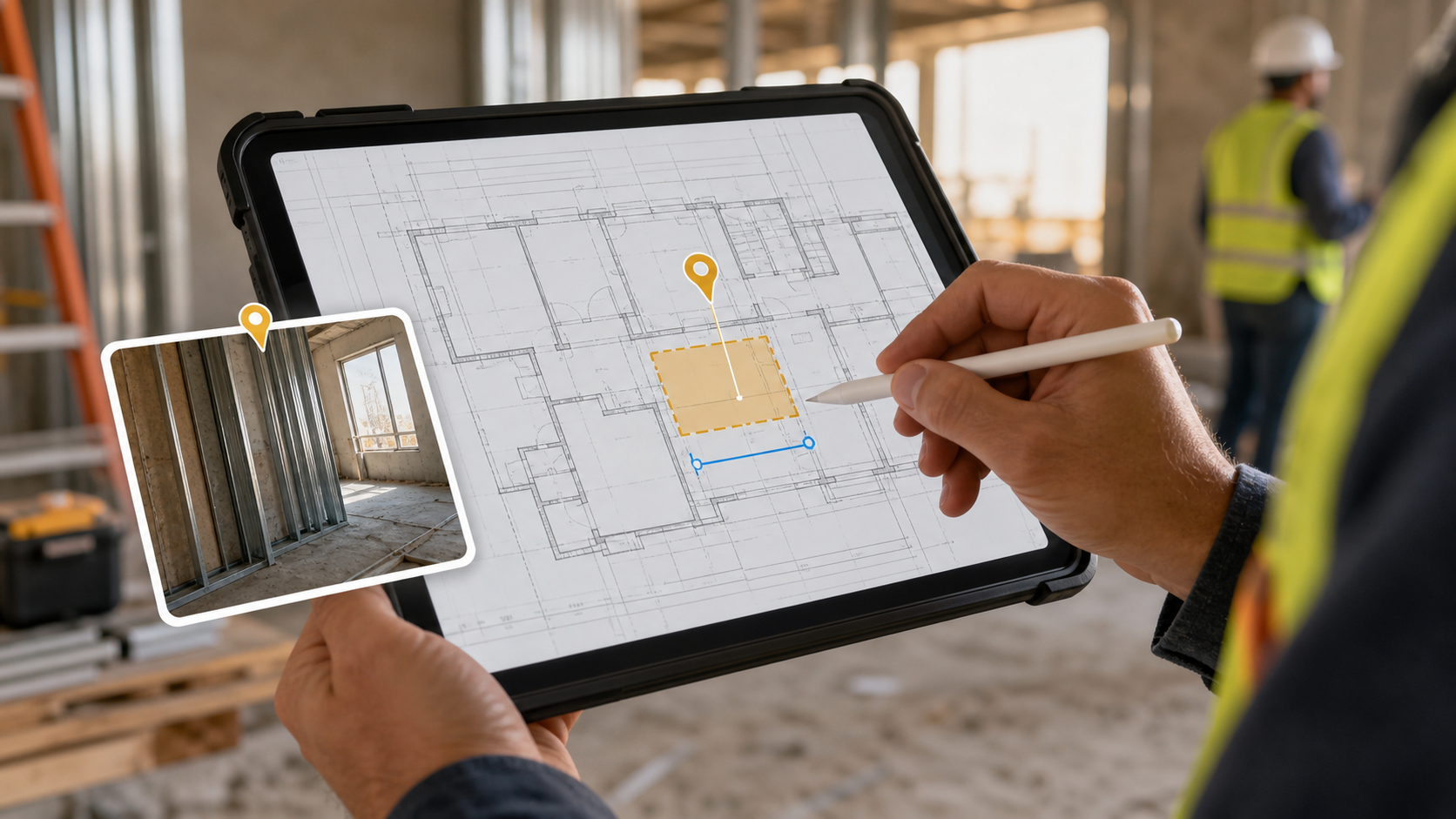
3. Verify the one field condition that changes the conversation
A site walkthrough is rarely about studying the entire drawing forever. It is usually about answering one useful question at a time:
- Is this the right opening?
- Does this installed condition still match the plan?
- Is the issue on the correct sheet and in the correct location?
- Is the clearance acceptable?
- Does this need escalation now, or only a note for later?
This is where a drawing-first workflow is stronger than a generic walkthrough checklist alone. The drawing lets the team verify the condition before the discussion drifts into memory, assumptions, or a detached issue log.
For some walkthroughs, that trust checkpoint is a measurement. For others, it is simply confirming that the note is being attached to the correct layout and detail. Either way, the sequence is the same:
- isolate the relevant context visually
- verify the sheet and layer state one more time
- check the condition or measurement that matters
- decide whether it changes the field call
If measurement confidence is the main requirement, how to measure distances on a DWG file from iPad goes deeper on that part of the flow. In the walkthrough itself, measurement is not the whole story. It is the moment when the team decides whether the observation is worth documenting and sharing.
4. Capture notes and photos where the issue lives on the plan
Most walkthrough processes lose quality the moment the note leaves the drawing.
People remember the conversation, take a few photos, send a message later, and then try to reconstruct where the issue actually was. That is when walkthrough output starts getting vague:
- the note is clear but not tied to the exact location
- the photo exists but the recipient does not know which condition it proves
- the issue is logged, but the plan context has already been lost
That is why the drawing should stay central during the walk. A stronger workflow keeps the observation attached to the location where the team found it.
In practice, a useful note usually needs four things:
- the exact place on the plan
- a short statement of what was seen
- a photo when the condition would otherwise be ambiguous
- the next action or decision
This is where walkthrough content often overlaps with inspection and reporting tools, but the order is different. A reporting-first app can be great once the issue is already understood. A DWG-first walkthrough helps the team understand the issue while the drawing is still open.
The Raken construction app page is useful as a contrast because it shows how strong field-reporting tools center progress reports, observations, and daily logs. That is a valid workflow. The DWG walkthrough workflow starts one step earlier: interpret the plan correctly first, then turn that interpretation into a note the rest of the team can use.
If your main bottleneck is evidence capture, how to add site notes and photos to a DWG on iPad is the direct supporting article. If the walkthrough is likely to become a closeout or issue list, how to run a punch list from a DWG on iPad is the next spoke to read.
5. Finish the handoff before leaving the area
The walkthrough is not done when the note exists. It is done when someone else can act on the output.
That output does not always need to be the original DWG. Very often, the better handoff is lighter:
- a marked-up PDF
- an exported image of the exact reviewed view
- a notes report with attached photos
- a short observation summary that still preserves the plan context
This step matters because teams lose a surprising amount of value between "we saw the issue" and "the office can act on it." If the reviewer plans to clean up the notes later, important reasoning disappears fast.
Use this handoff checklist:
| Handoff question | Why it matters |
|---|---|
| Can the recipient understand the issue without reopening the whole walkthrough? | Many downstream readers only need the reviewed output |
| Is the marked location obvious on the plan? | The output should remove guesswork |
| Does the note explain the action or decision clearly? | Vague observations create a second round of clarification |
| Does the output keep the drawing context that justified the note? | A site comment without the plan is easy to misread |
If the walkthrough regularly ends in a formal document, how to generate an observation report from a DWG review on iPad is the closest companion article. If the goal is a simpler field package, how to export DWG markups and site notes as a PDF from iPad goes deeper on output choices.
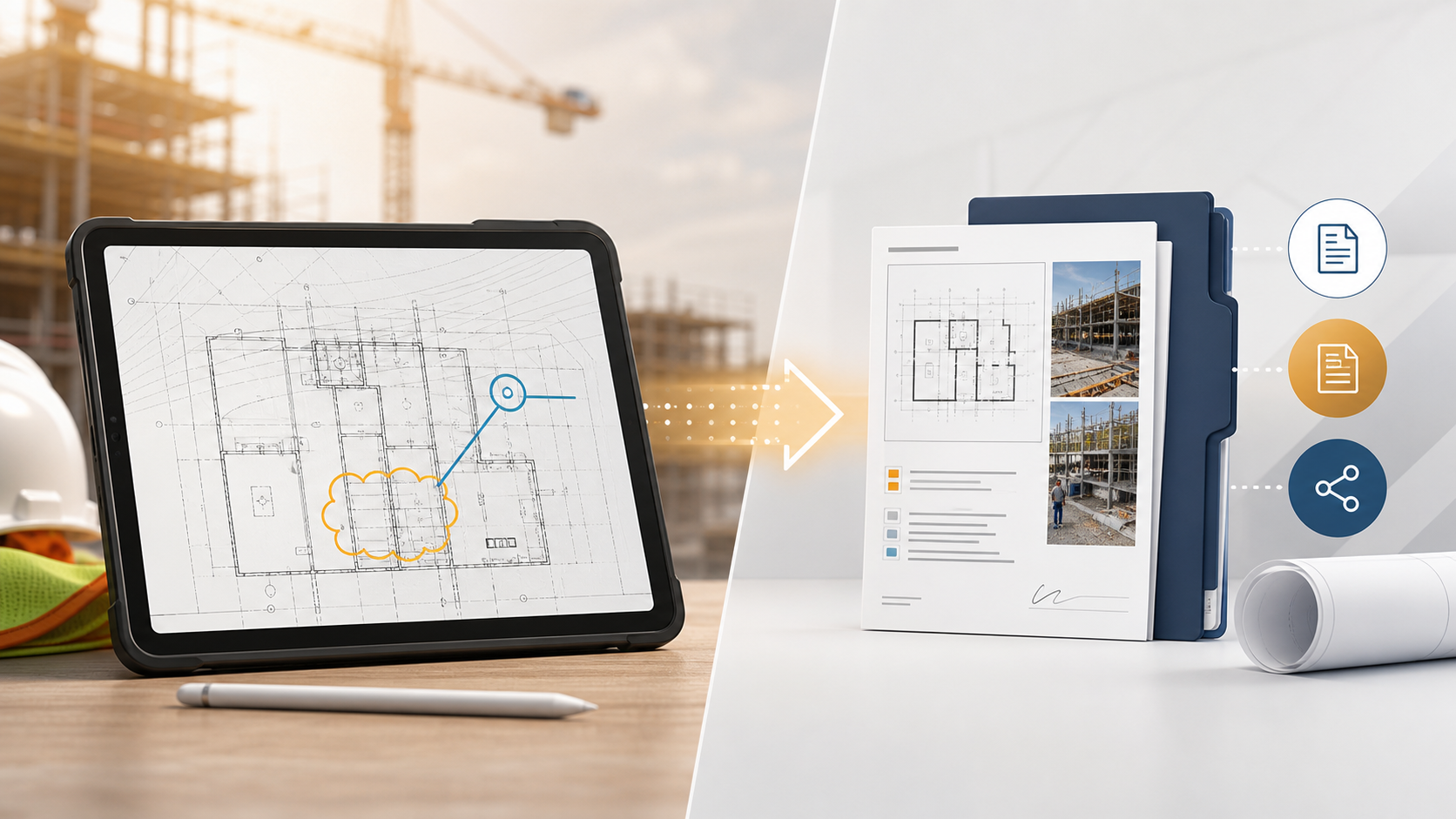
What this workflow looks like in PlanInspect
PlanInspect is strongest when the walkthrough still depends on the original DWG and the iPad needs to stay useful from first open to final handoff.
In that workflow, you can:
- open a DWG from Files, Mail, AirDrop, cloud storage, or the iOS share sheet
- keep the drawing local on the device instead of requiring an account just to begin the walkthrough
- switch layouts and reduce layer noise before the team makes a field call
- verify dimensions or conditions directly from the drawing when needed
- capture notes, markups, and photo-backed observations tied to the plan
- export a PDF, image, or report before the walkthrough context disappears
That makes PlanInspect a strong fit when the team sounds like this:
- "We still need the original drawing during the walk."
- "We need to verify a condition, not just log a task."
- "We want the issue pinned to the plan before it turns into email."
- "We need a clean field handoff before we leave the area."
It is a weaker fit when the main requirement is project-wide task routing, broad construction management, or deep CAD authoring as the center of the workflow. In those cases, Fieldwire-style coordination or Autodesk-style platform continuity may be a better primary category. For a DWG-first site review, though, the narrower drawing workflow is often the thing that actually gets the job done.
A simple rule for choosing the right walkthrough setup
If the walkthrough is mainly about progress photos, task routing, or field reporting across a wider platform, a documentation or construction-management app may be the right center of gravity. If the walkthrough still depends on the original DWG, the correct sheet context, and a drawing-anchored note or report, make the drawing workflow the center instead.
That is the practical difference many walkthrough search results blur. The best iPad walkthrough process is often not the one with the longest feature list. It is the one that lets the team open the plan, verify the issue, document it in context, and leave with a handoff someone else can use immediately.