
Yes, you can generate an observation report from a DWG review on iPad, and the best version is not a generic form you fill out after the walkthrough. Open the original DWG, pin each observation to the correct location, attach the photo evidence that matters, then export a report that still shows where every note belongs on the drawing.
That distinction matters because a report is only useful when the next person can understand the issue quickly without guessing which room, sheet, or screenshot the note came from.
What a good observation report should include
When people search for observation report app iPad, they often find field-report tools, safety apps, and plan-documentation platforms mixed together. Those tools prove the category is real, but they also blur an important difference: some workflows begin with a form, while others begin with the drawing.
Use this quick comparison before choosing your reporting workflow:
| If the report starts from... | The result usually emphasizes... | Best fit |
|---|---|---|
| A generic form | checklist fields, categories, assignees | broad inspection reporting |
| A PDF snapshot | visual markup, but weaker drawing context | lightweight plan annotation |
| The original DWG | exact location, layout context, linked notes, photo evidence | drawing-first observation reporting |
That last path is the one this article focuses on. It is especially useful when the team still needs the real DWG, not just a flattened document at the end.
Official competitors reinforce pieces of that workflow. ArchiSnapper's help guide shows that observations can be placed on a floor plan and then displayed in the report. magicplan's photos and notes help page shows that onsite photos and notes can appear in the exported report PDF. DWG FastView's official site confirms that mobile CAD buyers expect annotation and export on tablets.
The gap is that those sources do not really explain the iPad workflow for generating an observation report directly from a reviewed DWG with the drawing context still intact.
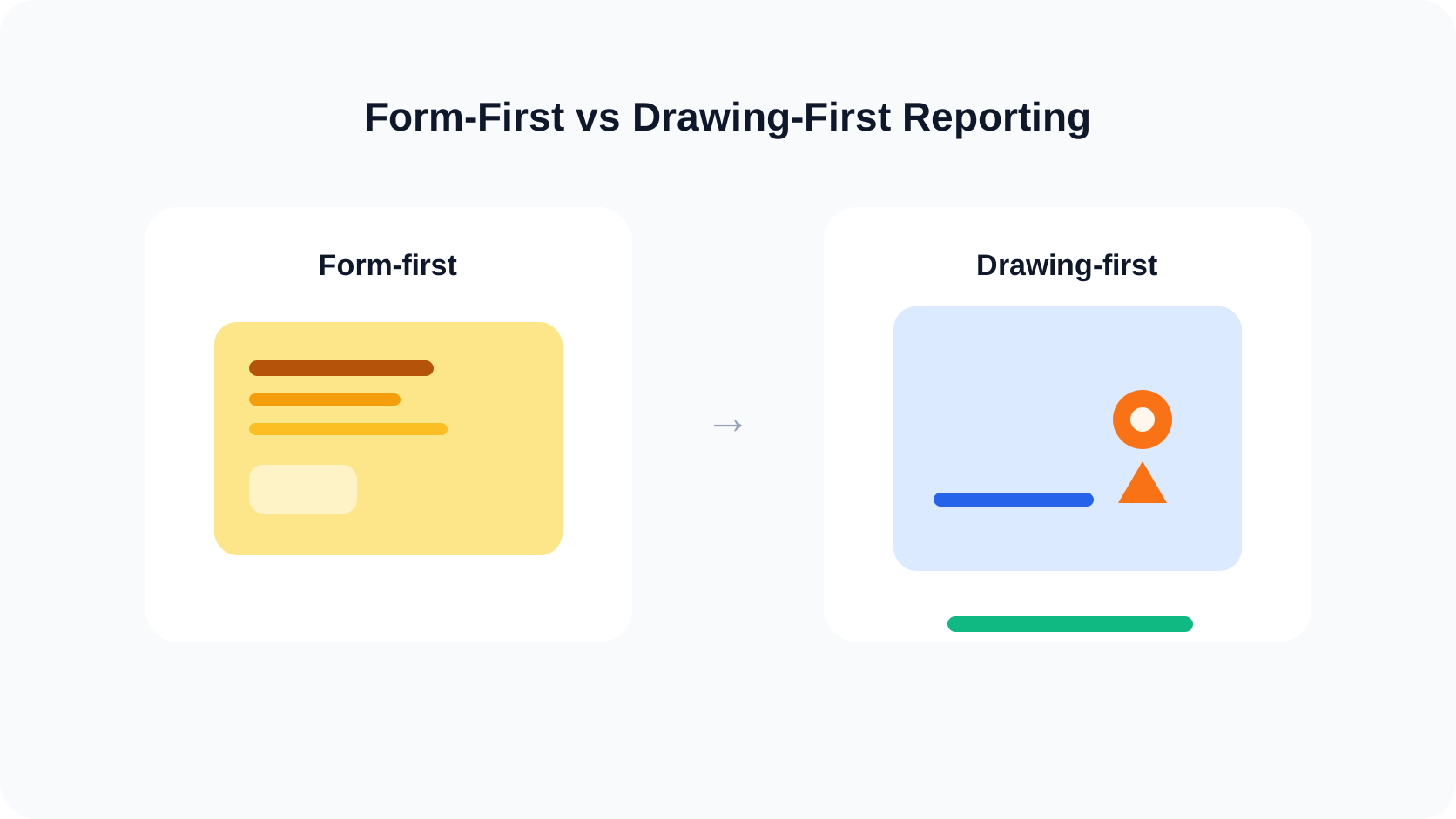
A practical 5-step workflow for generating an observation report from a DWG review on iPad
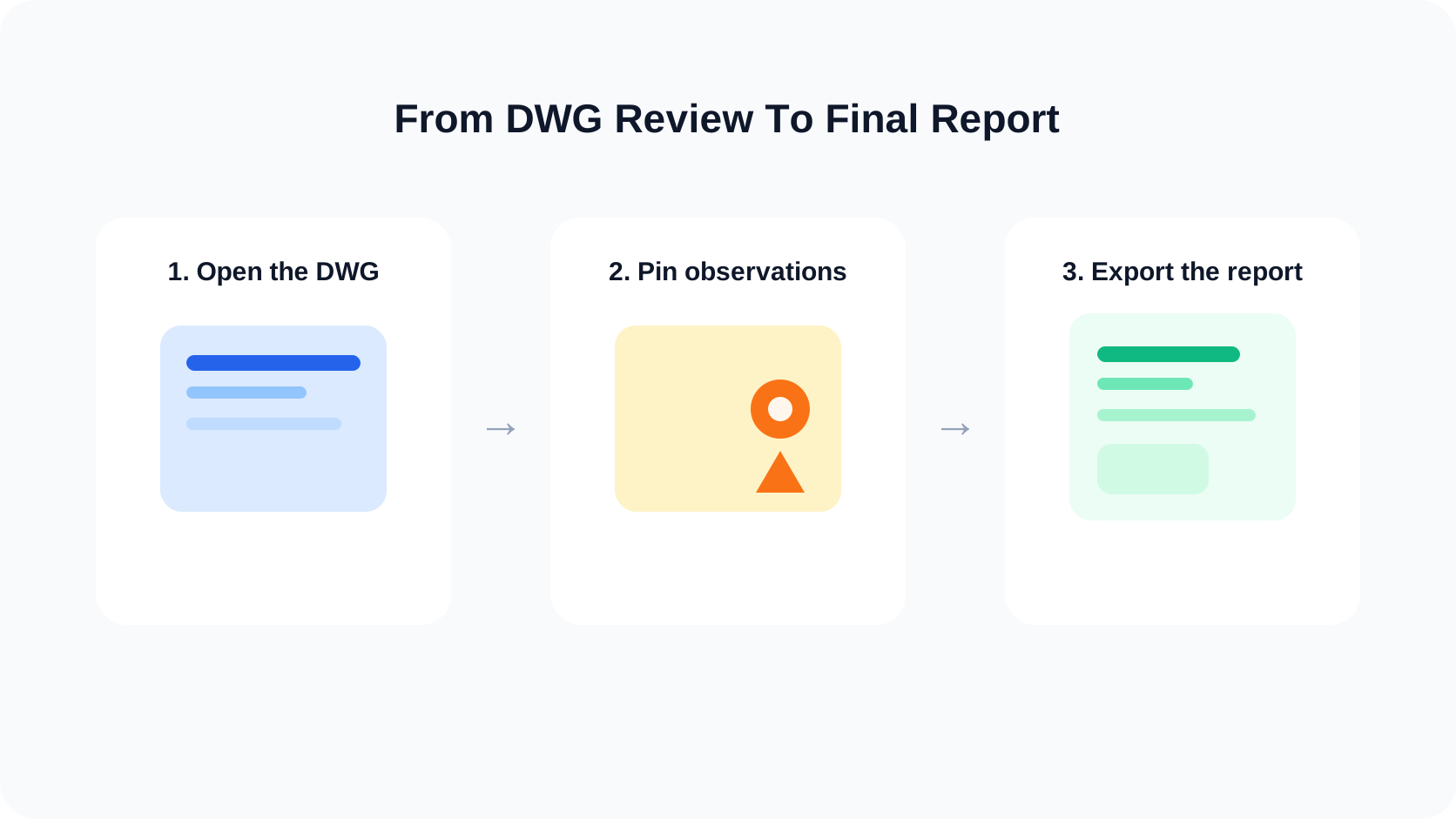
1. Open the original DWG and prepare the review context
Start with the original drawing, not an exported screenshot. Apple's Files basics for iPad are relevant here because many site reviews still begin in Files, Mail, AirDrop, or the iOS share sheet.
Before you create the report:
- confirm the correct DWG revision opened
- switch to the layout that matches the field task
- hide noisy layers if they will make the observation list harder to read later
That setup work is easy to skip, but it is what makes the exported report trustworthy. If opening the drawing is still the blocker, go back to how to open DWG files on iPad without converting them.
2. Capture one observation per location
An observation report gets messy when one note tries to cover three problems. Keep the structure simple:
- one location
- one short observation
- one clear next-step implication
This is the real bridge between DWG review and reporting. You are not only annotating the plan. You are building the report content while you review.
That is why this article is different from how to add site notes and photos to a DWG on iPad. That earlier workflow is about capturing the evidence well. This workflow is about shaping that evidence into a report someone else can act on.
3. Attach photo evidence only when it clarifies the issue
A strong observation report does not need a photo on every single note. It needs photos where the image removes doubt:
- damaged finishes
- missing installations
- clashes or clearance problems
- as-built conditions that differ from the drawing
- items that will be disputed if you only describe them in text
If the issue also depends on a dimension check or a sheet detail, do that review while the drawing is still open. How to export DWG markups and site notes as a PDF from iPad is the closest sibling when you need a deeper view of the export surfaces themselves.
4. Clean the note list before exporting
Most weak reports are not export failures. They are note-quality failures.
Use this short checklist before you export:
- does each note point to one exact spot on the drawing?
- is the wording short enough to scan quickly?
- do photos add proof instead of noise?
- does the active layout make sense for the reader who will receive the report?
- would another person understand the order of the observations without asking you to explain them live?
If the report belongs to a larger walkthrough or inspection sequence, A DWG review checklist for site inspections is the best hub to keep the whole workflow consistent.
5. Export the report format that matches the handoff
This is where observation reporting becomes distinct from a simple markup export.
Choose the output based on what the recipient actually needs:
- a marked-up PDF when the drawing view itself is the main deliverable
- a broader layout export when sheet context matters
- a notes report when the real deliverable is the indexed list of observations plus attached photos
If you are doing closeout or deficiency work, this often overlaps with a punch-list workflow. How to run a punch list from a DWG on iPad is the closest use-case article for that handoff.
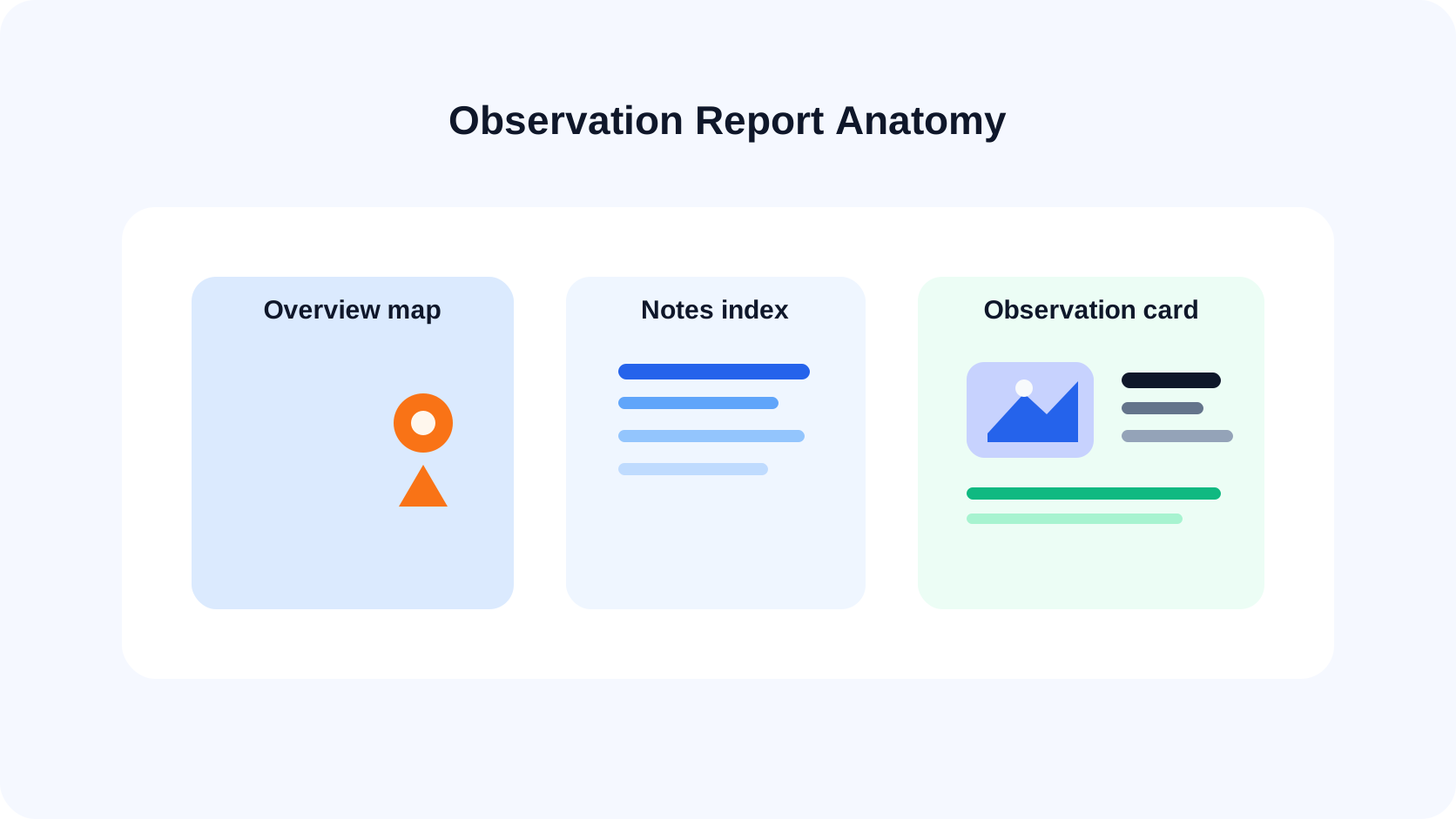
Why drawing-first observation reports are usually easier to act on
Form-first reporting can work well for broad compliance programs, but it often forces the drawing to become an attachment instead of the source of truth. That creates familiar problems:
- the reader cannot see the exact plan location quickly
- layout context disappears
- photo evidence drifts away from the issue location
- the report becomes harder to reconcile with the original DWG later
Drawing-first reporting fixes that by keeping the plan alive throughout the workflow. The report is not assembled from detached scraps afterward. It grows directly out of the review.
This is also why the topic sits naturally beside A complete iPad DWG review workflow for construction teams. Observation reporting is not a separate job from review. It is one of the most valuable outcomes of a good review.
What this looks like in PlanInspect
PlanInspect is strongest when the team needs local DWG review on iPhone or iPad, then wants to turn that review into a shareable field handoff.
In that workflow, you can:
- open DWG files from Files, Mail, AirDrop, or the iOS share sheet
- review layouts and layers before capturing report notes
- add site notes during the walkthrough
- attach site photos to notes
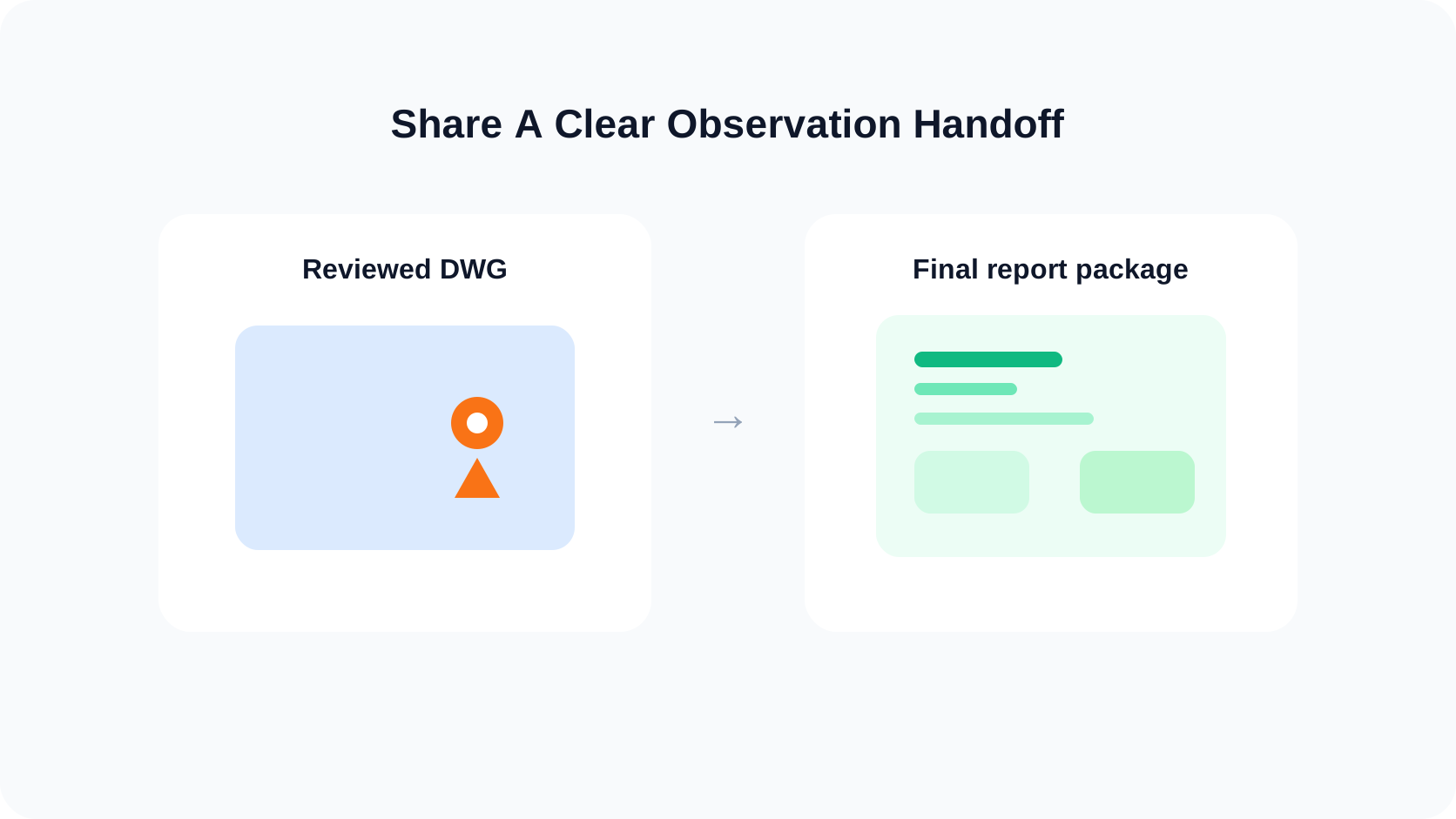
- export the current view, full layout, or a notes report when the review is complete
- keep the workflow useful offline and without a required account
That makes PlanInspect a good fit when the report should stay tied to the actual drawing from first open to final export, instead of being rebuilt later in a separate reporting tool.
Keep the report attached to the drawing
The best way to generate an observation report from a DWG review on iPad is to create the report while the drawing is still alive. Open the original DWG, review the right layout, pin one observation per location, attach the photo evidence that matters, and export only when the handoff is already clear.
That gives the next person something better than a note dump or a screenshot folder. It gives them a report they can act on without losing the drawing context.