
Yes, you can run a punch list from a DWG on iPad. The reliable workflow is to open the original drawing, confirm the right layout, pin each deficiency to its exact location on the floor plan, add a short note and one useful photo, then export a report before you leave the site. That is the point where a DWG viewer becomes a real field tool instead of a file-open step.
Most punch-list pages validate the need for photo documentation, pinned issues, and quick reports. Fewer explain how to keep the DWG itself central while you do the walkthrough.
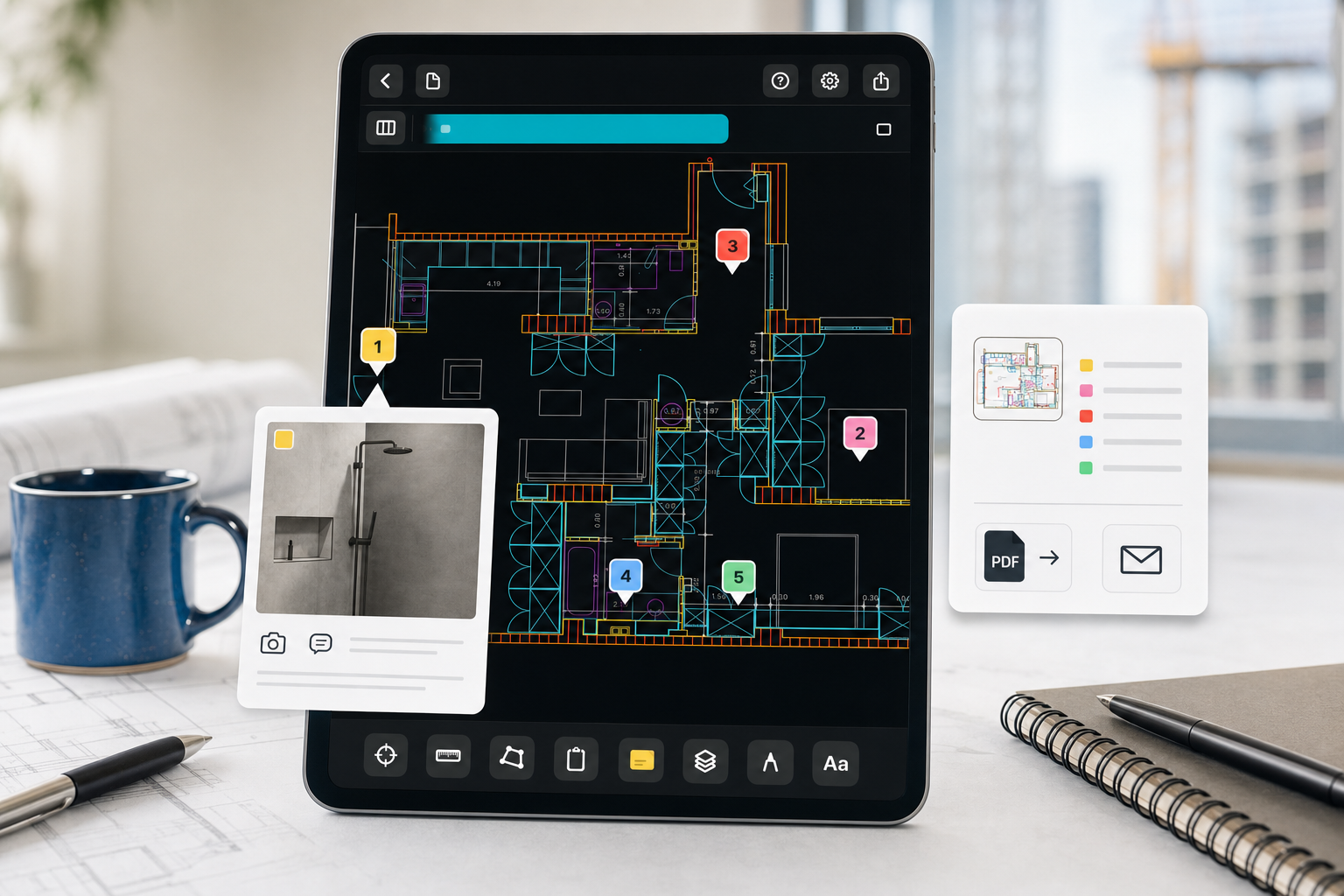
What a punch list from a floor plan on iPad should include
If someone searches for punch list floor plan iPad, they are usually not asking for a generic task board. They need a field workflow that answers four questions quickly:
- where is the issue on the drawing?
- what is wrong or incomplete?
- what photo proves it?
- what does the next person need to do?
Official punch-list platforms prove that those expectations are normal. Fieldwire's punch list app page says punch items can include blueprint location, photos, notes, and quick reporting from iPhone or iPad. Bluebeam's construction punch workflow page emphasizes markups, photo documentation, floor-plan placement, and automated reports. Procore's iOS drawing tutorial shows the core mobile gesture clearly: open the drawing, tap the pin tool, place the punch item, then fill in the details.
Those pages validate the category well. They still leave one gap for DWG-first iPad users: how to keep the original CAD drawing central instead of moving the punch walk into a separate project-management workflow too early.
Use this checklist before you start placing punch items
| Check | Why it matters | Good sign |
|---|---|---|
| Correct DWG revision is open | A punch list on the wrong revision creates false confidence | The sheet title, layout, and issue area match what you are seeing on site |
| Right layout is active | Punch items are much harder to trust if you are in the wrong sheet context | The floor plan view matches the space you are walking |
| Layer noise is under control | Dense drawings hide the issue you are trying to document | Only the layers relevant to the punch walk stay visible |
| Each issue can be pinned to one location | A punch list fails when the note floats without context | Every item can be tied to one exact point or area on the plan |
| One useful photo is available | Photos should clarify, not just accumulate | The image proves the issue or condition quickly |
| Export path is obvious | The walkthrough is not done until someone else can act on it | PDF or report output can leave the iPad immediately |
If that checklist sounds familiar, A DWG review checklist for site inspections is the best internal hub. This article narrows that broader review workflow into the punch-list job specifically.
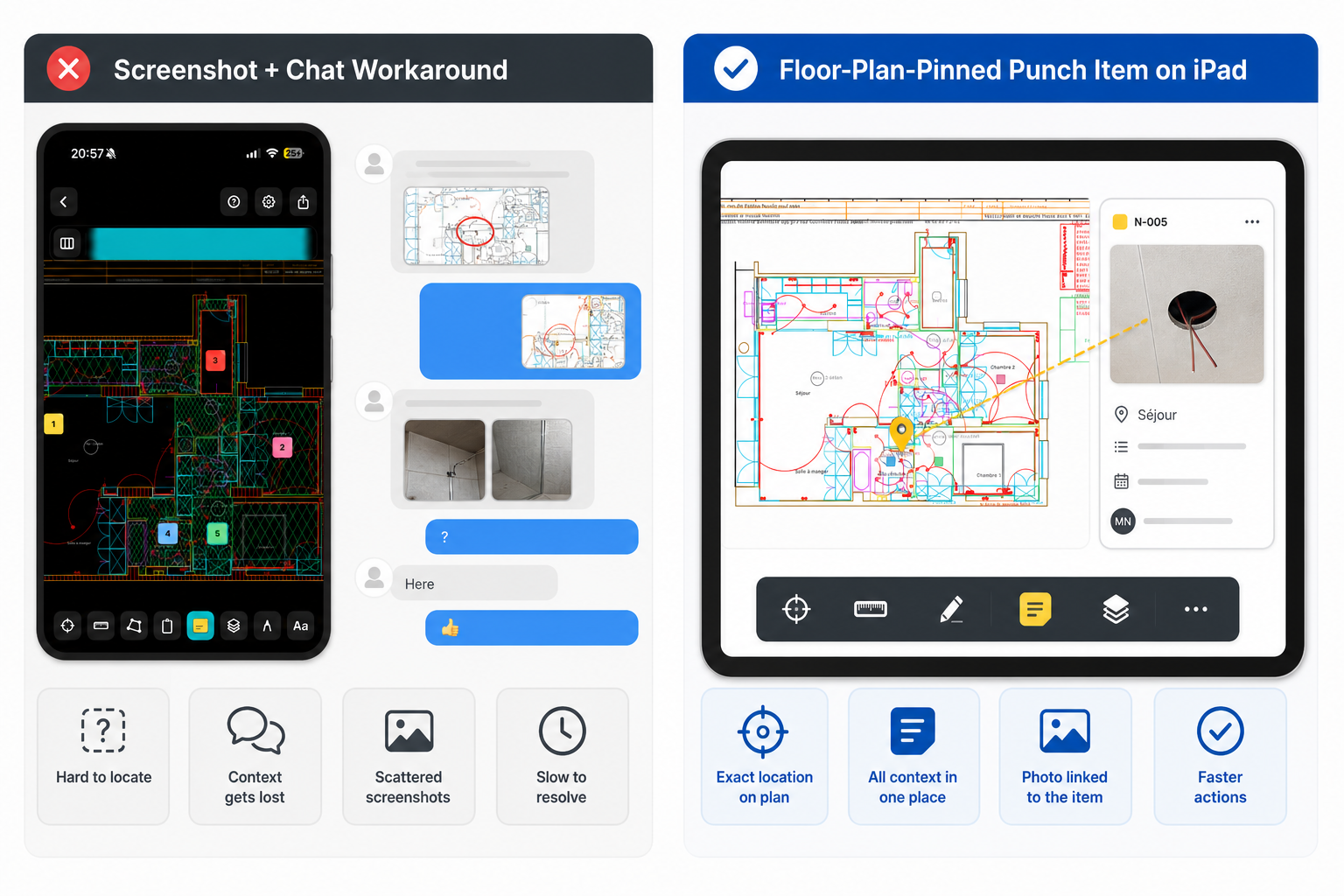
A practical 5-step workflow to run a punch list from a DWG on iPad
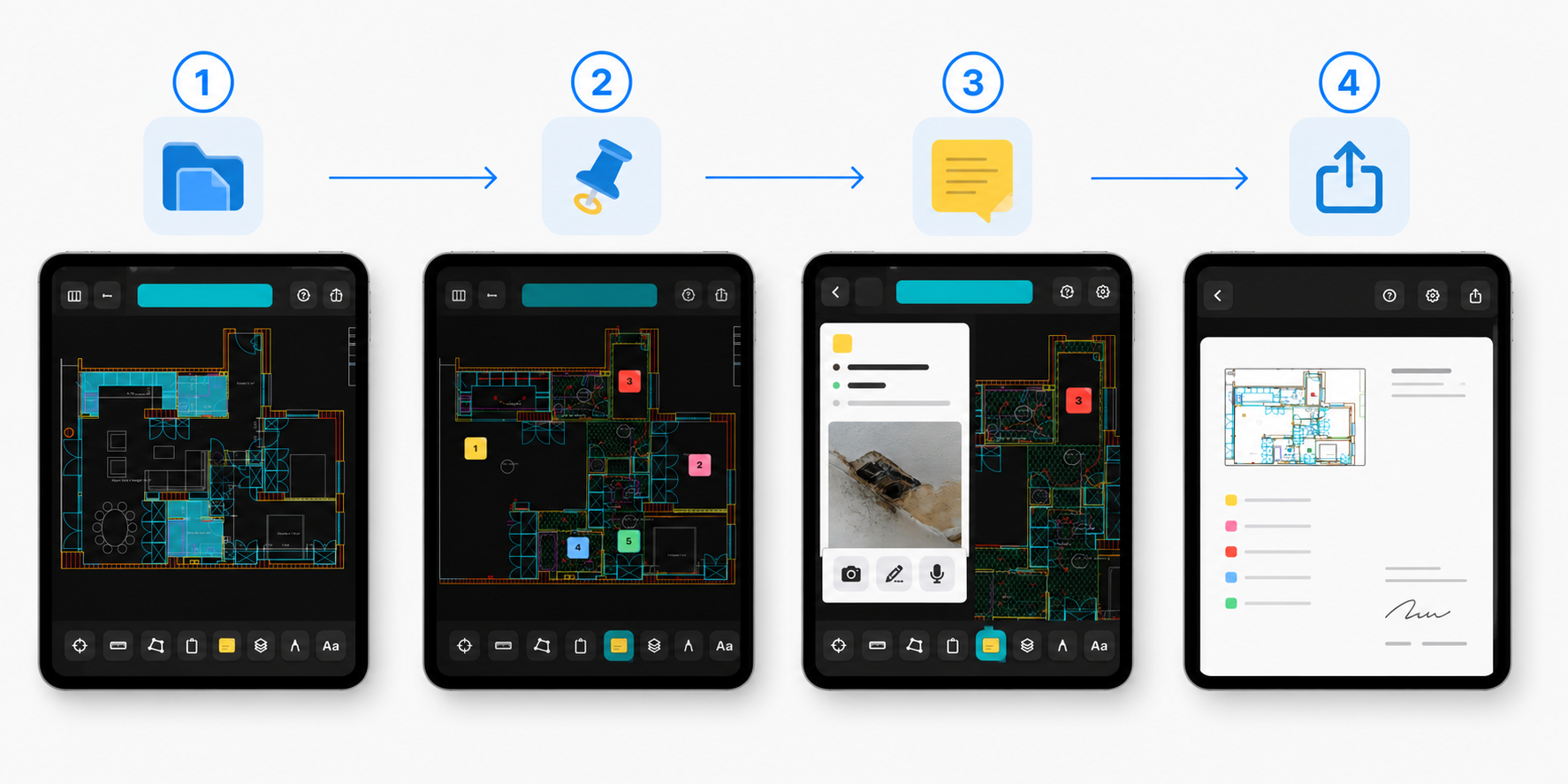
1. Open the original DWG and confirm the floor-plan context
Start from the real drawing, not a flattened screenshot or a later office cleanup step. That is what keeps layout context, layers, measurements, and note locations available while you work.
Before placing the first punch item:
- confirm the right revision is open
- switch to the layout that matches the walkthrough
- hide layer noise if the plan is too dense
- zoom out once to verify the broader sheet context
This is still the most common place where punch lists drift off course. If the file handoff is the blocker, go back to how to open DWG files on iPad without converting them. If the view is too busy to trust, how to review DWG layers on iPad during a site visit is the cleanup step that should happen before documentation.
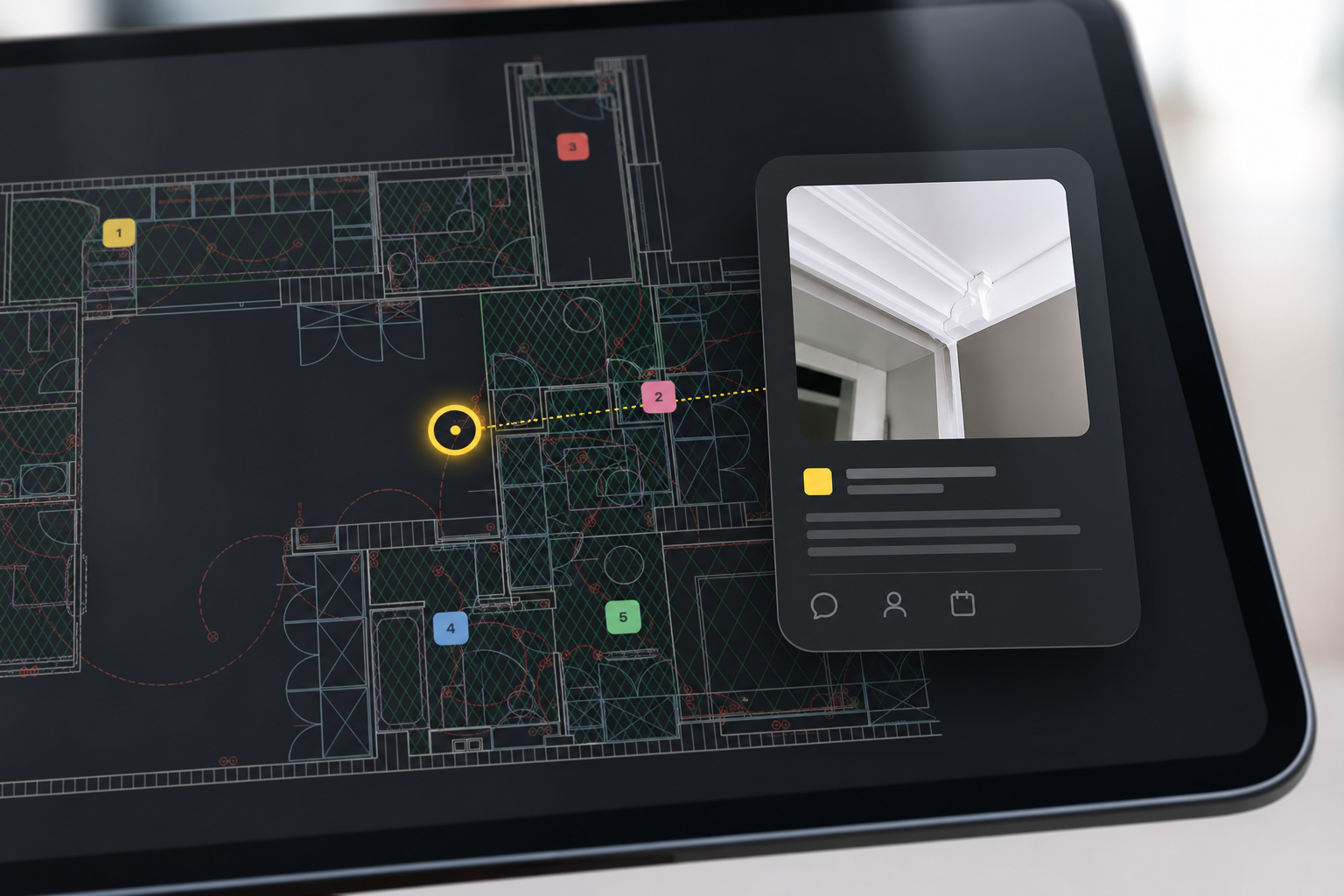
2. Drop one punch item at one exact drawing location
The key discipline is not just "take notes." It is "place the issue where the next person can find it on the drawing."
That is why official punch-list tools keep returning to location pinning. A good punch item should already answer:
- which room, wall, fixture, or edge is affected?
- what is deficient, incomplete, or out of spec?
- is this a closeout issue, a coordination issue, or a follow-up check?
Keep the placement precise. If two different deficiencies live near each other, make two separate items instead of hiding both inside one vague note.
3. Add the shortest note that still makes the issue clear
Many punch lists get worse because the note tries to do everything at once. The better pattern is:
- one short description of the deficiency
- one optional status or trade cue
- one photo only if it removes ambiguity
That is also where punch lists differ from generic markup. How to annotate a DWG drawing on iPad without changing the original file covers the broader markup workflow. A punch list is narrower: it is markup plus accountability-ready description.
If the issue depends on a field dimension, measure it before you finish the punch item so the evidence package is complete. How to measure distances on a DWG file from iPad is the closest supporting workflow.
4. Attach a photo only when it improves the closeout decision
The photo should prove something the plan alone cannot:
- damaged finish
- missing hardware
- incorrect installation
- field condition that conflicts with the issued drawing
- quality issue that a subcontractor must verify later
One useful photo is better than a loose pile of images. Bluebeam and Fieldwire both validate the same principle on their official punch pages: the photo is there to support the markup, not replace the drawing. The DWG should still be the backbone of the punch walk.
5. Export the punch list before you leave the site
The walkthrough is not finished when the last note is placed. It is finished when the next person can act on the result without guessing.
That handoff might be:
- a marked-up PDF when one sheet view is enough
- a fuller layout export when the whole plan matters
- a notes report when the punch list itself is the deliverable
How to export DWG markups and site notes as a PDF from iPad goes deeper on output choices. For punch walks, the report path is usually the most important because it turns pinned issues, notes, and photos into something that can move straight into closeout follow-up.
If your team wants the whole picture around import, layout review, measurement, notes, and handoff, A complete iPad DWG review workflow for construction teams is the broader hub.
When a broader punch-list platform may fit better
It is worth being precise here. A DWG-first iPad workflow is not the best answer for every punch-list process.
A broader platform may fit better when your team needs:
- multi-party assignment and due-date automation
- live status tracking across many subcontractors
- company-wide templates, checklists, and notifications
- a master closeout system shared across many projects
That is where Fieldwire-, Bluebeam-, or Procore-style systems can be stronger. They are built to manage the larger punch-list program.
PlanInspect is stronger when the immediate job is narrower:
- keep the original DWG central during the walkthrough
- place punch items at exact plan locations
- attach photo evidence without leaving the drawing
- export a clean handoff from iPhone or iPad
- keep the workflow local, offline-friendly, and lightweight
DWG FastView's mobile CAD page also validates that mobile buyers expect viewing and annotation on tablet. The difference here is not whether mobile CAD exists. It is whether the product is optimized for drawing-first field review instead of a broader cross-platform CAD stack.
What this looks like in PlanInspect
PlanInspect fits this topic when the punch walk still lives inside the drawing.
In that workflow, you can:
- open DWG drawings from Files, Mail, AirDrop, iCloud Drive, or the iOS share sheet
- review layouts and layers before you start documenting issues
- add color-coded site notes at exact drawing locations
- attach site photos to notes and reports
- export the current view, full layout, or a structured notes report when the walkthrough is done
- keep the work usable offline and without a required account once the file is on the device
That makes PlanInspect a strong fit for architects, inspectors, coordinators, and construction teams who need a punch list grounded in the original floor plan rather than detached from it.
Keep the floor plan central from first issue to final handoff
The best way to run a punch list from a DWG on iPad is to keep the original drawing alive through the whole walkthrough. Open the right file, pin one issue at one exact location, add the note and photo that clarify it, then export the result while the field context is still fresh.
That is what turns a mobile punch walk into a closeout workflow someone else can actually use.