
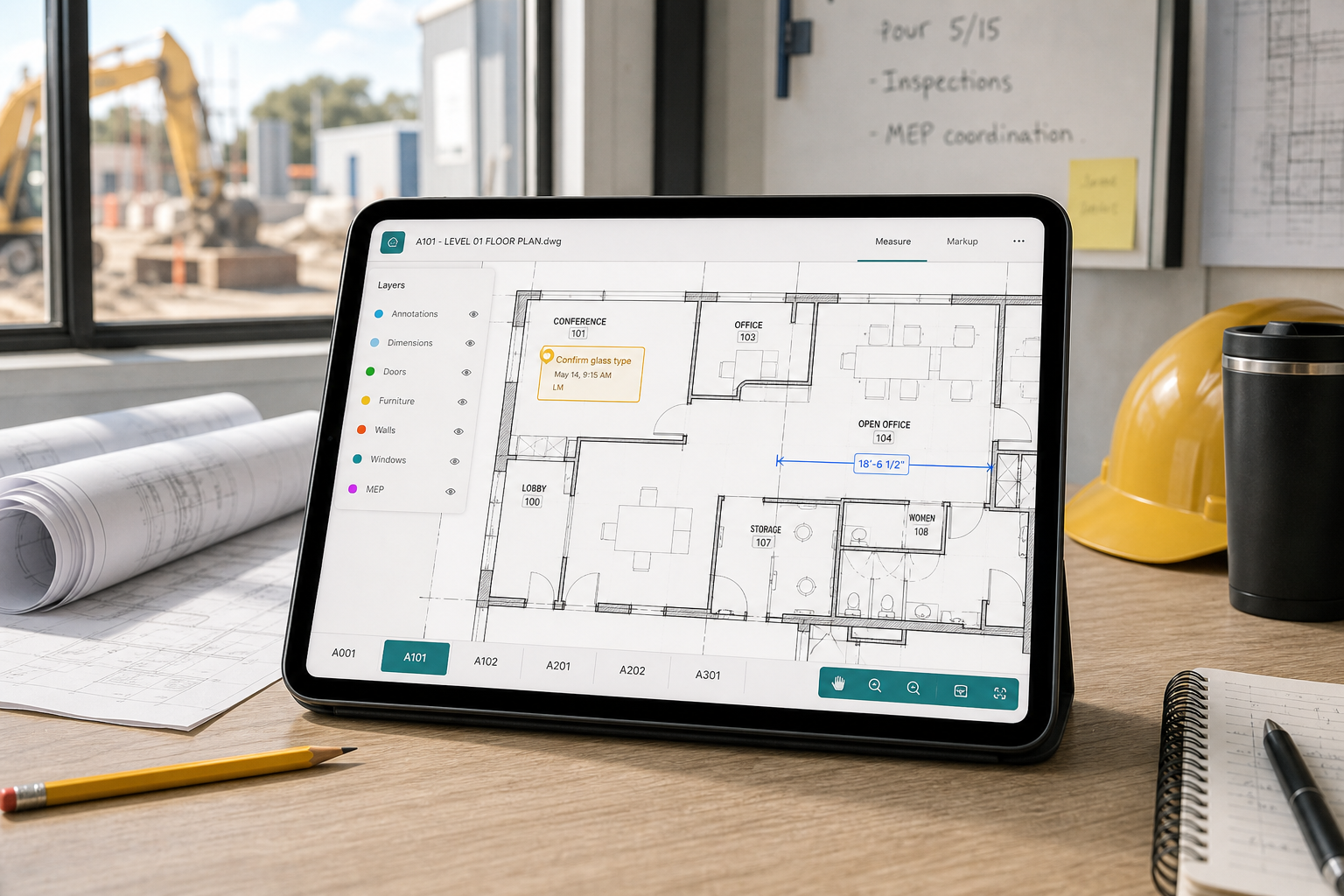
The best construction plan viewer for iPad is the one that matches the real file and job your team receives. If the work is broad task routing and version-controlled distribution, a construction platform may fit better. If the work is actively reviewing a native DWG or an issued multipage PDF, measuring, documenting a condition, and exporting a clear handoff, choose a format-aware viewer built around plan review.
That distinction matters because search results for this topic blend together plan-management platforms, mobile CAD tools, PDF review apps, and DWG viewers as if they solve the same problem.
Why this search category gets messy
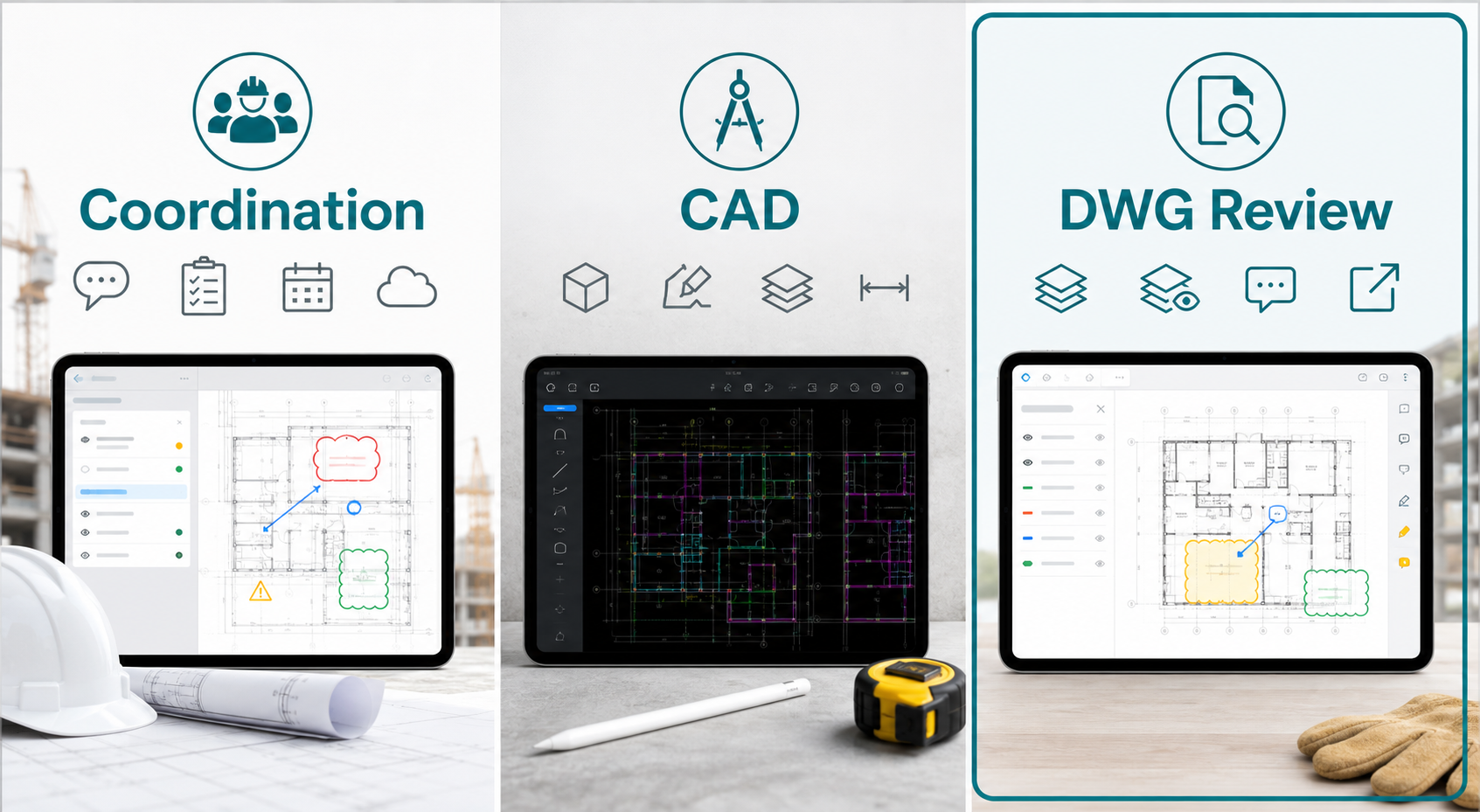
Search for a construction plan viewer on iPad and you quickly get several product categories at once:
- construction management platforms with plans, tasks, forms, and photos
- mobile CAD products with viewing, editing, sharing, and cloud continuity
- PDF and blueprint review tools
- drawing-first viewers built around the original DWG
Those categories overlap, but they do not solve the same field problem.
Fieldwire's blueprint app page and iPad construction app page are a good example of the broader category. They emphasize plan distribution, synced updates, tasks, photos, offline access, and field management around the drawings. That is useful when the plan is part of a larger jobsite coordination system.
Autodesk's mobile apps page points in a different direction. It frames the category around viewing, creating, editing, and sharing DWG files on mobile devices, which makes sense when the iPad is one part of a larger CAD workflow.
Bluebeam's design review and QA/QC workflow page shows another category again: drawing review centered on markups, comments, and organized review cycles.
But many site teams need something narrower:
- open the issued drawing from the file path they already use
- confirm the right sheet or layout
- hide drawing noise fast
- verify one dimension or detail before escalating an issue
- place a note or markup where the issue lives
- export a handoff that the next person can act on
That workflow is not the same as full construction management, and it is not always the same as mobile CAD editing. It is drawing review.
If your team is still choosing between broader construction app categories, what construction teams need from an iPad drawing app is the better starting point. This article focuses on viewer criteria.
What a strong construction plan viewer should do
The best plan viewer is not the one with the longest brochure. It is the one that survives a real jobsite sequence on a real drawing.
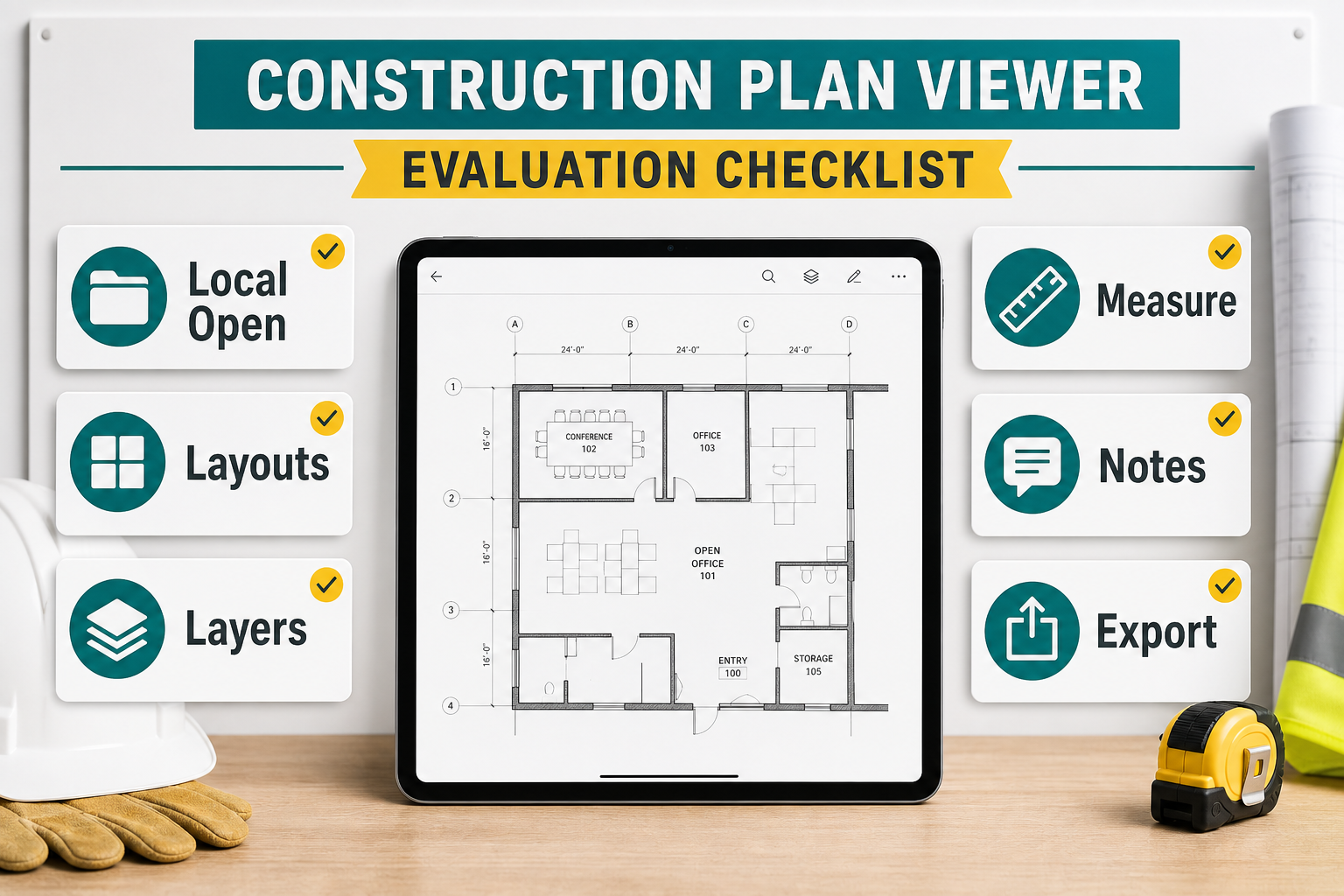
Use this checklist when you evaluate any iPad plan viewer:
| What to test | Why it matters on site | What a strong result looks like |
|---|---|---|
| Open the real file | Demo files hide the hard cases | The actual DWG or multipage PDF opens without a required cloud detour |
| File path fit | Drawings arrive through Files, email, AirDrop, or storage providers | The app opens directly from the path your team already uses |
| Format context | DWG and PDF carry different review information | DWG layouts/layers stay available; PDF pages stay together and can be calibrated |
| Measurement trust | One wrong assumption can become a wrong field decision | DWG coordinates or calibrated PDF scale support the measurement workflow |
| Notes and markup | Decisions get weak when they live only in chat or memory | Notes stay attached to exact plan locations |
| Export handoff | Viewing is only the middle of the workflow | PDF, image, or report output is clear enough to share immediately |
That test should be run on one of your real project files, not only on a clean sample.
Start with the file path your crews already use
Many buying mistakes happen because the viewer is tested as if the file magically appears inside the app.
In reality, construction drawings often arrive through:
- the iPad Files app
- a downloaded email attachment
- AirDrop from a nearby Mac or iPad
- a cloud location exposed through Files
If the app fights that path, the rest of the review workflow becomes fragile before the plan is even visible.
That is why the first buyer question should be practical, not aspirational:
- can the viewer open a DWG from the same path the team already uses?
- can the file be reopened later without hunting through a vendor-specific workspace?
- does the workflow still work when connectivity drops?
If your main blocker is the import path itself, how to open DWG files on iPad without converting them is the direct companion.
Choose the right product category before you compare brands
Many teams compare products too late in the decision tree. They look at brand pages first instead of clarifying what kind of tool they actually need.
Use this table first:
| If the real job is... | Best-fit category |
|---|---|
| plan distribution, task coordination, issue routing, and team sync | construction management / field platform |
| editing, sharing, and staying inside a broader CAD ecosystem | mobile CAD platform |
| opening the original DWG, reviewing sheets, checking dimensions, adding context, and exporting a field handoff | drawing-first construction plan viewer |
That third category is smaller, but it is where many supers, engineers, inspectors, and coordinators actually live during site visits and quick review loops.
If your field workflow is closer to inspection than general plan viewing, how to choose a CAD viewer for site inspections goes deeper on that job. If your broader question is still "what kind of DWG viewer do we need at all?", how to choose a DWG viewer for iPad is the best category hub.
Layouts and layers are not bonus features
On a desktop monitor, a noisy plan is annoying. On an iPad, it can make the file feel unusable.
That is why a construction plan viewer should help the reviewer:
- switch to the right layout fast
- identify whether they are in the correct sheet context
- hide disciplines or annotations that are irrelevant to the current question
- zoom into the issue without losing the surrounding plan context
A viewer that opens the DWG but makes layout and layer navigation painful often fails the real field test.
How to switch layouts and paper space on a DWG from iPad and how to review DWG layers on iPad during a site visit are the two most useful supporting reads here, because they show why readability matters as much as file-open success.
The viewer should help the team trust one field decision
Most plan reviews on site are not about studying the whole drawing forever. They are about answering one useful question now:
- is this the right opening?
- is the clearance still acceptable?
- is this issue on the correct sheet?
- does the installed condition still match the drawing?
That is why measurement matters even in a "viewer" conversation. The app does not need to be a full drafting workstation, but it does need to support a trustworthy review sequence when a dimension or location becomes the deciding factor.
How to measure distances on a DWG file from iPad is the deeper guide when that trust checkpoint is the main requirement.
Notes and export are part of viewing, not a separate phase
One common buying mistake is to treat "viewer" as if it means only opening and zooming.
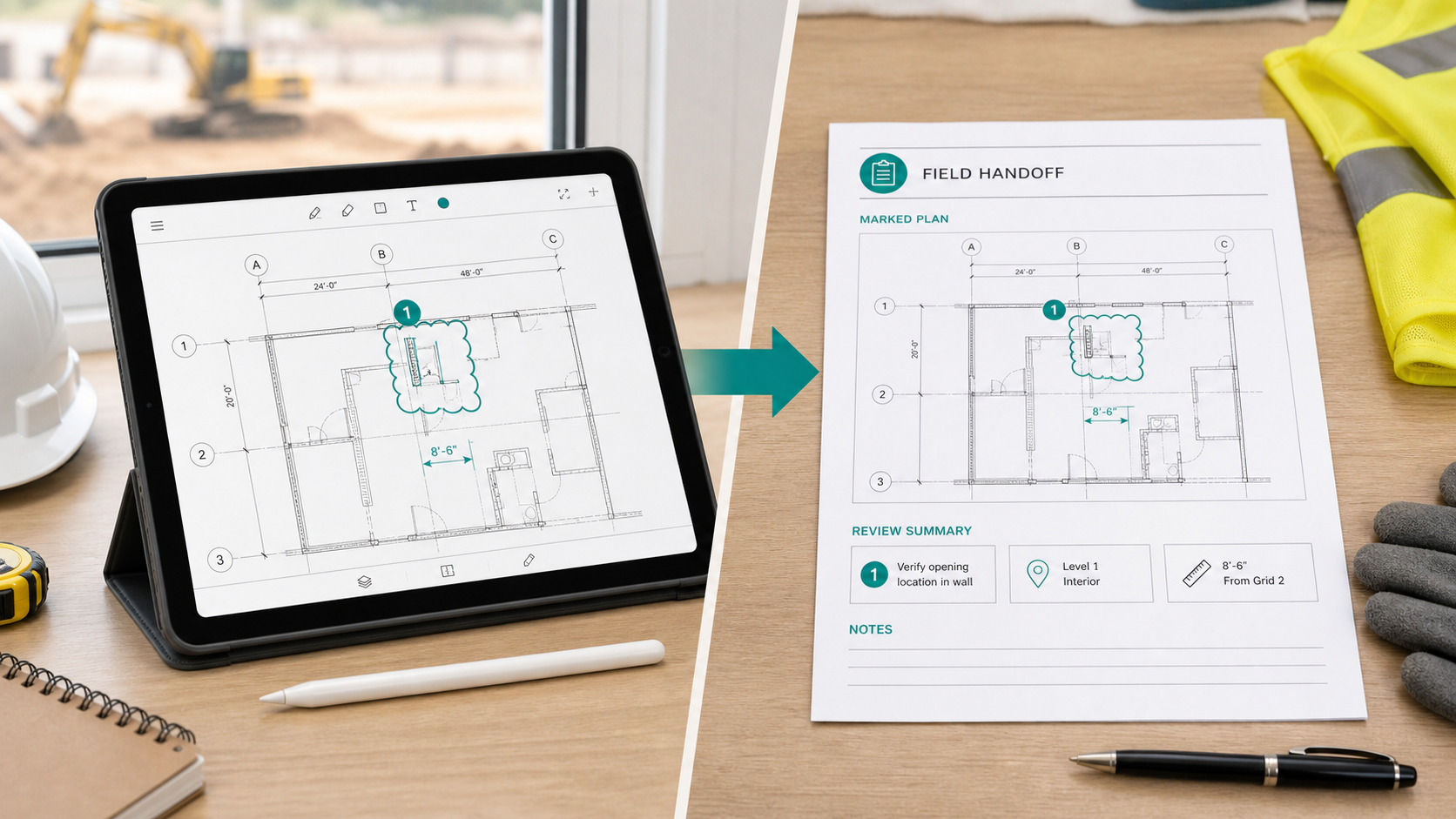
For most construction teams, viewing is only the first part of the job. The second part is turning the review into a handoff:
- pin a note where the issue lives
- attach context while the plan is still open
- export a PDF, image, or report before the field reasoning disappears
That is the difference between a viewer that is technically usable and a viewer that is operationally useful.
If the team routinely needs to share the result right after the walkthrough, how to export DWG markups and site notes as a PDF from iPad is the closest next read. If you want a shorter field-ready process, A DWG review checklist for site inspections is the best hub article to pass around internally.
What this looks like in PlanInspect
PlanInspect is strongest when the plan itself — DWG or PDF — is still part of the jobsite decision.
In that workflow, you can:
- open a native DWG or multipage PDF from Files, Mail, AirDrop, storage, or the iOS share sheet
- keep the file local on the device instead of depending on a required vendor cloud
- switch DWG layouts and isolate native layers, or navigate PDF pages and calibrate scale
- measure from DWG coordinates or the calibrated PDF page
- place notes and markups without turning the session into CAD editing
- export a PDF, image, or report once the walkthrough or review is complete
That makes PlanInspect a strong fit when your criteria sound like this:
- "We review the drawing more often than we manage the whole project from it."
- "We need the iPad to stay useful even when signal is weak."
- "We need the note to stay tied to the plan location."
- "We want a clean handoff before anyone leaves the site."
It is a weaker fit when the main requirement is broad field-management routing, deep CAD editing, or cloud-first collaboration as the center of the workflow.
A simple field test to run this week
Before you standardize on any construction plan viewer for iPad, run one real drawing through this sequence:
- open it from the same file path your team already uses
- switch to the right DWG layout or PDF page
- hide DWG layers that create noise or calibrate the PDF page scale
- verify one measurement or condition that actually matters
- place one note or markup on the drawing
- export the result and ask whether the recipient can act on it immediately
That six-step test will tell you more than another hour of comparing feature pages.
The best construction plan viewer for iPad is not automatically the one with the broadest promise. It is the one that keeps the original drawing useful from first open to final handoff, under the real conditions where your team actually works.