
If a large DWG feels hard to open on iPad, the problem is often not raw file size alone. More often it is a mix of incomplete transfer, DWG-version compatibility, too much visible drawing context at once, or the wrong layout and layers making the file look broken. The fastest fix is to reopen the original DWG locally, confirm the file path and version, simplify the visible context, and only convert to PDF if the final handoff actually requires it.
That distinction matters because "large DWG on iPad" is usually a field workflow problem, not a storage problem. The real question is whether the drawing stays usable enough to review, measure, annotate, and hand off without losing the original DWG context.
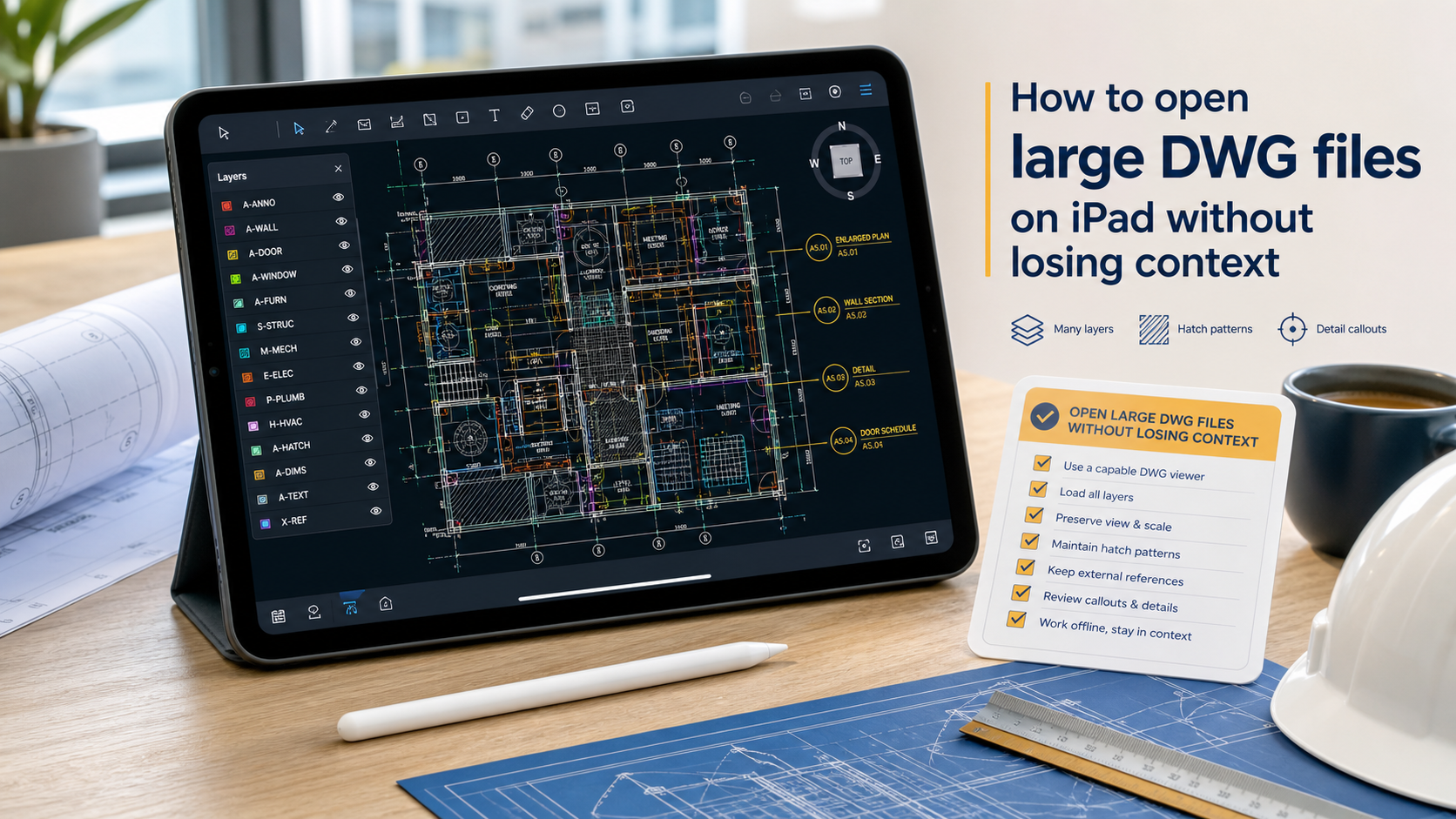
What usually makes a DWG feel "too large" on iPad
The phrase "large DWG" can describe several different failure modes:
| Symptom | Likely cause | Best first check |
|---|---|---|
| The file will not open at all | Incomplete transfer, wrong file type, or unsupported DWG version | Re-download or re-send the original file, then confirm the open path in Files |
| The drawing opens slowly and feels unreadable | Dense hatches, too many visible layers, or a very noisy sheet context | Open the right layout first, then hide nonessential layers |
| The file opens, but the expected sheet looks wrong | Wrong layout or viewport context | Switch layouts before assuming the file is corrupt |
| The drawing is visible, but trust is low | Units, detail density, or mixed review context | Simplify the view and verify one practical workflow step, such as a measurement |
That is the gap most search results leave open. Official mobile CAD pages prove that layouts, layers, local files, and offline access matter, but they rarely tell you how to diagnose a real production drawing when it feels too heavy to trust.
If the issue is more basic than "large file" and the DWG will not open at all, start with what to check when a DWG file will not open on iPad. This article is the next step when the file is technically there but the review still feels overloaded.
Quick checklist before you flatten the DWG
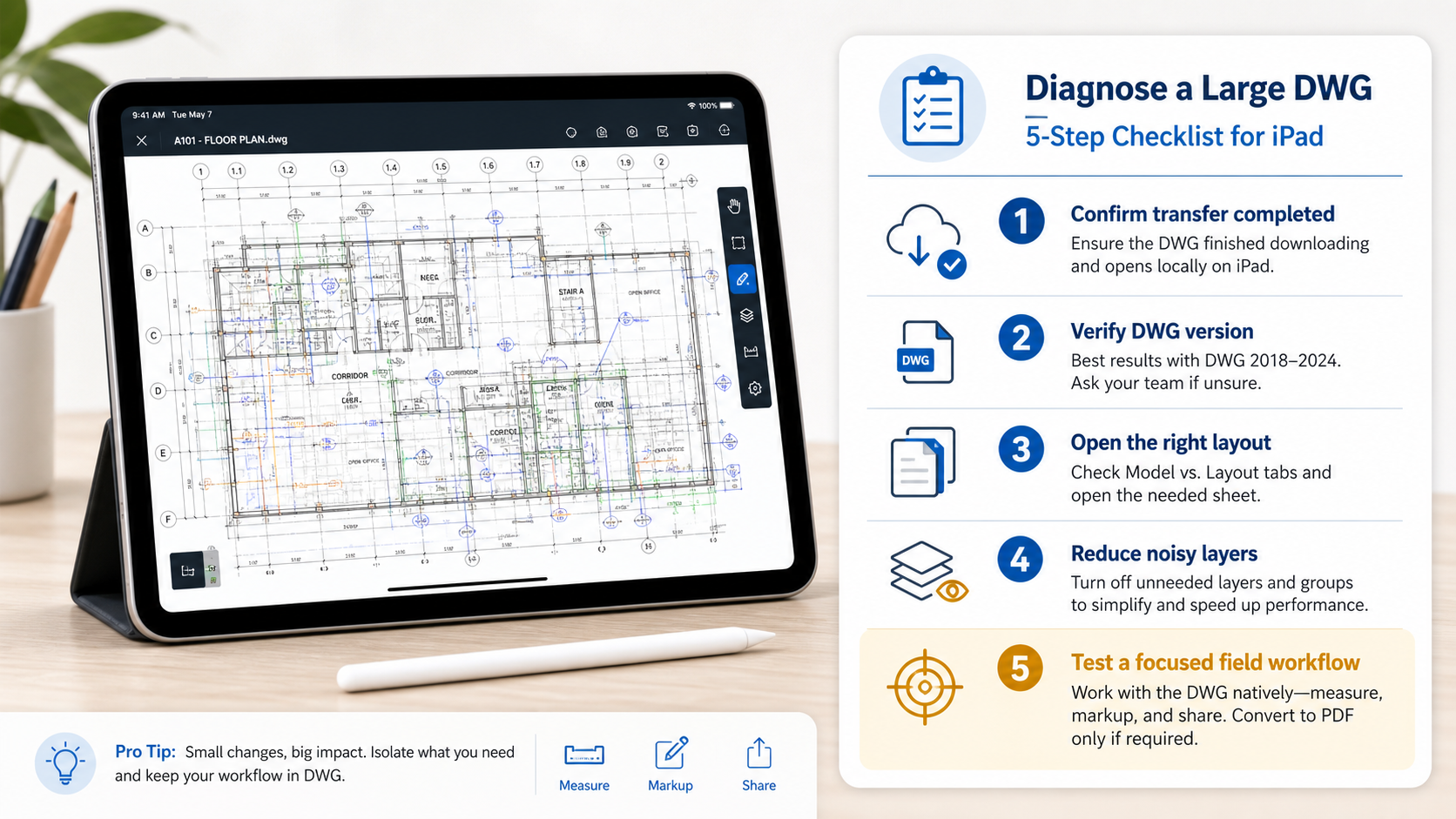
Use this sequence before you export another PDF:
- confirm the file finished downloading or transferring completely
- reopen it from Files on iPad, not only from a recent-app shortcut
- check whether the drawing is opening in the correct layout
- reduce noisy layers before judging performance or readability
- test one real review task, such as measuring or placing a note, before deciding the workflow is unusable
1. Confirm the local file is complete
Large files are more vulnerable to bad handoff than small demo drawings. If the DWG came from Mail, AirDrop, a cloud folder, or a message thread, the first question is boring but important: did the full file arrive?
Apple's Files workflow matters here because it is usually where the real drawing lands first. Reopen the file from Files, confirm the location, and resend it once if there is any doubt. That is often faster than guessing whether the file is permanently "too large."
This is also why how to open DWG files on iPad without converting them remains a useful companion guide. A clean local open path removes one entire class of false performance problems.
2. Separate DWG compatibility from file size
Autodesk's DWG drawing file format compatibility reference is the right reminder that DWG is not one uniform file type. Newer and older DWG formats behave differently, and a dense production drawing can combine version differences with heavy geometry, xrefs, hatches, and detailed callouts.
Broad mobile CAD listings also reflect that reality. The DWG FastView App Store listing and the AutoCAD App Store listing both emphasize viewing large mobile CAD workflows with layers, measurements, and layouts. That validates the buying criterion, but it does not remove the need to test one messy project file before standardizing a workflow.
In practice, a useful diagnosis sequence is:
- compare the failing DWG with one smaller known-good drawing
- ask whether the source team saved from a newer or unusual DWG version
- check whether the file is dense because of hatches, repeated blocks, or too many visible layers at once
- avoid assuming that every "big" file is impossible on iPad just because the first view feels crowded
If your broader question is still which category of app is worth testing, how to choose a DWG viewer for iPad is the category hub.
3. Fix drawing context before blaming the device
Many large DWGs do open on iPad, but the initial view is so crowded that the drawing seems unusable. That is often a context problem, not a hard failure.
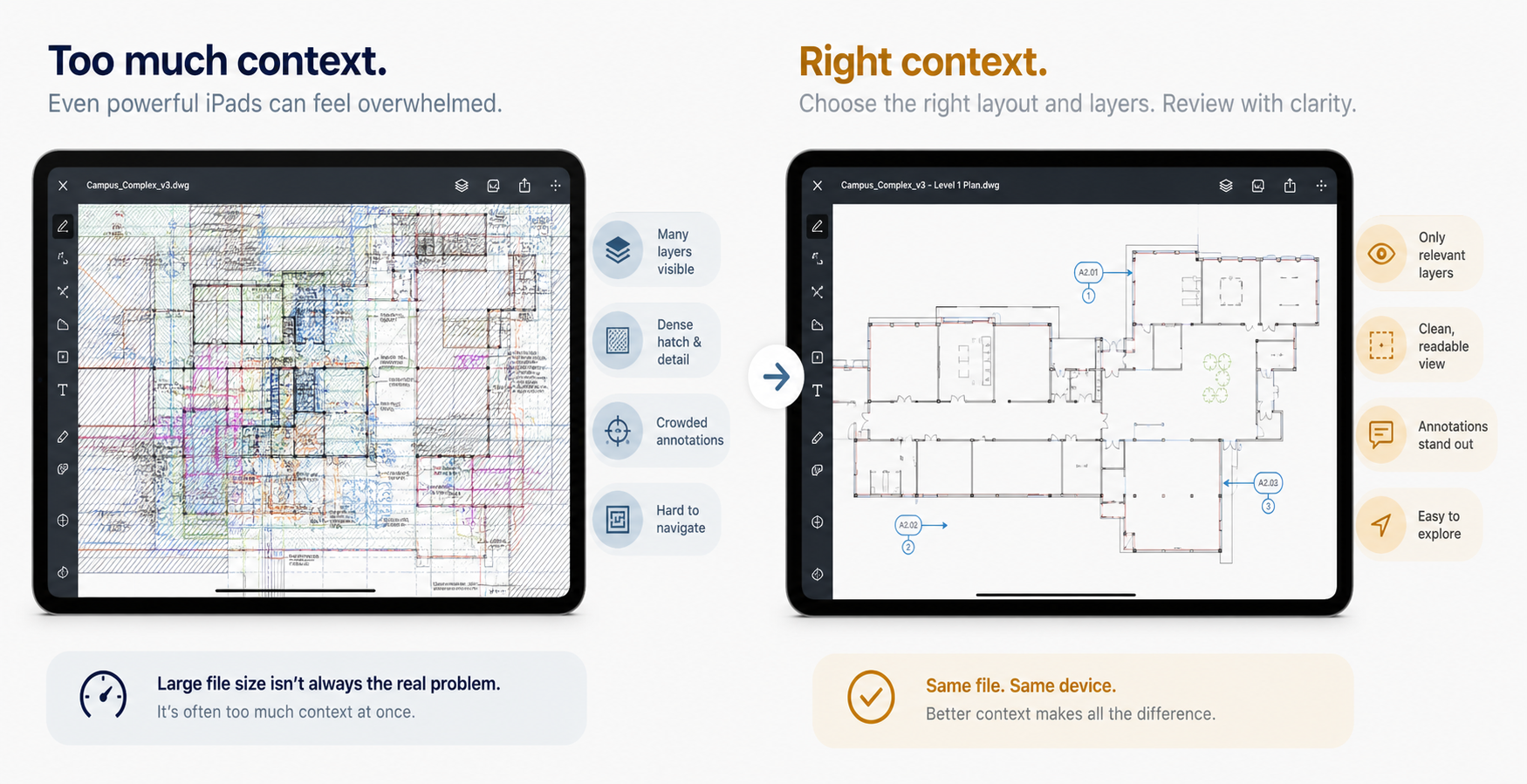
The first two context checks are usually:
- Layout: are you on the sheet that actually matches the discussion?
- Layers: are you seeing everything at once when you only need one slice of the drawing?
If the wrong layout is active, the file can look empty, cropped, or strangely scaled. How to switch layouts and paper space on a DWG from iPad is the direct fix for that.
If the layout is right but the drawing is visually overloaded, how to review DWG layers on iPad during a site visit is the next step. Hiding noisy layers often improves trust faster than another round of zooming.
This is also where a large-file diagnosis becomes practical instead of theoretical. A site team does not need a performance benchmark. They need to answer one question now, on one sheet, with the layers that matter.
4. Test the real field task before declaring failure
Once the file opens and the context is cleaned up, do not stop at "it renders." Test one workflow that matters:
- confirm one dimension with the measurement workflow on iPad
- place one note or markup where the site condition differs
- check whether the drawing stays usable without network dependency, as covered in why offline access matters in an iPad DWG viewer
That test tells you more than staring at the first screen. A large DWG is only a real blocker if it prevents the actual field-review job.
One realistic example: a superintendent receives a revised coordination drawing minutes before a walkthrough. The right question is not "Can this iPad run the heaviest DWG in existence?" It is "Can I open this real revision locally, get to the right layout, isolate the important layers, confirm one dimension, and keep the meeting moving?"
If the answer is yes, the workflow is still viable.
What this looks like in PlanInspect
PlanInspect is strongest when the job is local DWG review on iPhone or iPad, not full desktop-style CAD authoring. In that workflow, the heavy-drawing question becomes much more specific:
- open the DWG from Files, Mail, AirDrop, iCloud Drive, or the iOS share sheet
- confirm the right layout before assuming the file is broken
- reduce visible layers when the drawing is too noisy to review clearly
- keep measurements, notes, and exports tied to the original drawing instead of switching immediately to a flattened fallback
- continue the review offline when the drawing is already local
That makes PlanInspect a good fit when the real goal is not "open any CAD file somehow," but "keep this production DWG usable enough to make a decision on iPad."
Diagnose the overload, not just the file size
The best way to open a large DWG on iPad is to stop treating every hard drawing as a pure size problem. Start with transfer integrity, confirm DWG compatibility, switch to the correct layout, hide the layers that do not matter, and test one real review task before giving up on the drawing.
That approach keeps the original DWG useful longer, which is usually the point of bringing the file onto iPad in the first place.