
Yes, you can send a DWG to iPad with AirDrop, email, or a shared Files location and open the original file without converting it first. The reliable workflow is simple: get the DWG into Files, reopen the exact local copy, choose PlanInspect from the share sheet or Open With, then confirm the right layout before you start reviewing.
That sequence matters because most search results explain either file transfer or CAD viewing, but not the full handoff from one to the other.
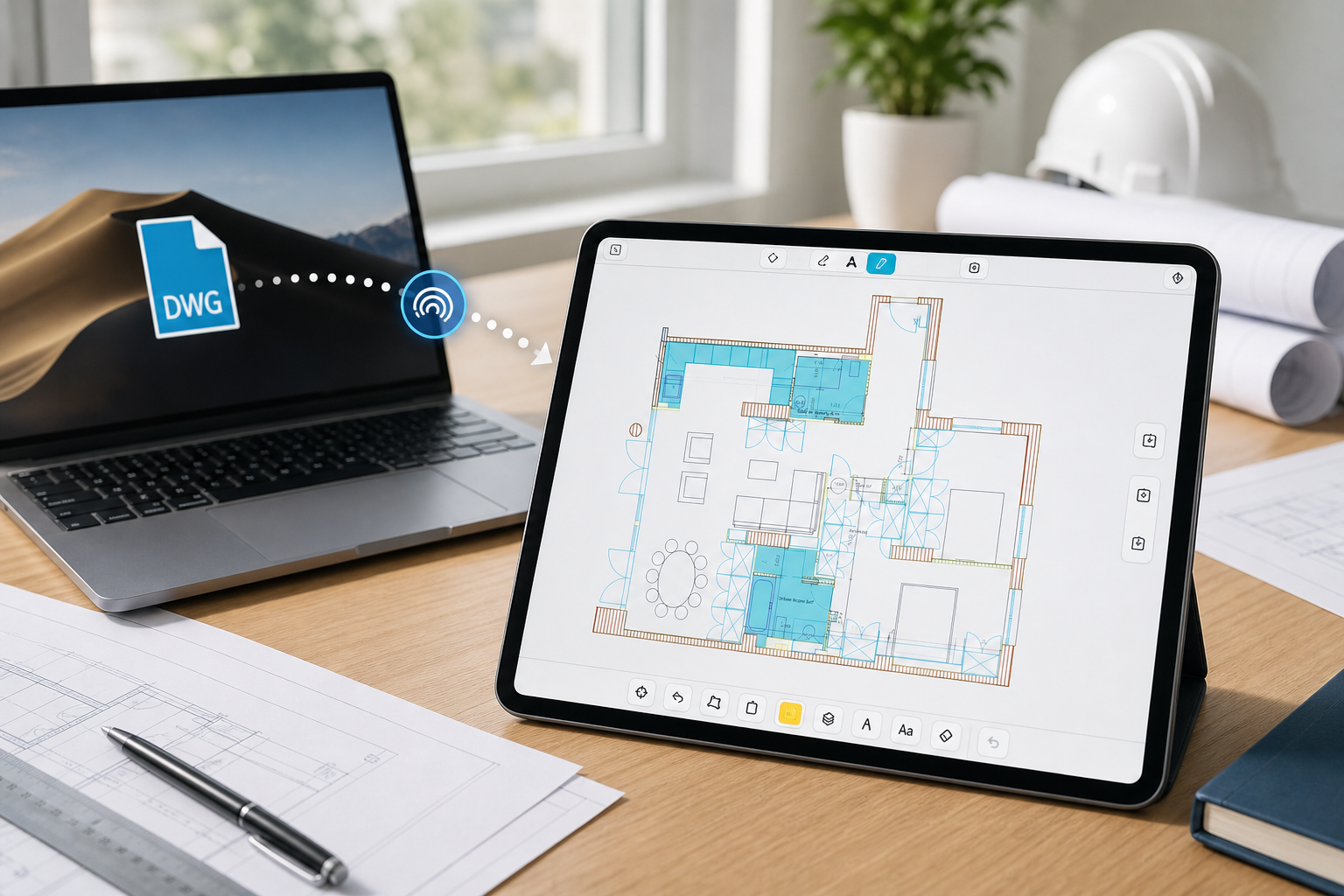
Choose the handoff path that matches the job
Use this quick comparison before you send the drawing:
| Transfer path | Best when | What to watch |
|---|---|---|
| AirDrop | The sender is nearby and you need the fastest full-size handoff | Confirm the accepted file is the right revision before you start review |
| Email attachment | A consultant or subcontractor is sending one drawing for review | Save the attachment into Files first instead of relying on a mail preview |
| Shared folder in Files | You expect to reopen the drawing later or compare revisions | Recents can make it easy to tap the wrong copy if the folder structure is messy |
| Share sheet from another app | The DWG already lives in iCloud Drive, Dropbox, or another document provider | Choose the viewer deliberately instead of letting a generic preview path hide the real file flow |
Apple's guide to transfer files between your iPad and other devices and its dedicated AirDrop documentation for iPad explain the mechanics well. The missing piece for DWG readers is what to do once the file reaches the device.
If you are still choosing the app category itself, how to choose a DWG viewer for iPad is the broader decision guide. This article is the narrower import-and-open workflow.
A practical 4-step workflow for AirDrop, email, and Files
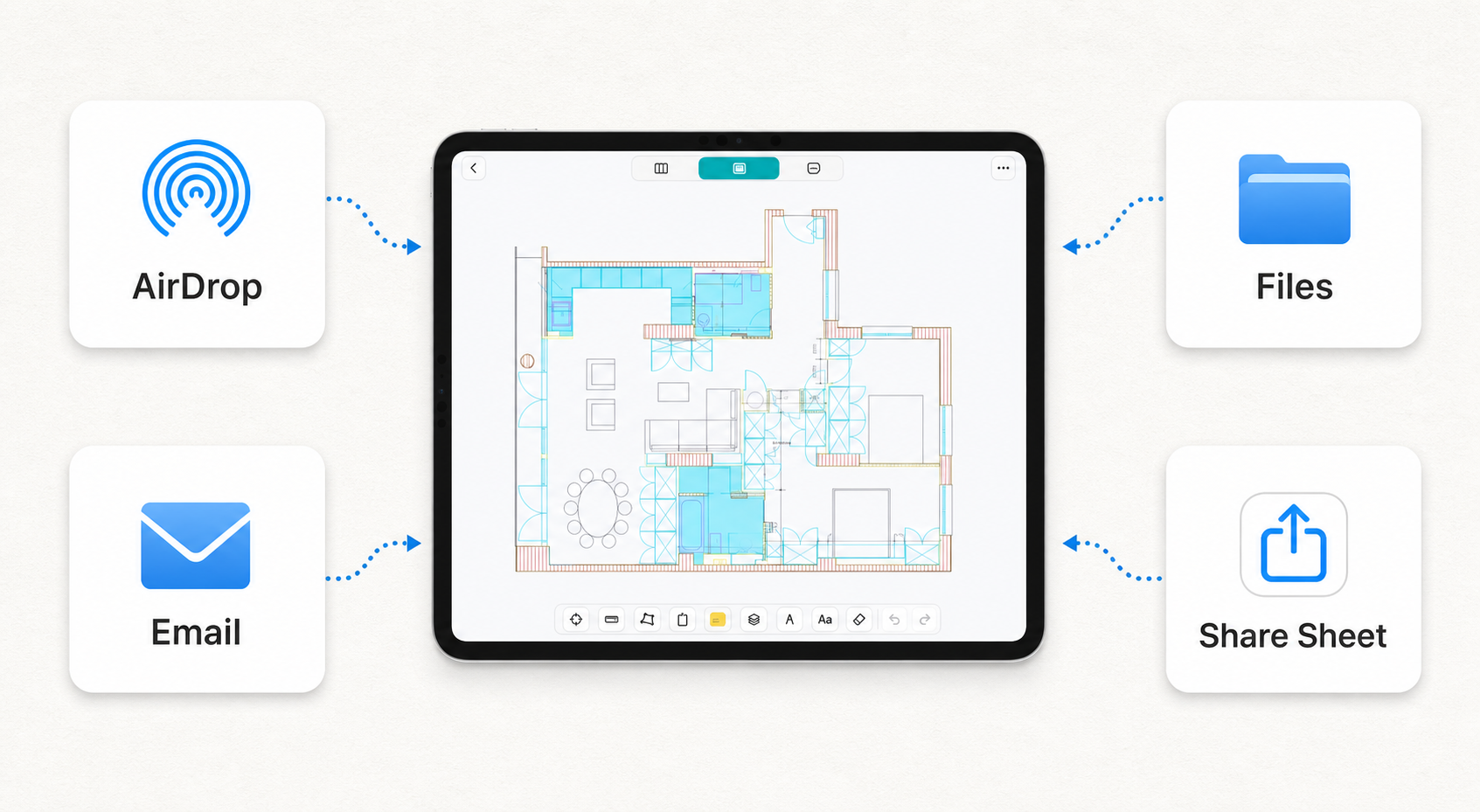
1. Get the DWG into Files first
The first mistake people make is assuming that seeing the attachment means the transfer is finished. For DWG review, that is not enough.
If the drawing comes from a nearby Mac or another Apple device, AirDrop is usually the fastest path because the transfer is direct and encrypted. If it comes by email, download or save the attachment into Files before you decide the job is done. If it comes from a shared folder, confirm exactly which local copy or folder you want to use before tapping into the drawing.
Apple's Files basics for iPad are important here because serious field workflows start from file location, not from a vague memory of where the attachment came from.
This is also why a local-first workflow converts better than a generic "open CAD somewhere" promise. Once the file is in Files, the rest of the review becomes predictable.
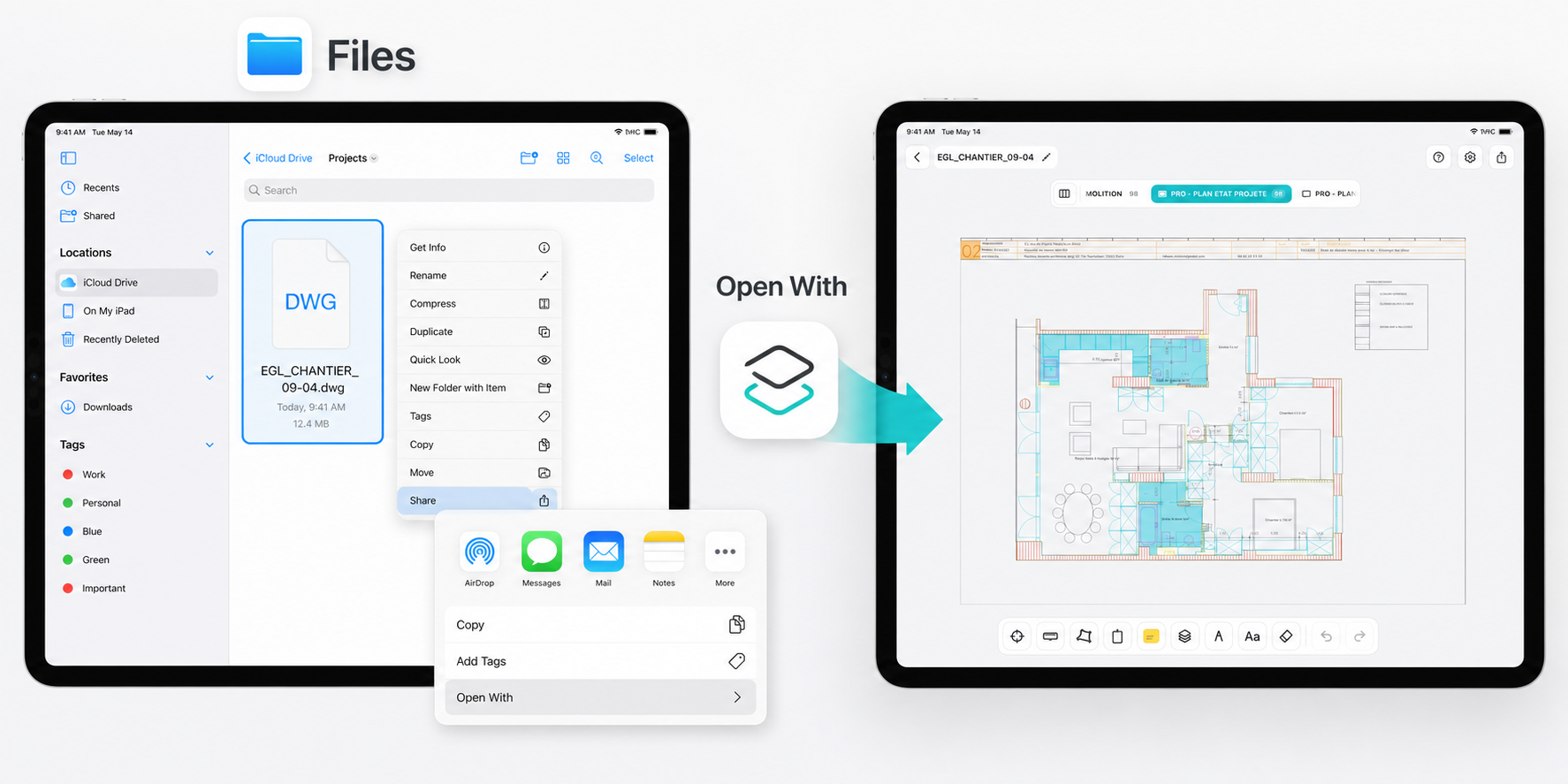
2. Reopen the local copy and choose the right app path
After the DWG lands on the device, open it from Files instead of depending on whatever preview or temporary viewer path appeared first.
Apple's guide to finding files and choosing an app to open them on iPad matters because it reflects the real moment of failure or success:
- find the file again in Files
- confirm the actual location and revision
- use the share sheet or
Open Withpath intentionally - send it to the app you want to use for DWG review
That extra step sounds small, but it prevents a lot of confusion. Many "the DWG did not open" complaints are really "the file opened through the wrong path."
If the first check happens on a phone before the deeper review moves to tablet, the practical guide to using a DWG viewer on iPhone covers that lighter-weight version of the same workflow.
3. Confirm the drawing context before you start the real review
Opening the DWG is only the first success state. Before you walk away from the sender or start the site visit, make sure:
- the revision is the one you expected
- the correct layout is active
- noisy layers can be hidden if needed
- the file behaves like a real DWG, not a damaged transfer
That matters because a drawing can appear broken when the real problem is context rather than import. If the file still refuses to open, what to check when a DWG file will not open on iPad is the right troubleshooting sequence before you convert anything.
If the handoff immediately turns into a dimension check, how to measure distances on a DWG file from iPad is the closest supporting workflow.
4. Keep the workflow local until the review is finished
This is where the file-transfer topic becomes a field-review topic.
Vendor pages such as Autodesk's guide for viewing AutoCAD DWG files on a mobile device and DWG FastView for mobile validate that mobile DWG access is a real category. They also tend to jump quickly toward broader mobile CAD capability or cross-device continuity.
For many iPad readers, the immediate need is narrower:
- keep the original DWG local
- review the plan on site
- add notes or measurements
- export only the final PDF, image, or report you actually want to share
That is why the transfer path matters. A clean local handoff makes the later review simpler, more private, and more reliable when the connection is weak.
If offline reliability is part of the buying decision, why offline access matters in an iPad DWG viewer is the next article to read.
When AirDrop is better than email, and when Files wins
AirDrop is strongest when the sender is physically nearby and the drawing needs to move fast without another upload or sync step. That is common on site, in a trailer, or during a coordination meeting where someone says, "I just revised the sheet. Check this one."
Email is better when the handoff needs an audit trail or when the sender is external. The mistake is treating the inbox itself as the document manager. For DWG work, save the attachment into Files first, then reopen the local copy.
Files becomes the real center of gravity when:
- multiple revisions exist
- the drawing may be reopened later offline
- the iPad needs to work from one predictable folder structure
- the next step is deeper review rather than a quick glance
That is also the clean bridge into how to open DWG files on iPad without converting them, which is the broader hub for local import and review.
What usually goes wrong in this workflow
Most failures are boring, not mysterious:
- the drawing was previewed from Mail but never saved locally
- AirDrop or download finished incompletely and the copy is damaged
- Recents showed an older file revision and the wrong copy got opened
- the file opened in a generic preview path instead of the intended DWG app
- the drawing technically opened, but the wrong layout or noisy layers made it look unusable
The good news is that these are fixable habits. Once the team consistently routes the drawing through Files and reopens the local copy deliberately, the workflow gets more repeatable.
What this looks like in PlanInspect
PlanInspect is strongest when the handoff needs to continue into actual DWG review on iPhone or iPad.
In that workflow, you can:
- open DWG drawings from Files, Mail, AirDrop, iCloud Drive, or the iOS share sheet
- keep the original file local instead of converting it first
- switch layouts and review layers before making decisions
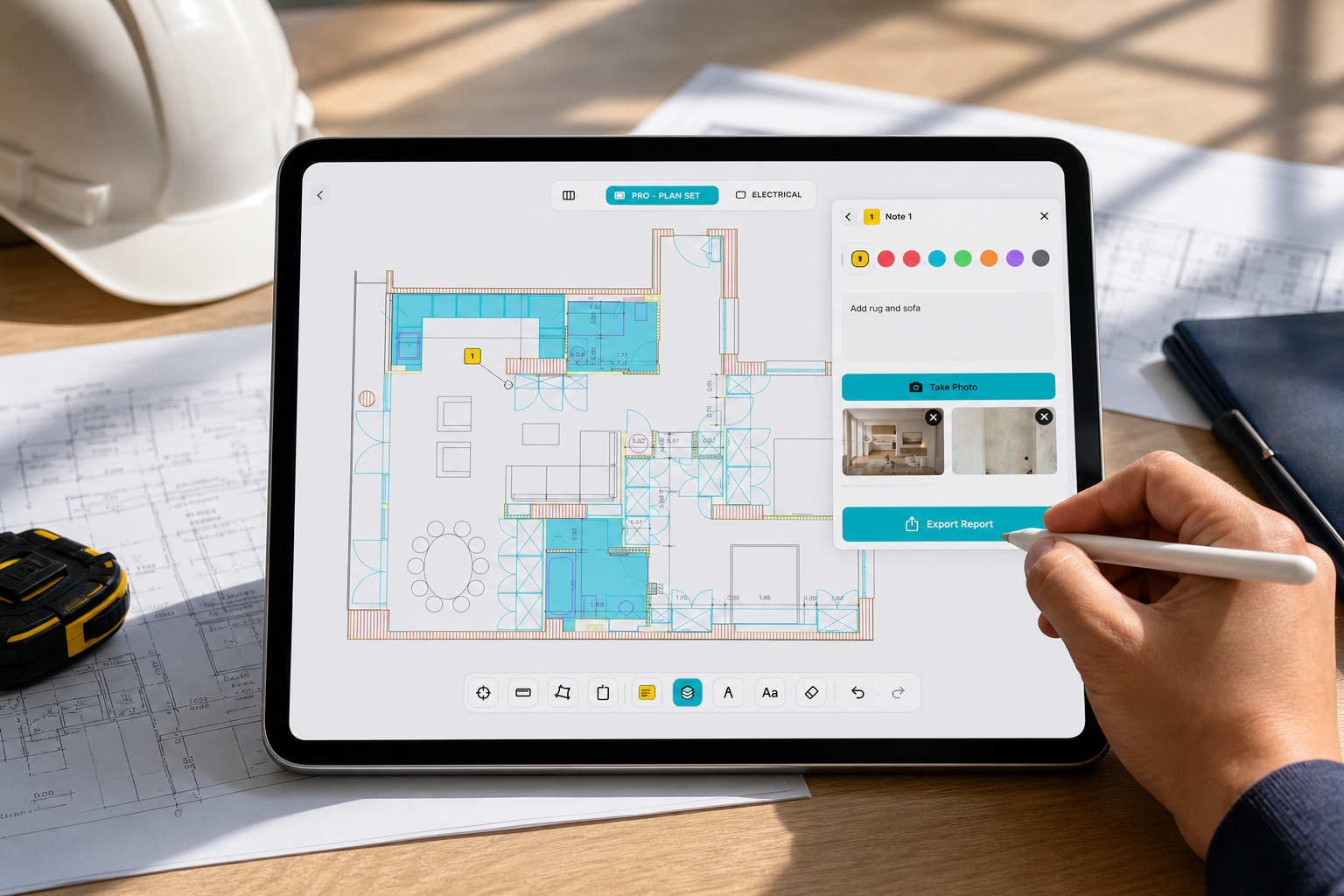
- measure, add notes, and mark up the drawing during the review
- export a PDF, image, or report once the handoff is ready
That makes PlanInspect a good fit for one concrete field scenario: an architect or coordinator sends the latest DWG to the superintendent's iPad via AirDrop, the drawing is reopened from Files, the team checks the right layout on site, adds one clarification note, and sends back a focused report instead of a messy screenshot thread.
Treat transfer and opening as one workflow
The best way to send and open a DWG on iPad is not to think about AirDrop, email, and Files as separate topics. They are one handoff chain.
Move the drawing onto the device, confirm the local copy in Files, reopen it with the right app path, and only then start the real review. That is the difference between "the file arrived" and "the drawing is ready to use."