
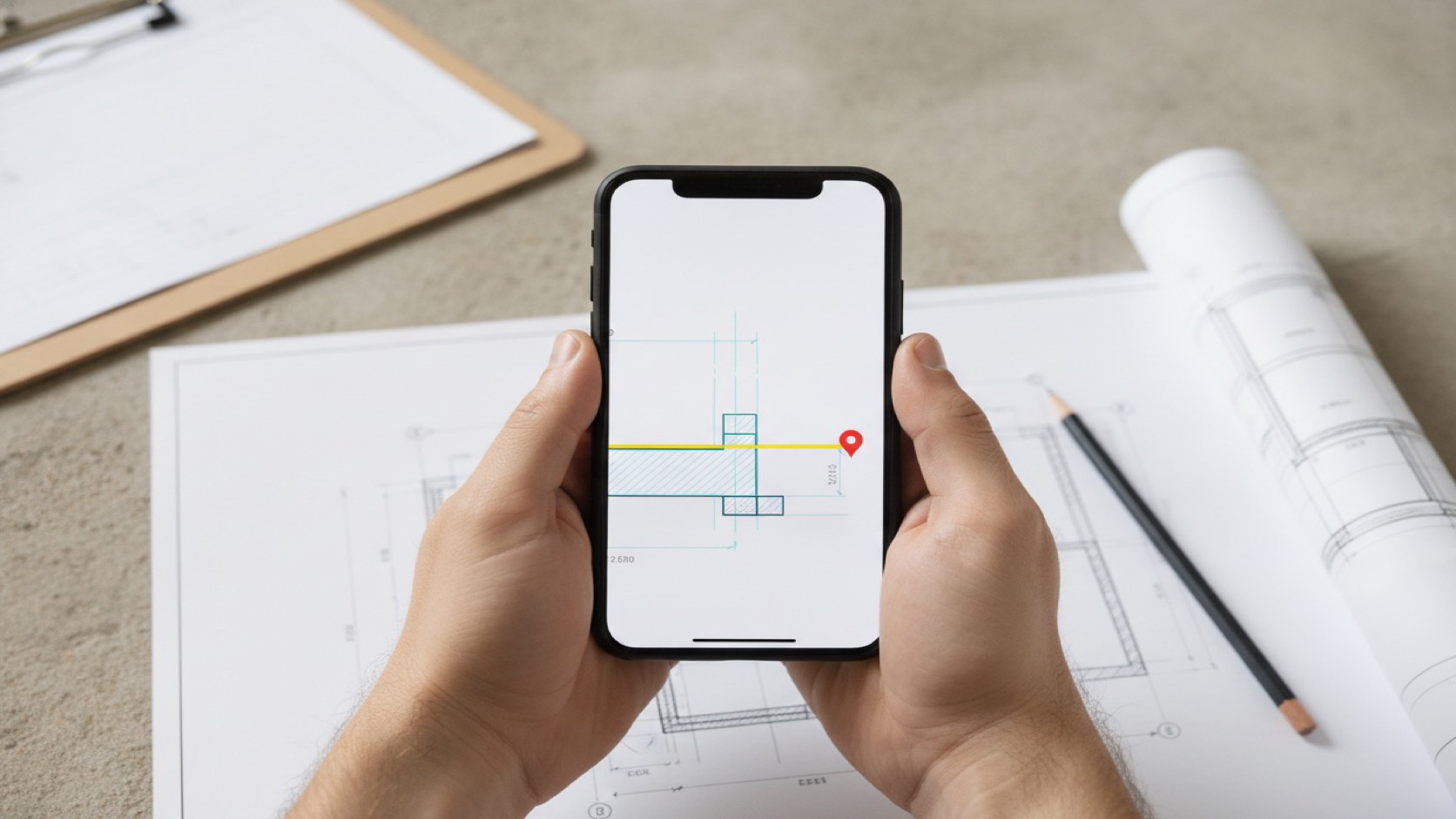
Yes, you can use a DWG viewer on iPhone effectively, but only if you treat the phone as the right tool for the right part of the job. An iPhone is excellent for opening a drawing quickly, confirming a detail, checking a layer, reviewing a markup, or making a fast field decision. It is usually not the best device for long measurement sessions, dense sheet review, or heavy annotation. The practical workflow is simple: use the iPhone for quick access and escalation, then move to iPad when the drawing needs more space.

When an iPhone DWG viewer is the right tool
Most search results for DWG viewer for iPhone lead straight to App Store pages or vendor product pages. That makes sense: people searching this term usually need an app now, not a CAD theory lesson.
The missing piece is task fit. On a phone, the question is not "can this app open DWG?" Nearly every serious mobile CAD app says yes. The real question is whether the screen, file workflow, and review tools are good enough for the job you are doing in that moment.
| Task | iPhone fit | Why |
|---|---|---|
| Open a DWG from Files, Mail, or AirDrop | Strong | Fast, simple, and realistic during field handoff |
| Confirm one dimension or detail | Strong | Good for quick checks when you already know what to inspect |
| Review a small markup or note | Strong | A phone is enough when the issue is localized |
| Browse a large multi-layout drawing set | Mixed | Possible, but slower and less comfortable on a small screen |
| Measure several items across a dense plan | Weak to mixed | Precision and context are easier on iPad |
| Do a long site review with notes and exports | Better on iPad | More room for layers, context, and repeated actions |
If you mainly need quick lookup, fast issue confirmation, or an "open it now" backup device, iPhone can be exactly the right form factor. If you expect the phone to replace a full iPad field review, frustration usually comes from the screen size, not the file format.
Start with the local iPhone workflow
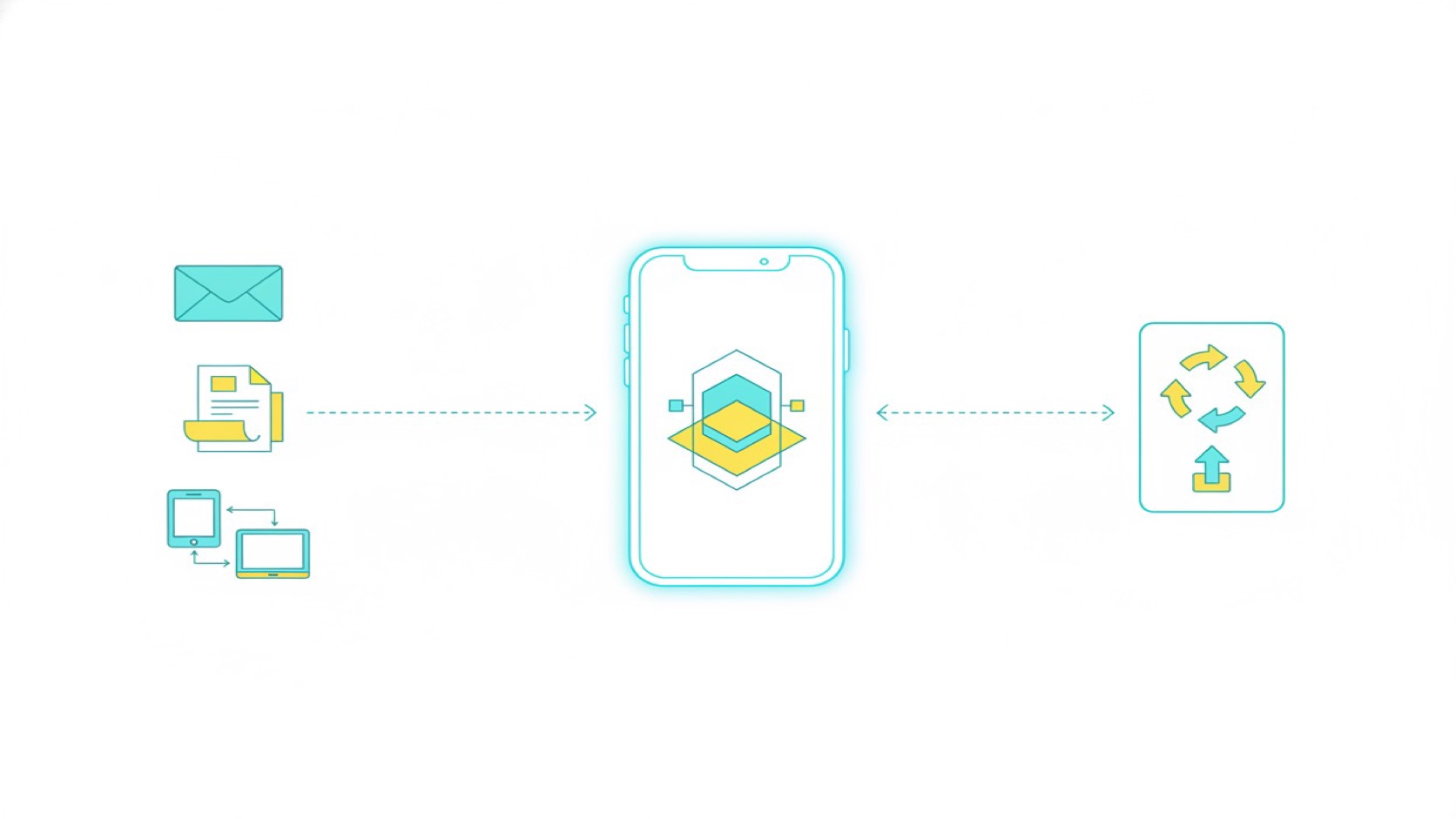
Apple's Files app for iPhone is the center of gravity for most serious DWG workflows on mobile. Files can surface downloads, iCloud Drive items, email attachments that were saved locally, and documents shared from other apps.
That is the practical difference between a real field workflow and a demo workflow. On site, drawings do not arrive from one ideal source. They come from Mail, text threads, project drives, AirDrop, or a folder someone shared five minutes ago.
Use this sequence:
- Save the DWG into Files, Downloads, iCloud Drive, or another local/managed location.
- Open the file from the share sheet or from the document browser in the viewer app.
- Confirm that the correct layout opens.
- Zoom into the decision area first instead of trying to understand the whole sheet at once.
- Check the layer visibility before taking any measurement or adding any note.
If your main need is iPad, the companion guide on how to open DWG files on iPad without converting them covers the same local-first logic on the larger screen.
What to test before you trust a DWG viewer on iPhone
Autodesk's current DWG format compatibility reference is a useful reminder that DWG is not one tiny universal file type. Drawings vary by version, layouts, blocks, hatches, text handling, and overall complexity.
That means the right test is never a vendor demo file. Test with one of your real project drawings and answer four questions:
1. Does it open the original DWG cleanly?
If you have to convert the drawing to PDF just to make it usable, you may lose layers, layouts, and drawing behavior that matter during review.
2. Is the phone screen enough for the task?
An iPhone can be excellent for checking one room, one equipment detail, one redline, or one punch item. It becomes weaker when the drawing is large, heavily layered, or full of tiny text.
3. Can you isolate the right information fast?
Layer control matters more on a phone, not less. On a dense plan, hiding noise is often the difference between a usable field check and a frustrating pinch-zoom session.
4. Will the file still be available when the signal drops?
Vendor pages often emphasize cloud continuity. For example, Autodesk's AutoCAD Web/mobile overview highlights offline access with later sync, while the DWG FastView mobile page emphasizes multi-device access plus view, edit, and annotate workflows. Those are real benefits when the team is already tied to a cloud ecosystem.
But field work often fails in smaller ways: no signal in the basement, weak hotspot coverage, a login session that expired, or a drawing shared too late. In those moments, a local-first workflow is easier to trust.
What current iPhone CAD apps tend to optimize for
The strongest mobile CAD options do not all optimize for the same job:
| Product angle | What it emphasizes | Best fit |
|---|---|---|
| DWG FastView | Cross-platform viewing, editing, annotation, and account-based access | Teams that want mobile plus web/Windows continuity |
| AutoCAD mobile | Core AutoCAD commands, collaboration, and offline-plus-sync workflows | Teams already living in Autodesk workflows |
| ARES Touch and ZWCAD Mobile | Broader mobile CAD, including reading, annotating, measuring, and modifying | Users who want a fuller CAD toolset on mobile |
| PlanInspect | Local DWG review, measurements, notes, markups, and exports on iPhone and iPad | Field review, inspections, and drawing handoff on site |
That is why the best iPhone DWG viewer depends on the job. If you need mobile drafting and ecosystem sync, choose for that. If you need a phone-ready way to open the original drawing, check a condition, add a review note, and move on, choose for that instead.
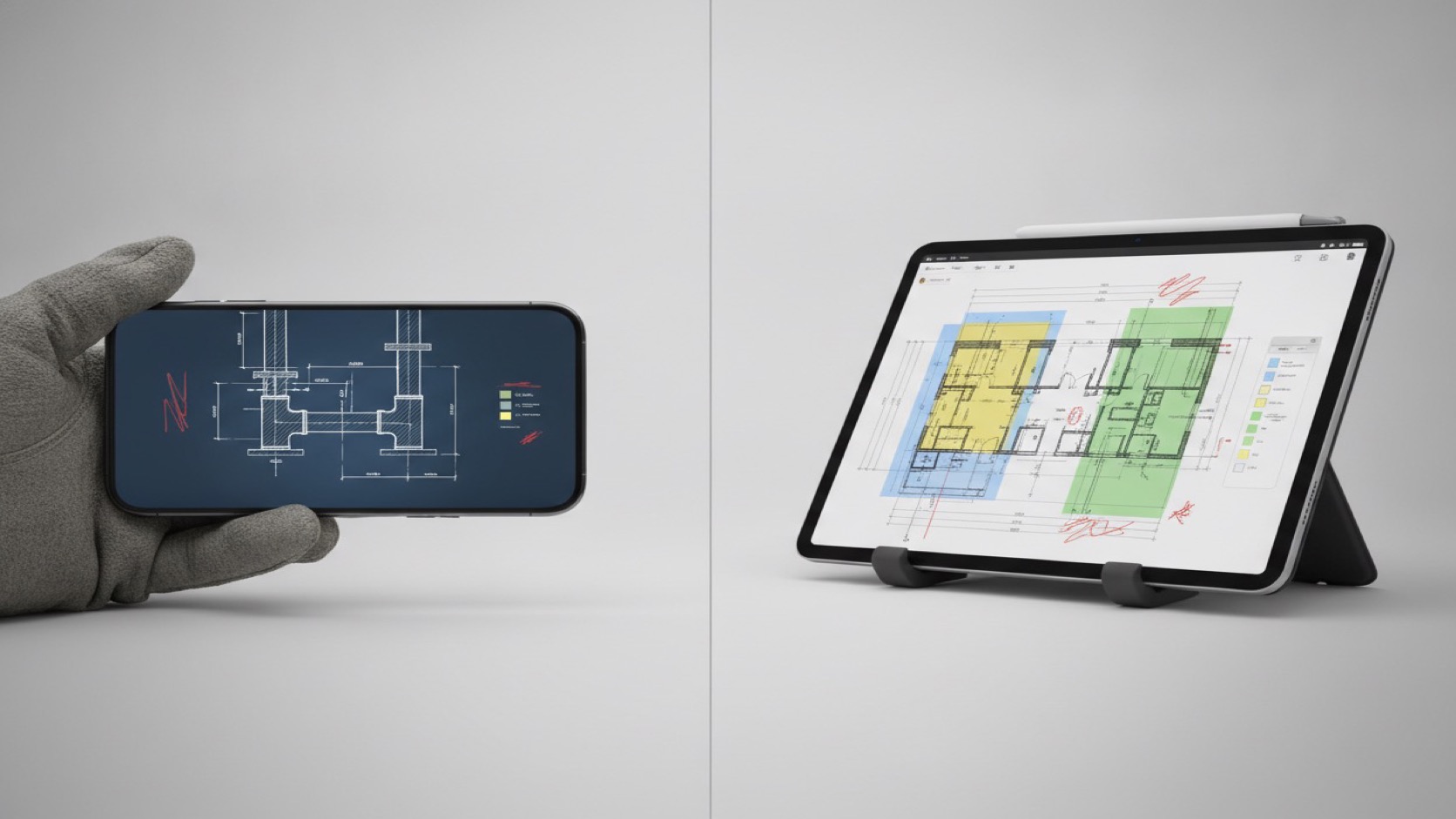
Use iPhone for quick checks, iPad for deep review
The most practical workflow is not iPhone versus iPad. It is iPhone first, iPad when needed.
Use iPhone when you need to:
- open a DWG from a message, email, or Files
- confirm a location or room detail
- check whether the latest drawing is the right one
- review one markup or one punch item
- answer a question while walking or moving between spaces
Move to iPad when you need to:
- compare multiple layouts for longer than a minute
- isolate several layers repeatedly
- measure multiple distances or areas
- place many notes or markups
- export a clearer report for the team
If you are evaluating the larger-screen workflow, how to choose a DWG viewer for iPad explains what to test before standardizing on one app, and the DWG field review checklist helps structure the actual site pass.
Where PlanInspect fits
PlanInspect is built around that local review workflow. The current app and site copy support a straightforward path: open local DWG drawings on iPhone or iPad, inspect layouts and layers, measure, add notes and markups, then export a clean PDF or review report when the work is ready to share.
That makes it a practical fit when your main job is not desktop CAD editing. It is a fit when the drawing needs to stay useful during a walkthrough, a punch-list check, a coordination meeting, or a fast field handoff.
If your team needs help during setup or import, the support page is the right internal reference. If the app opens the real drawing you use every week, that is a stronger buying signal than any feature matrix.
Choose the phone workflow on purpose
The best DWG viewer for iPhone is not the app that promises the most CAD surface area. It is the app that makes the phone useful in the exact moments a phone is supposed to help: open the file quickly, confirm the detail, make the field decision, and keep moving.
If that is your real use case, test the viewer with one messy production DWG, not a vendor sample. You will know quickly whether the phone workflow is a gimmick or a tool.