
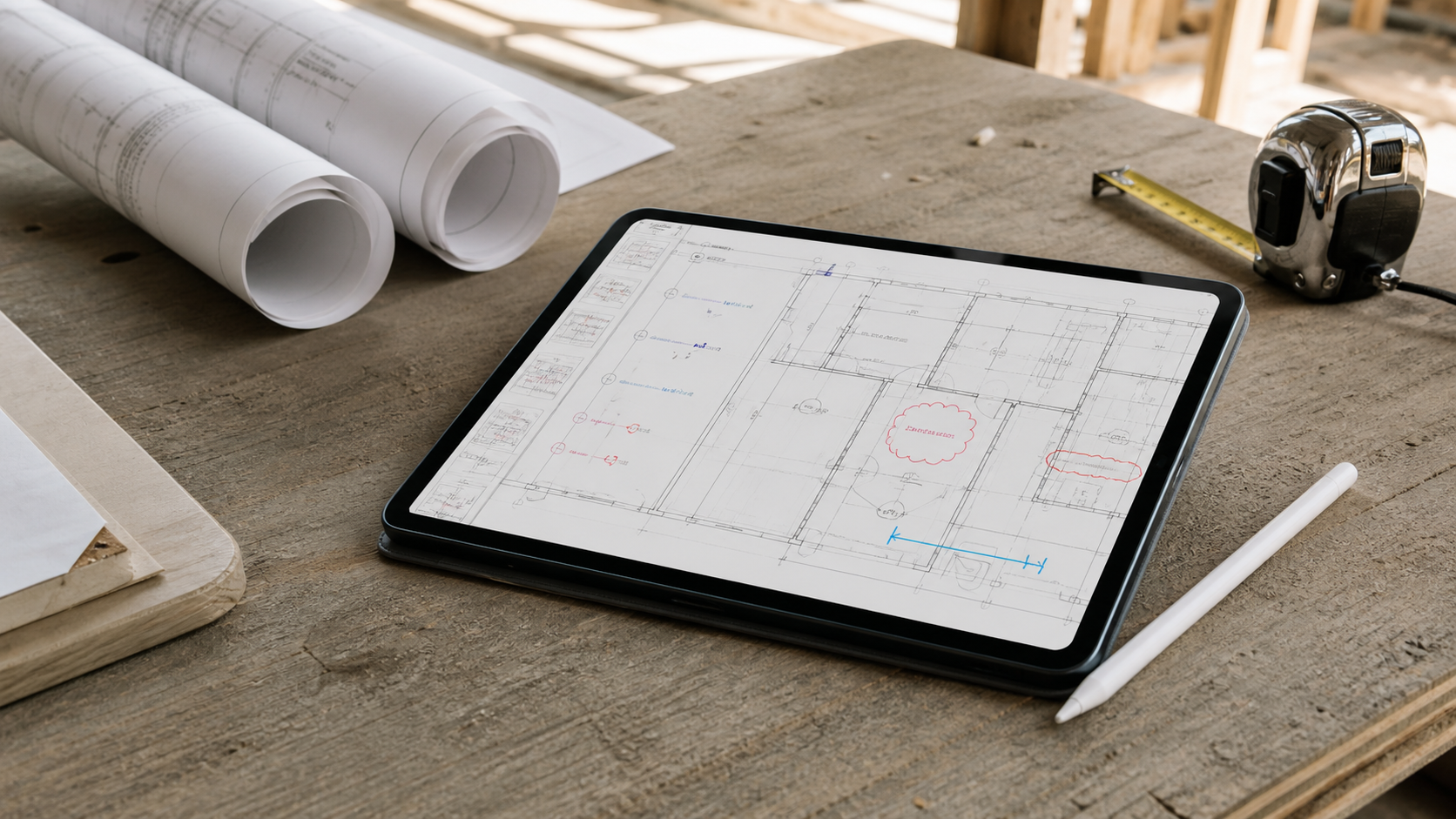
The best PDF plan viewer for iPad is not just a reader that can zoom into a sheet. It should let you keep an issued multipage plan set together, confirm the active page, calibrate scale before you measure, record an observation where it belongs, and export a clear handoff. If your team only needs to read or highlight a document, iPad markup may be enough. If the PDF is the plan the team must actively review on site, test that full sequence on a real file.
A construction PDF is an active review format, not a second-class substitute for DWG. It preserves the issued sheet set your team received. The right iPad viewer should respect that context while making the field work simple.
First, decide whether you need a reader or a plan-review workflow
Apple's built-in tools can open a PDF from Files on iPad, and the native markup tools can add a quick drawing or highlight. Adobe also documents a straightforward iPad PDF annotation workflow for general documents. Those are sensible choices when the job is simply to read a sheet or flag a comment.
A plan-review workflow is different. It becomes necessary when the team needs to answer questions such as:
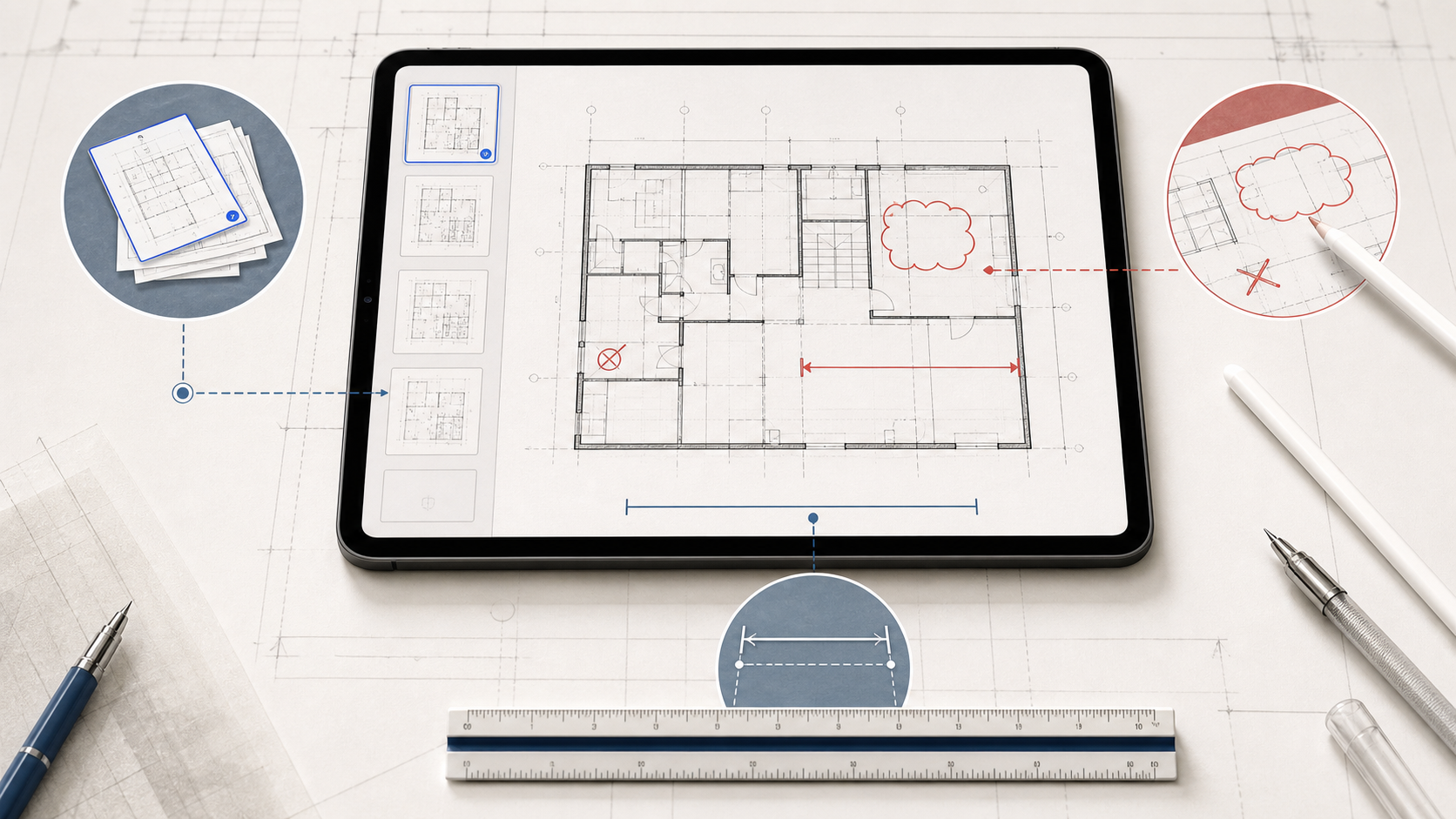
- Which sheet in this issued set contains the condition we are discussing?
- Is this PDF page calibrated well enough to trust a distance or area?
- Can the observation, photo, and markup stay attached to the exact location?
- Can we send one clean reviewed output without rebuilding the context in chat?
Search results often mix PDF readers, takeoff tools, construction-management platforms, and mobile CAD apps. They overlap, but they do not make the same promise. For example, ScaleTap focuses on PDF takeoff, including counts, areas, and spreadsheet exports, while DraftPlanar positions itself around large-plan viewing, measurement, and annotation. Those may be appropriate if their wider feature sets match your work. PlanInspect is deliberately narrower: local DWG and multipage PDF review on Apple devices, with calibrated measurement, notes, markups, and export—not estimating spreadsheets, OCR, PDF layer controls, or automatic revision comparison.
That distinction makes the buying decision more honest. Start by naming the job, then test the category that actually fits it.
The five things to test with your own PDF plan set
Do not evaluate a PDF viewer only with a single polished sample sheet. Import one real issued plan set that your team already uses and work through this checklist.
| What to test | Why it matters | Good result on iPad |
|---|---|---|
| Multipage navigation | A plan set is a sequence, not one isolated image | You can move between sheets, reopen the right page, and keep page context clear |
| Scale calibration | A precise-looking number is still wrong if the page scale is wrong | You can set a known scale or calibrate from two known points before measuring |
| Measurement | Site decisions may depend on one distance or area | Measurements come after scale confirmation, not before it |
| Annotations and notes | A verbal observation is easy to lose | The note, markup, or photo stays connected to the plan location |
| Local handoff | The review is only useful when someone can act on it | You can share an understandable reviewed PDF, image, or report |
1. Multipage navigation should preserve the issued set
Construction PDFs are often the controlled issue set: cover sheet, plans, details, schedules, and revisions in one file. A viewer should help you treat each page as a reviewable sheet, not leave you hunting through a flat document after every interruption.
Try a realistic sequence: open the set from Files, jump from a plan to a detail, return to the original sheet, then close and reopen the document. If you cannot quickly recover the page you were reviewing, the workflow will be fragile during a site walk.
This is also where PDF differs from DWG in a useful way. DWG preserves CAD-specific layouts, layers, and drawing geometry. PDF preserves the issued page set. If your decision depends on the controlled PDF sheets rather than CAD structure, start with the PDF. Our DWG vs PDF guide for iPad site review explains the format choice in more detail.
2. Calibration is the trust test for PDF measurement
You can measure a PDF plan on iPad, but the measurement is only as trustworthy as the scale of the active page. A source drawing scale, a printed scale, and the scale of a PDF as displayed on a tablet are not automatically the same thing.
Look for a viewer that supports both of these safe starting points:
- Enter a known page scale when the issued drawing clearly provides one and the PDF has not changed that relationship.
- Calibrate from two points with a known real-world distance when you need to verify the page more precisely.
Then check the result against a second known dimension before acting on it. This is especially important when a sheet was reduced, cropped, exported from another tool, or received as a scan.
In PlanInspect, PDF scale is set per page and can be entered manually or calibrated from two points. After you confirm it, you can measure distances and areas on that page, rather than pretending a multipage set has one universal scale.
3. Ask whether the PDF is vector or a scan
The visual quality of a PDF affects how you place measurement points. A vector PDF contains geometric paths that can remain sharp as you zoom. A scanned plan is a raster image inside a PDF: readable, but without the same underlying paths.
PlanInspect can snap to supported vector paths when they are present. On a scanned PDF, manual placement is still possible after calibration, but there is no vector geometry to snap to. That is not a defect in the iPad; it is a property of the source file.
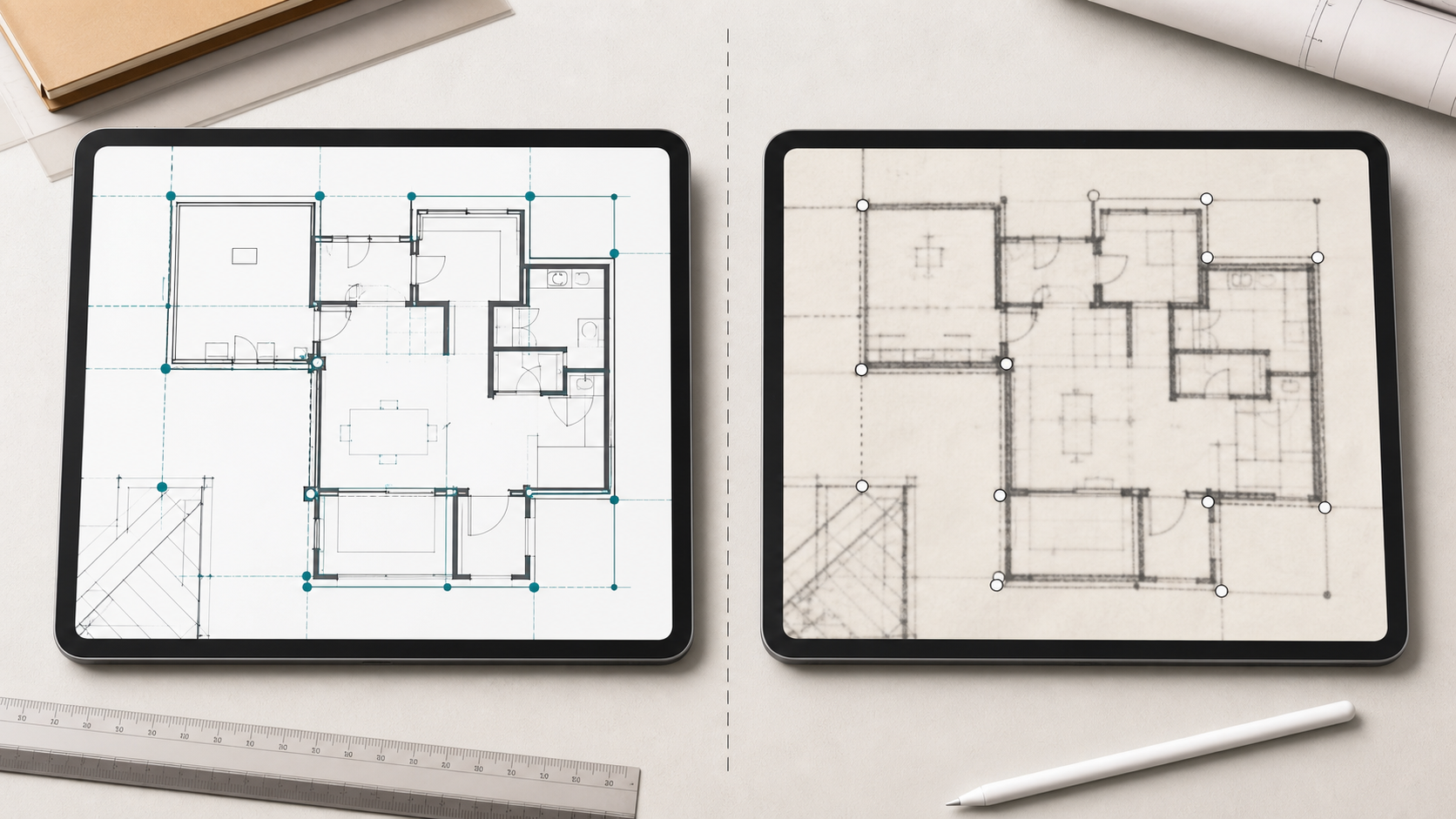
Before standardizing on an app, test one vector PDF and one scan from your own projects. You will learn more from that ten-minute check than from a generic feature list.
4. Markups should explain the issue, not just decorate the page
For a general document, a highlighter or freehand circle may be enough. For plan review, the useful annotation answers a practical question: what is wrong, where is it, and what should happen next?
Test whether the viewer supports the review marks your team actually uses:
- a note attached to the relevant location
- a photo that records the field condition
- pen, highlighter, or text markup that separates observation from instruction
- an export that keeps the source page visible behind the review overlays
PlanInspect is intended for this review-safe work. You can add notes, photos, pen, highlighter, text, and markups without turning the PDF review into full CAD editing. If your team is choosing broadly between DWG and PDF workflows, what to look for in a construction plan viewer on iPad is a helpful companion. For the wider language many teams use, see how to choose a blueprint viewer for DWG and PDF plans.
5. Check the handoff before you call the workflow complete
The final test is simple: can someone who was not on site understand the reviewed output?
A reliable handoff might be a marked PDF page, an image of the current view, or a notes report. The right choice depends on who receives it, but it should make the plan, location, and observation clear together.
Avoid a viewer that forces you to screenshot, re-explain the context in a separate message, and hope the receiver finds the same place in the plan. The plan should remain the center of the discussion.

A practical iPad PDF plan-review workflow
Here is the short version to use on a real job:
- Open the issued PDF locally from Files, Mail, AirDrop, or the storage location your team already uses.
- Confirm the document revision and the active page before you inspect the condition.
- Set or calibrate scale for that page when measurement matters; verify a second known distance.
- Zoom in, use supported vector snapping when it is available, and place measurement points deliberately.
- Add the note, photo, or markup in the same plan context.
- Export the reviewed result in the format the next person can act on.
That sequence is intentionally less ambitious than a full estimating or CAD-authoring process. It is built for the moment when a construction, architecture, engineering, or inspection team needs to review the issued plan in front of them and keep a clear record of what they found.
Where PlanInspect is a strong fit
PlanInspect is a good choice when the PDF is the active source for the review and the team needs a native, private workflow on iPad. It opens local multipage PDF plans with no required account or cloud conversion. You can calibrate each page, measure distances and areas after scale confirmation, add observations and markups, and export the reviewed result.
It is not the right claim to say that every PDF behaves like a CAD drawing. PlanInspect does not provide PDF optional-content-group layer controls, OCR, text search, password-protected PDF support, automatic revision detection, construction quantity counts, angles, volumes, spreadsheet exports, or XFDF exchange. Those boundaries matter: they help you choose a plan-review tool for the job rather than a larger estimating or document-management system by accident.
If you receive both types of files, start with the PlanInspect plan viewer to choose the authoritative format for the decision, then see the dedicated PDF plan viewer page for the PDF workflow. If the plan is a DWG and your question depends on drawing units, layouts, or layers, measuring the original DWG on iPad is the better next step.
The buying rule: test one real plan from open to handoff
Choose your iPad PDF plan viewer with one real project file. Confirm that it can reopen the right page, establish scale before the measurement, distinguish vector-friendly PDFs from scans, keep your annotations tied to the issue, and export a handoff that makes sense without a separate explanation.
When a viewer can do those things, an iPad becomes more than a portable reader. It becomes a practical place to review the PDF plan your team actually received.