

For DWG review, iPad is usually the better choice when you need to carry the drawing to the condition, work by touch, and capture observations in place. Mac is usually better when you need a larger view, keyboard input, deliberate file organization, and a calm export pass. The best choice is not the more powerful device; it is the device that fits the next review decision.
If the job spans field and desk, use both as separate review stages. Move the DWG or an exported handoff intentionally with Files or AirDrop. Do not build the process around an assumption that notes, markups, or review state will automatically synchronize between devices.
iPad vs Mac for DWG review at a glance
| Review need | iPad is usually the better fit | Mac is usually the better fit |
|---|---|---|
| Walking a site with the drawing | Yes: portable, touch-first, usable beside the condition | No: possible with a laptop, but less natural while moving |
| Quick visual check at the point of work | Yes: orient the plan while the space is in front of you | Better when the question can wait for the desk |
| Pencil-style notes and markups | Strong fit for direct, in-place annotation | Strong fit for precise notes with keyboard and pointer |
| Comparing a dense plan at a large scale | Limited by screen size and mobile ergonomics | Stronger fit for wider context and a stable workspace |
| Organizing several files and outputs | Adequate for a focused local review | Stronger fit for Finder-based file handling and export cleanup |
| Full CAD authoring | Not the goal of this workflow | Use a full CAD system, not a focused reviewer |
| Final report or PDF handoff | Good when it must leave the site immediately | Better when the output needs a careful desk-side pass |
This is a task-fit comparison, not a device ranking. The same reviewer may make a better decision on iPad at 10:00 beside a doorway and a better decision on Mac at 16:00 while checking the whole sheet and preparing the handoff.
Choose iPad when the drawing needs to move with you
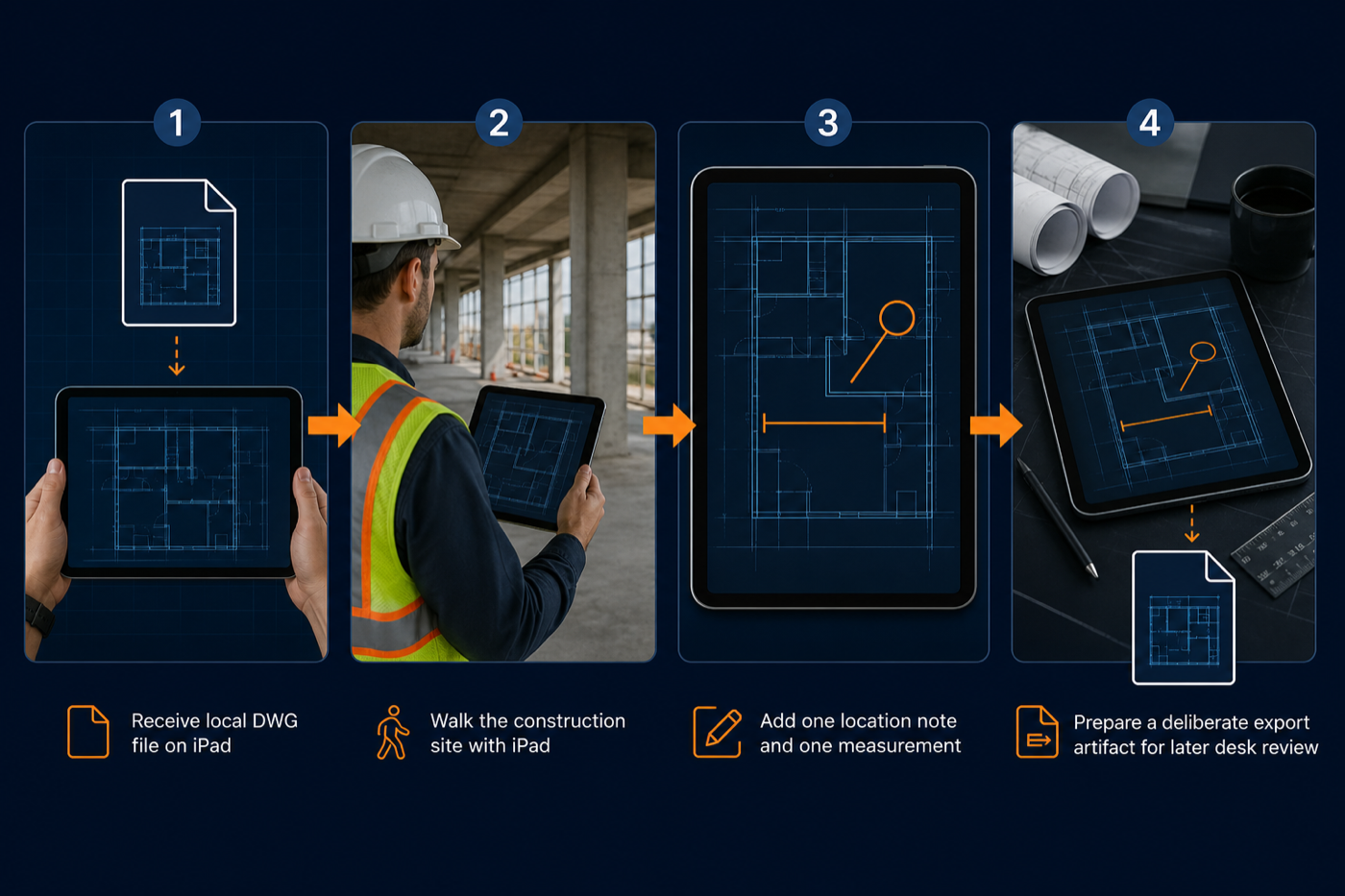
An iPad earns its place in a DWG review workflow when the physical location is part of the answer. You can hold the drawing near the installed condition, change orientation, zoom with touch, and capture the observation before the context disappears.
That makes iPad the stronger surface for:
- site walkthroughs and room-by-room checks
- a quick measurement beside the condition being checked
- notes, photos, or markups captured where the issue was found
- punch-list and inspection observations tied to a plan location
- local review where carrying a laptop would slow the walk
The workflow should still be disciplined. Open the original DWG, confirm the expected layout, reduce irrelevant layers, verify the one condition that matters, then document it. The complete iPad DWG review workflow explains that sequence from import to export, while the site walkthrough guide goes deeper on moving through a real construction area.
What iPad does not automatically solve
Mobility can expose weak process. A portable screen does not tell you whether the file is current, whether the correct layout is active, or whether a measurement uses the expected drawing context.
Before standardizing on iPad, test these questions:
- Can the reviewer open the actual
.dwgfrom the file path the team already uses? - Can they identify the correct layout and isolate useful layers quickly?
- Can they record a short observation without covering the geometry that explains it?
- Can they export a result before leaving the area?
- Does the recipient know whether to expect a PDF, image, report, or DWG?
PlanInspect fits this narrower review job: open a local DWG, inspect layouts and layers, measure, add notes or markups, and export a result. It is not meant to turn an iPad into a full drafting workstation.
Choose Mac when the review needs room and a stable desk
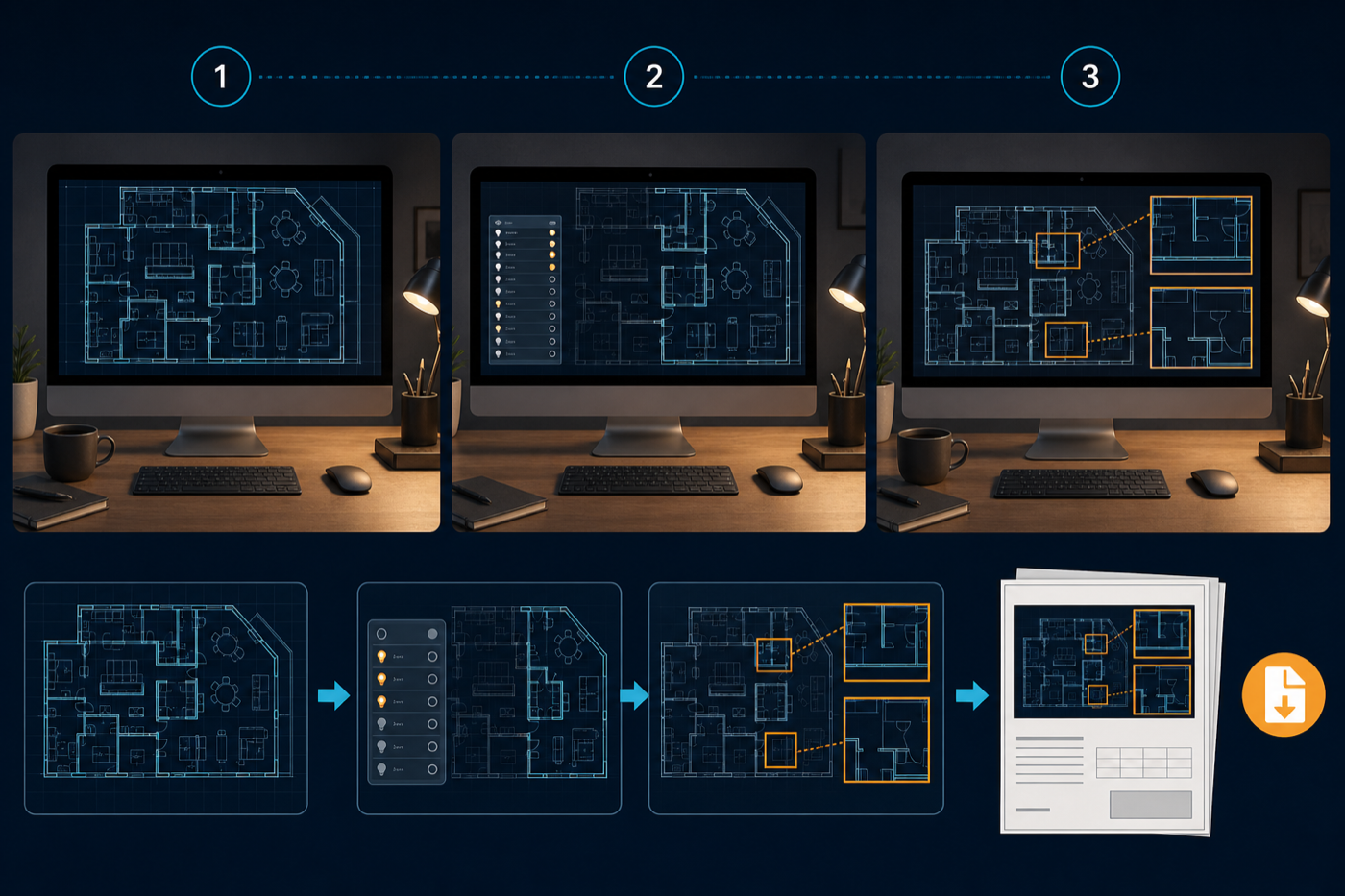
Mac becomes the better review surface when the question depends less on physical proximity and more on drawing context. A larger display, keyboard, pointer, Finder, and a stationary workspace make it easier to inspect a dense sheet, write clearer notes, compare areas, and prepare an export deliberately.
Mac is usually the stronger choice for:
- reviewing a large or visually dense DWG
- switching between layouts and layer combinations at a desk
- writing or editing longer review notes
- comparing multiple areas before deciding what matters
- organizing source files, PDFs, images, and reports in Finder
- doing the final quality check before sharing an output
Autodesk's official viewer overview shows how broad the Mac decision can become: browser-based AutoCAD web, online Autodesk Viewer, Windows-only DWG TrueView, and full CAD products all solve different jobs. The useful question is not simply “Can this open DWG?” It is “Does this fit a focused local review, an online collaboration path, or a full authoring workflow?”
For a detailed tool-selection framework, start with how to choose a DWG viewer for Mac. If the first obstacle is the file path itself, how to open DWG files on Mac without converting them covers Finder, Mail, AirDrop, and local document handling.
Mac review is not the same as Mac drafting
A Mac may feel closer to a traditional CAD workstation, but that does not mean every review should become an editing session. Keep the responsibility boundary clear:
- review to identify and explain the issue
- measure to verify the condition
- annotate to communicate the decision
- export to hand off the result
- edit the source geometry only in the authoring workflow that owns the design change
That boundary prevents a coordinator, inspector, or project manager from accidentally becoming the editor of record. The dedicated guide to annotating a DWG on Mac explains how to keep comments tied to the drawing without turning review into drafting.
Should one review use both iPad and Mac?
Use both when the job has two genuinely different environments: a field stage where proximity and touch matter, followed by a desk stage where screen space, writing, file organization, and export quality matter. Do not add a second device merely because it is available.
A practical split looks like this:
| Stage | Best surface | Output of the stage |
|---|---|---|
| Prepare the visit | Mac or iPad | Confirmed DWG, expected layout, review scope |
| Walk the condition | iPad | Measurements, concise notes, location context |
| Decide what must be shared | iPad before leaving | A deliberate export or saved file ready for transfer |
| Review the wider context | Mac | Cleaned layer view, refined notes, checked relationships |
| Finish the handoff | Mac | PDF, image, or report that the recipient can act on |
The key is to define the output between stages. Apple documents AirDrop as a way to send documents between nearby Mac and iPad devices, and its iPad guide lists AirDrop, Mail, Messages, cable transfer, external storage, and iCloud as file-transfer options.
Those are transport choices, not proof that an app's complete internal review state follows the file. Decide what moves:
- the untouched source DWG for a separate review
- a reviewed copy when your process explicitly manages copies
- a PDF or image for fixed visual feedback
- a report when notes and observations matter more than reopening the drawing

A safe iPad-to-Mac DWG handoff
If your site review starts on iPad and finishes on Mac, use this short checklist:
- Confirm the source. Record which DWG and revision the iPad review used.
- Finish the field observation. Make each note short enough to understand later and verify any measurement before leaving.
- Choose the artifact. Decide whether the Mac needs the source DWG, a PDF, an image, or a report.
- Transfer intentionally. Use AirDrop, Files, a controlled project folder, or another approved file path.
- Verify on Mac. Open the received artifact and confirm the layout, note locations, and revision before refining the handoff.
- Name the final output clearly. Include the drawing, area, date, or revision that the recipient needs.
Autodesk's mobile DWG viewing guidance also makes the category distinction visible: its documented mobile routes use AutoCAD Mobile or an uploaded drawing in Autodesk Viewer. That may suit an Autodesk-account or cloud-review workflow. A local PlanInspect workflow is a different choice: open the file on the selected device, keep the review focused, and transfer only what your process deliberately chooses.
When one device is enough
Choose only iPad when the review begins and ends in the field, the drawing is manageable on the tablet, and the exported handoff can leave the site as-is. Extra desk processing would only delay the result.
Choose only Mac when the review is desk-based, nobody needs to stand beside the physical condition, and the main work is understanding a dense drawing, writing feedback, or preparing a controlled output.
Choose both when the site supplies evidence that the office must interpret in wider drawing context. That is the case where device specialization reduces friction instead of creating it.
Common mistakes in a cross-device review
- Choosing by hardware instead of environment. Processor comparisons do not tell you whether the reviewer must walk through a plant room.
- Flattening the drawing too early. A PDF is useful for sharing, but it may remove layer or layout context still needed during review. The DWG versus PDF site-review guide explains that decision in detail.
- Assuming automatic sync. File transfer, iCloud storage, and app review state are different things. Verify what actually moved.
- Moving every artifact. Transfer the source or output the next stage needs, not an unmanaged pile of copies.
- Using a reviewer for authoring. If the job requires source-geometry changes, move it into the proper CAD authoring process.
- Waiting until the desk to reconstruct field context. Export or summarize the observation while the location is still fresh.
The best device is the one that removes the next constraint
The simplest answer to iPad versus Mac for DWG review is this: iPad removes the distance between the drawing and the site condition; Mac removes the constraints of a mobile screen and field ergonomics. Choose the surface that removes the current constraint, then define the handoff before adding another device.
PlanInspect supports that review-first choice on both platforms. Use iPad when the drawing needs to move with you. Use Mac when the drawing needs room, focus, and a final export pass. When the job needs both, keep the transition explicit so the drawing, observations, and responsibility stay clear.