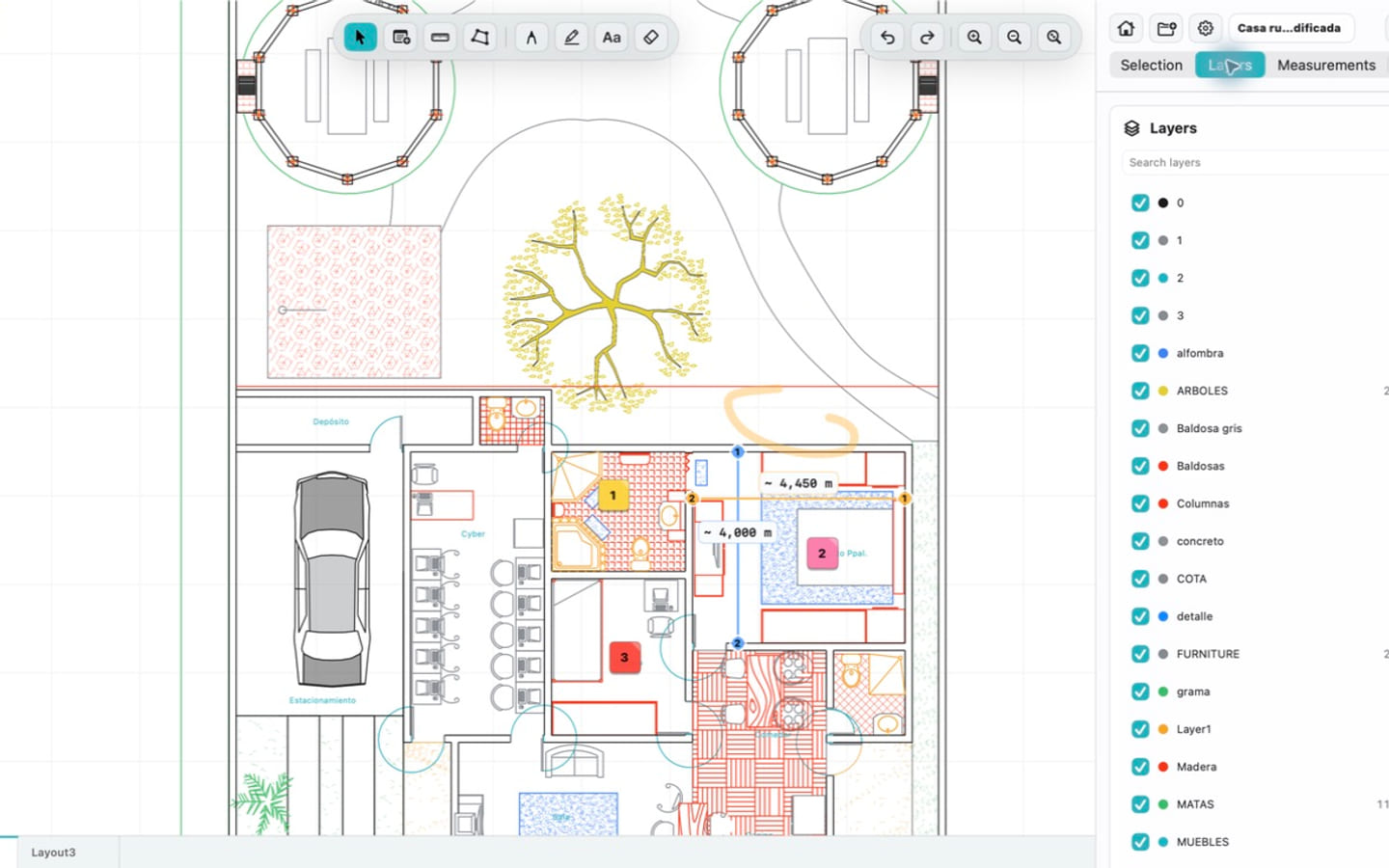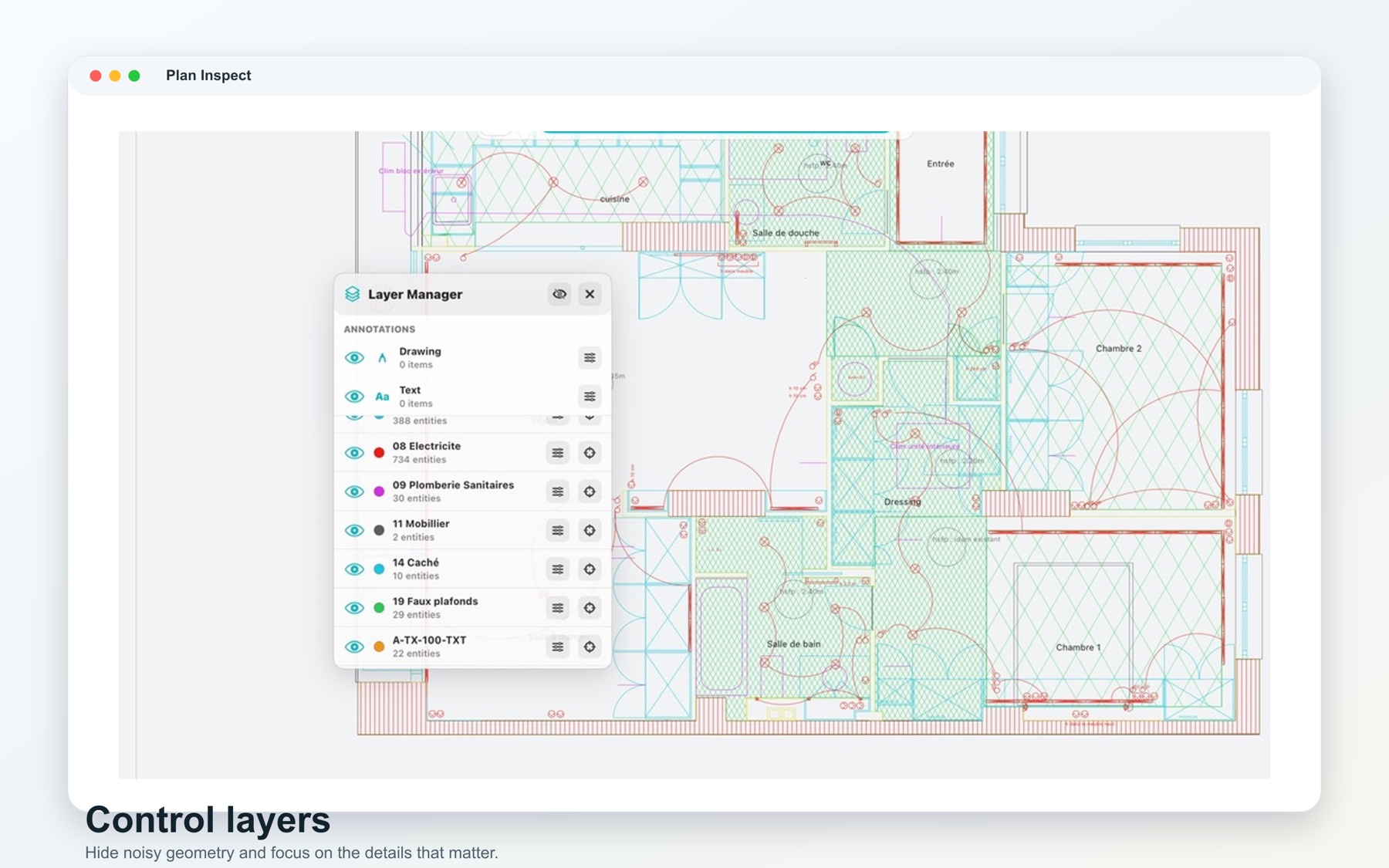
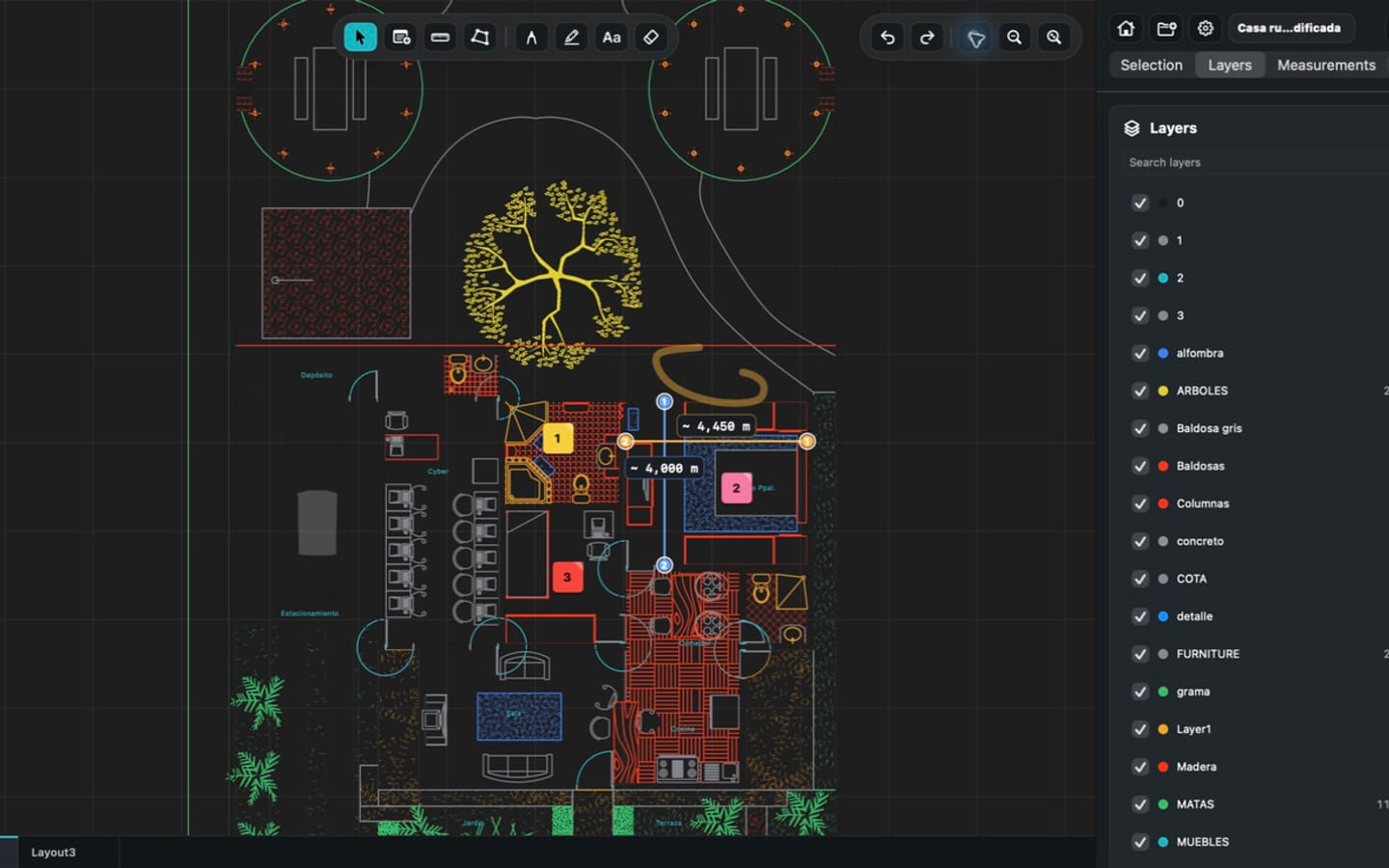
To open a DWG file on Mac without converting it, install a native app that registers the DWG document type, then open the original file from Finder or use Open With. In PlanInspect, you can also choose a file from the welcome screen or drag a local DWG into the app.
Keeping the original DWG matters when you need its layouts, layers, vector detail, and drawing context. A PDF can be an excellent handoff format, but it is not a complete replacement for the source drawing during review.
Open a DWG from Finder
- Locate the
.dwgfile in Finder. - Double-click it if PlanInspect is already the default app.
- Otherwise, Control-click the file and choose Open With > PlanInspect.
- Wait for the drawing to parse, then use Fit to drawing if the geometry is outside the current view.
- Check the active layout and visible layers before beginning the review.
To make the choice persistent, select the file in Finder, choose File > Get Info, expand Open with, select PlanInspect, and use Change All. Apple's Mac user guide explains how to choose the app that opens a file.
Open drawings from Mail, AirDrop, or shared storage
Files received through Mail or Messages should first be saved to a known Finder location. AirDrop downloads normally appear in Downloads. Cloud storage providers that integrate with Finder can expose drawings there as well.
For a predictable workflow:
- keep the issued filename and revision intact
- save the file into a project folder before review
- avoid reviewing directly from a temporary attachment location
- confirm that the file is fully downloaded before opening it offline
PlanInspect uses macOS security-scoped file access for user-selected drawings. Recently opened documents can be reopened from the app, while each window keeps its own drawing state.
Why not convert the drawing first?
Converting to PDF is useful when the recipient needs a fixed sheet that is easy to print or share. Converting before review can remove information you still need:
- separate model and paper-space layouts
- individual layer visibility
- vector-level drawing context
- a clean path back to the original file and revision
Open the DWG for inspection, then export the view or report needed for the handoff. This preserves review flexibility without asking every recipient to install CAD software.
If the DWG does not open
First confirm that the filename ends in .dwg and that the download is complete. Then try these checks:
- Copy the drawing to a local folder such as Documents.
- Confirm that Finder reports a plausible file size rather than zero bytes.
- Ask the sender which DWG version and application produced the file.
- Request a clean re-save if the drawing is corrupted or depends on unsupported custom objects.
- Keep the failing original available for diagnosis; repeatedly converting it may hide the actual problem.
Some DWGs contain proxy objects, external references, fonts, or newer entities that different viewers interpret differently. A successful open is only the first check. Verify important geometry, text, units, layouts, and layers before making a field decision.
Continue from open to review
Once the file is visible, switch to the relevant layout, hide unrelated layers, fit the drawing, and verify units before measuring. Add notes or markups at the drawing location, then export a PDF or image when the review is ready to share.
For a broader product checklist, see how to choose a DWG viewer for Mac. If you arrived after discovering that TrueView is not a native Mac app, compare the practical options in DWG TrueView alternatives for Mac.