
Start a DWG review on iPhone when you need one fast, local answer: open the drawing, confirm a room, detail, markup, or obvious field condition. Move the review to iPad when you need to compare more of the sheet, switch layouts, control layers, take several measurements, add notes, or prepare a handoff. The file can be the same DWG, but the job changes: iPhone is a quick decision surface; iPad is the better place to preserve drawing context while the review gets deeper.
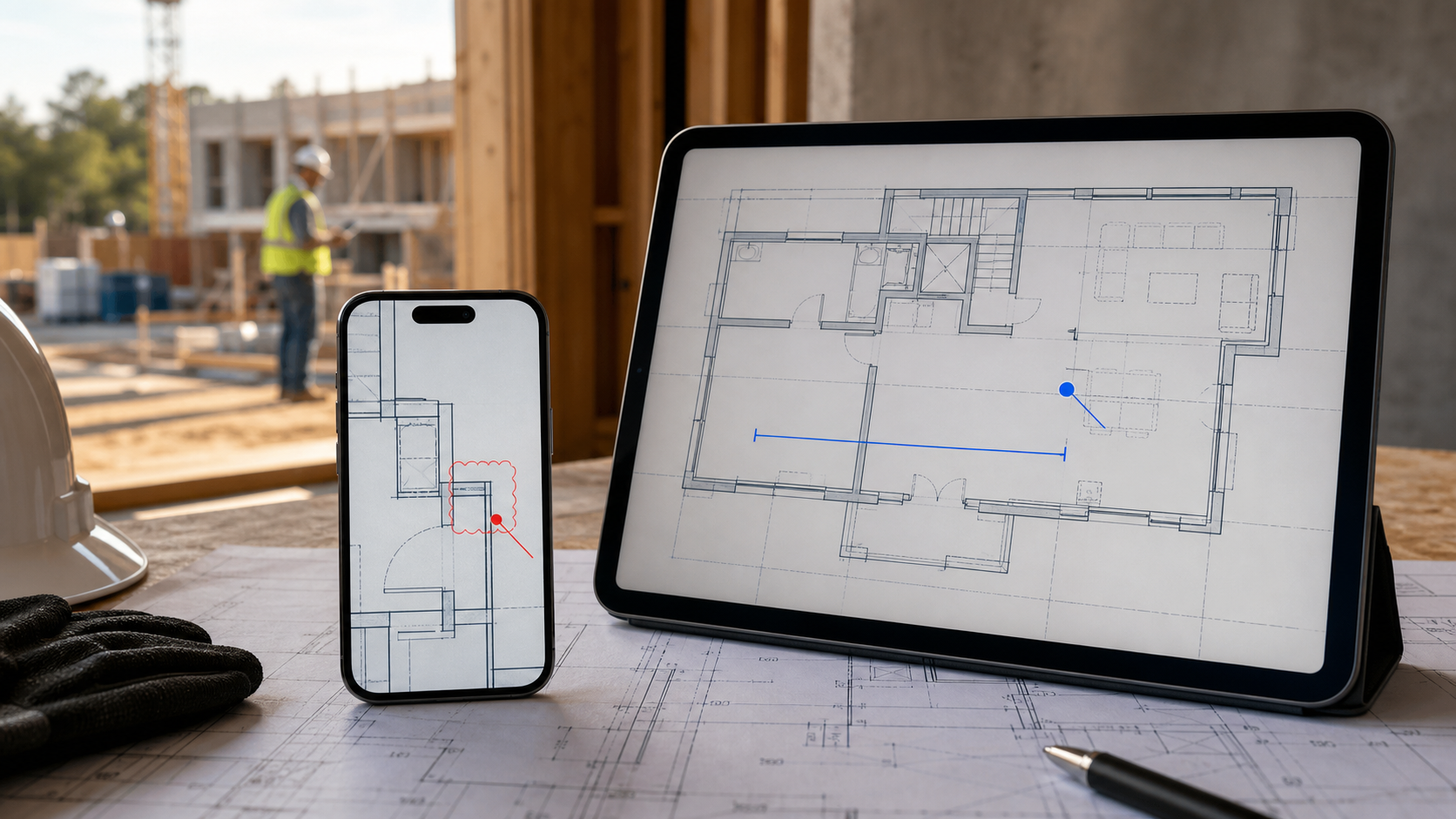
The short answer: which device fits this DWG review?
Use the device that removes the immediate constraint, rather than trying to make a phone do a tablet-sized review.
| Review task | Start on iPhone | Move to iPad |
|---|---|---|
| Open a DWG from Files, Mail, or a nearby transfer | Yes | If the drawing needs a longer review |
| Confirm one room, grid, doorway, or localized markup | Yes | If nearby context changes the answer |
| Check a single known measurement | Often | If points, units, or surrounding geometry need careful review |
| Inspect a dense layout or several sheets | Only as a quick lookup | Yes |
| Hide layers, compare areas, and make repeated measurements | Rarely ideal | Yes |
| Add notes, photos, markups, and produce a review handoff | For a small urgent observation | Yes, for a sustained review |
This is a workflow distinction, not a claim that an iPhone cannot open a serious drawing. A phone is useful precisely because it is already with you. It becomes less comfortable when the next decision depends on seeing more of the layout, returning to the same area repeatedly, or keeping several observations in context.
Start with a local file you can identify
Before choosing a screen size, make sure you are opening the correct drawing. A reliable iPhone DWG review starts with a local file path: Files, a saved Mail attachment, a shared document location, or a deliberate AirDrop transfer. Apple's Files guidance for iPhone is useful background for the locations and sharing actions that make this practical.
On the iPhone, confirm four things before you make a field call:
- The filename and revision are the expected ones.
- The drawing opens as a DWG rather than a screenshot or preview copy.
- The first visible layout or model view contains a familiar detail.
- The question is genuinely narrow enough to answer on the phone.
That fourth check saves time. If the answer requires scrolling between dimensions, tracing an area across rooms, or checking whether a layer changes the conclusion, move before you start leaving disconnected notes.
For the full import path, read how to open DWG files on iPad without converting them. If the drawing itself needs to get onto the iPad first, the AirDrop, email, and Files handoff guide covers the reliable checkpoints.
What a good iPhone quick check looks like
The best phone review is deliberately small. You already know what you need to verify, and the drawing provides the context for one immediate decision.
For example, a site supervisor can open a local DWG at a doorway, compare the installed condition with one known plan detail, and decide whether it needs an escalation. An architect can check a single redline before a call. A contractor can confirm a room label or dimension reference before walking farther into the building.
The key is to end the phone review with a clear outcome:
- Answer found: record the result or continue the walk.
- More context needed: move to iPad before measuring or marking up.
- Wrong or uncertain file: stop and verify the revision rather than improvising.
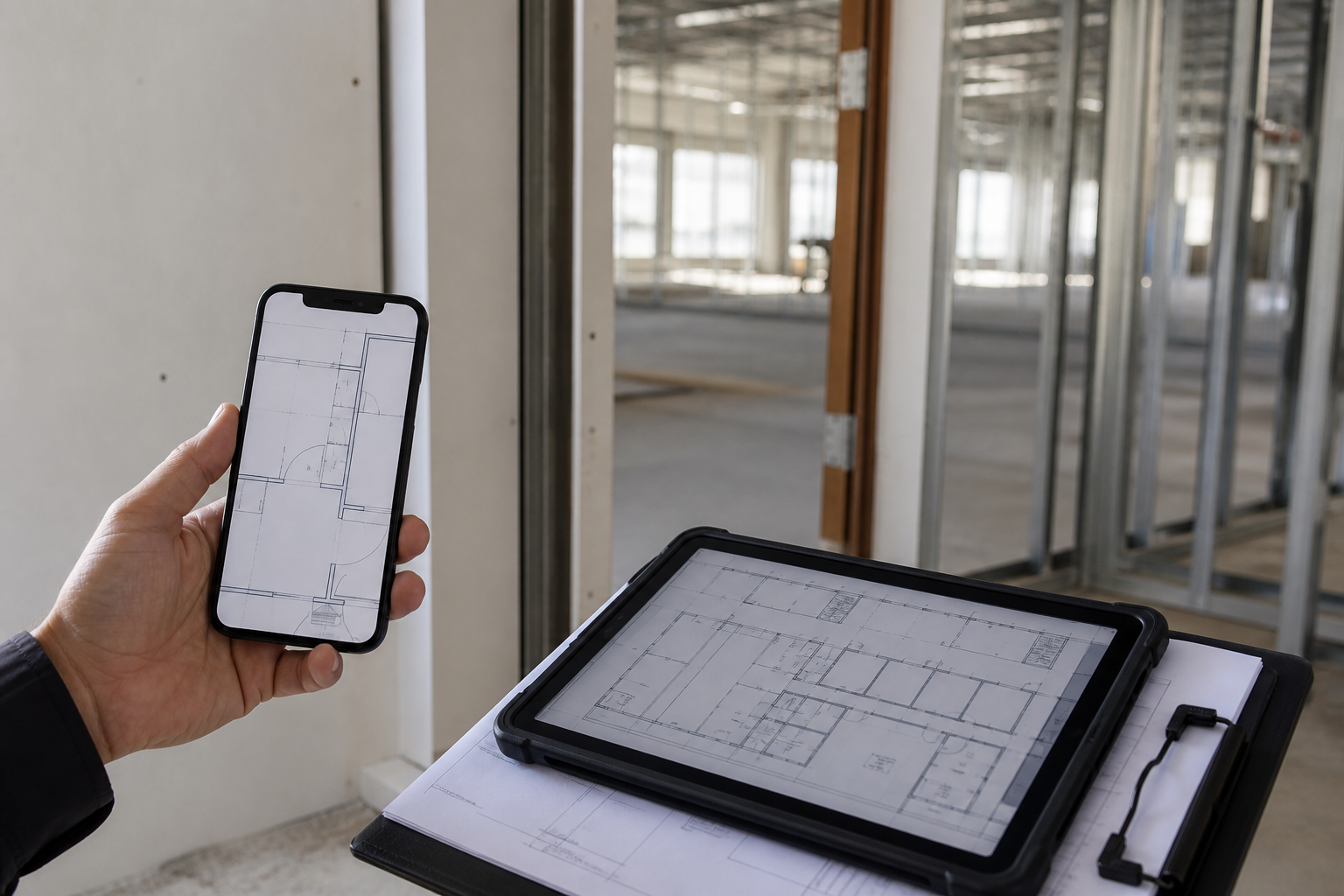
The signs that it is time to move to iPad
Move early when any of these signs appear:
- You need to zoom back out repeatedly to understand the detail.
- More than one measurement will affect the decision.
- A layout, sheet, or layer may be hiding the information you need.
- You need to compare several annotations, photos, or plan areas.
- The result must be clear enough for another person to act on later.
These are not screen-size complaints. They are context risks. A single dimension can look plausible in isolation and still be wrong for the actual review question when the wrong layout is active, a relevant layer is buried in visual noise, or nearby geometry changes what the dimension means.
On iPad, PlanInspect is useful for opening the local DWG in a larger review surface, checking layouts and layers, measuring distances and areas, and placing notes or markups before exporting a clean handoff. The complete iPad DWG review workflow explains that longer sequence from first open to shareable result. For dense-plan preparation, use the guide to reviewing DWG layers on iPad before treating missing or crowded geometry as a drawing problem.
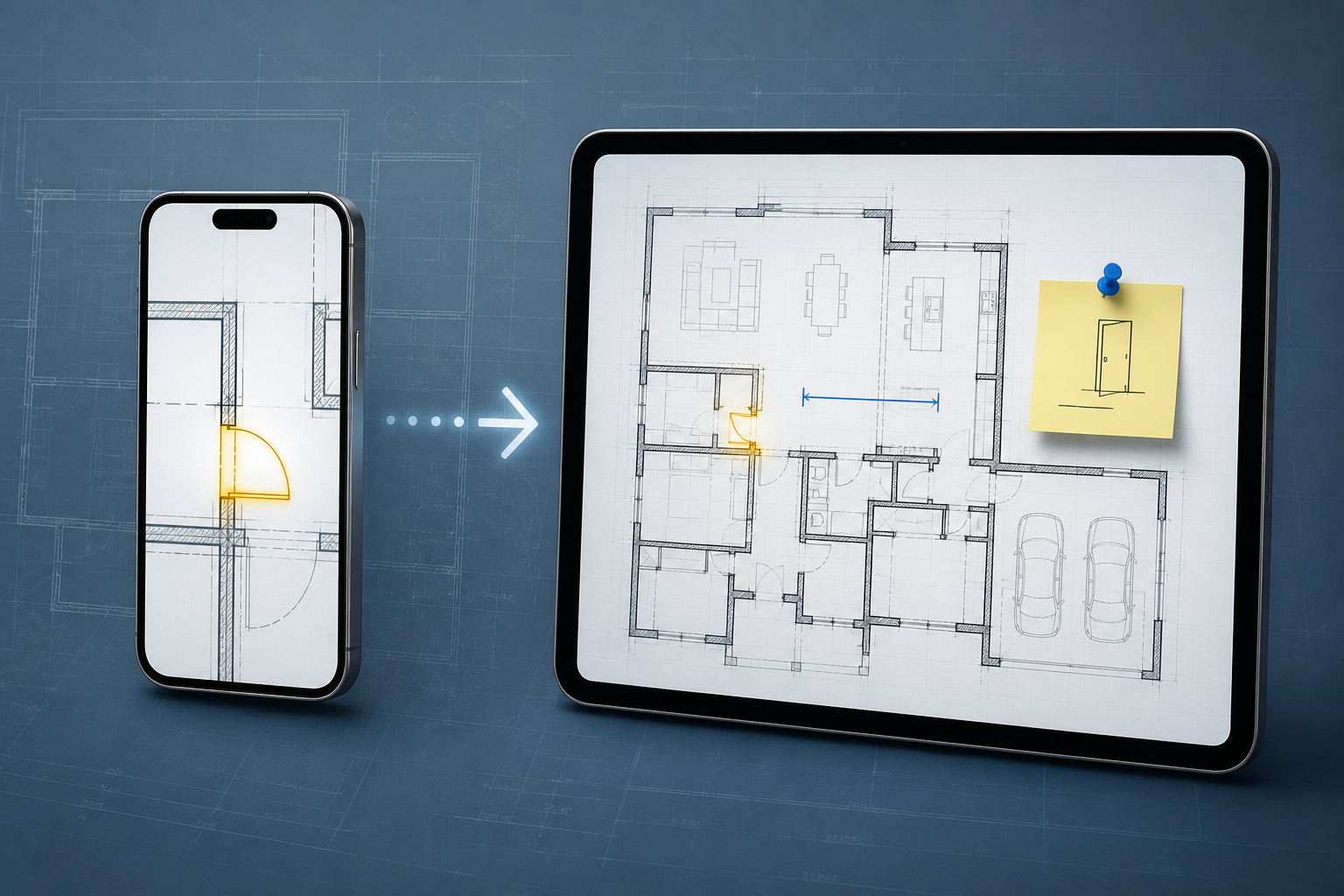
Move the file deliberately, not as if it were live sync
When the drawing is not already on the iPad, treat the transfer as an explicit handoff. AirDrop is useful for a nearby file transfer; Apple explains the current controls in its AirDrop guide. A shared Files location can also work when the team already has a clear source-of-truth process.
Neither path automatically turns separate copies into a live collaborative drawing. Before the iPad review begins, verify the filename, revision, active layout, and one recognizable drawing detail. If the iPhone review produced a note that matters, carry it into the iPad review deliberately instead of assuming it will silently appear in another copy.
That distinction is especially important for DWG. The original file may carry layout and layer context that a quickly exported screenshot does not. If the next reviewer only needs a fixed result, send an exported PDF or report after the review; if they need to continue working from the drawing, send or open the identified DWG itself.
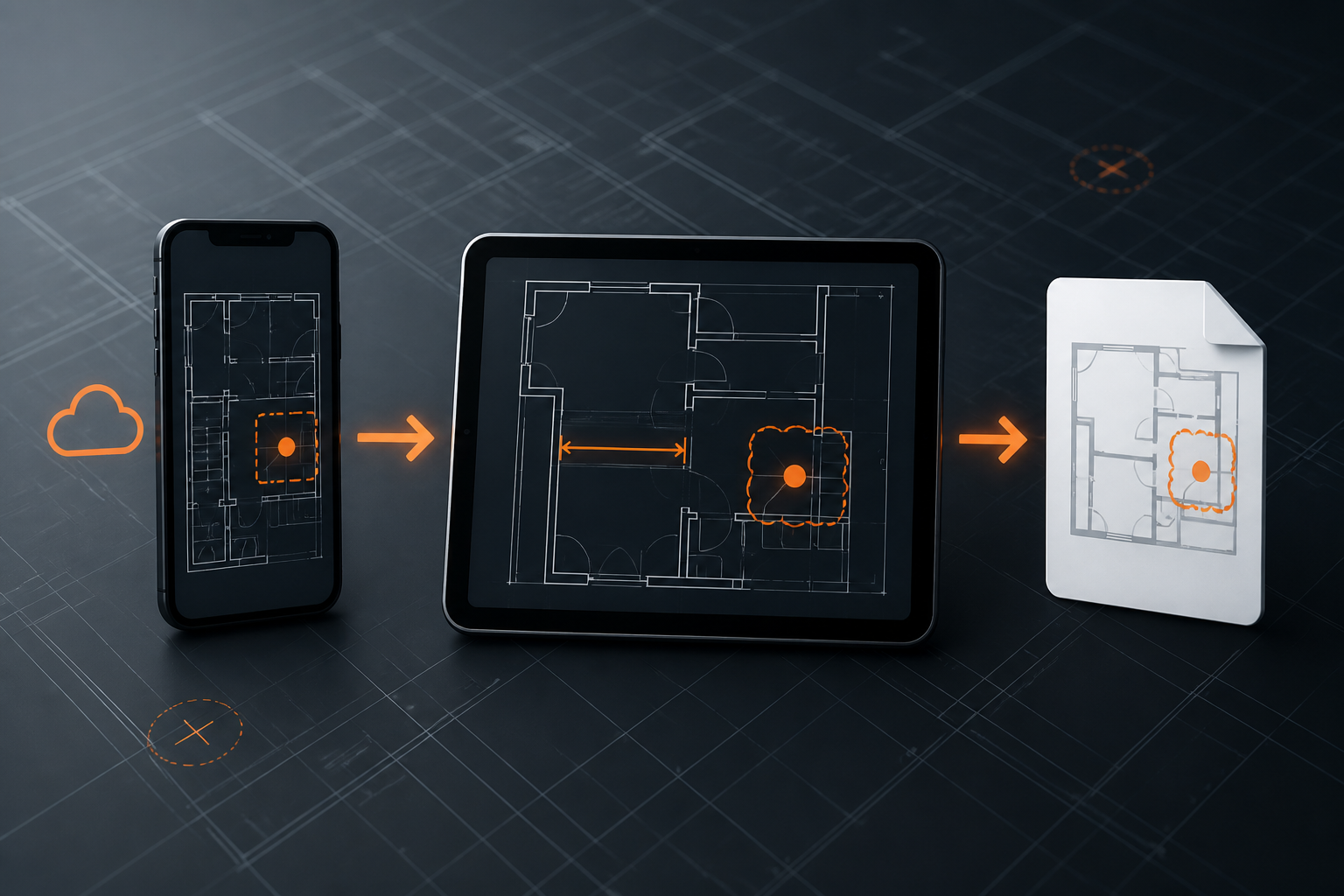
Why this differs from broad mobile CAD continuity
Some tools optimize for a broader edit-and-cloud workflow. For example, DWG FastView positions its products around viewing and editing across web, mobile, and Windows, with cloud storage and sharing options. That can fit a team that wants account-based access and broader CAD tools across those environments.
This iPhone-to-iPad workflow solves a narrower problem: get a local drawing open where you are, answer the immediate field question, then use the larger Apple device when the review needs enough space for context, measurements, notes, and a controlled handoff. It does not depend on presenting the phone and tablet as interchangeable, and it does not require turning a review into full CAD authoring.
Autodesk's mobile and web overview is another useful comparison point: cloud-connected access and editing continuity can be the right requirement for an Autodesk-centered team. If the job is review-first, decide instead whether the next action needs an original DWG, a larger plan surface, or a fixed exported result.
A practical site-to-review sequence
Imagine a superintendent at a door opening. On iPhone, they open the current DWG from Files and verify the localized plan detail. The field condition looks questionable, but the answer depends on clearance, nearby wall geometry, and one previous markup. That is the point to stop treating the phone as the final review device.
On iPad, the superintendent opens the identified drawing, checks the right layout, simplifies the visible layers, measures the relevant distance, and adds a note at the actual plan location. The review can now be exported as a PDF, image, or report for the designer or office team. The original DWG remains the review input; the handoff is chosen for the recipient.
This avoids two common failures:
- making a confident call from a close-up that lacked surrounding context; and
- recreating the site observation later from memory in a detached message thread.
For a broader inspection sequence, the DWG field-review checklist provides the next steps after the device choice: verify context, measure what matters, capture observations, and share the result before the site context fades.
Frequently asked questions
Can I review the same DWG on iPhone and iPad?
Yes. Use iPhone for a fast local check and iPad for the deeper review. Confirm that both devices are opening the intended file and revision; do not assume that separate copies will automatically stay synchronized.
When is iPhone enough for a DWG review?
It is enough when you can answer one focused question from a known plan area: a room, detail, note, or quick confirmation. If you need repeated measurements, layer control, broad sheet context, or a formal handoff, use iPad.
Should I send a DWG or a PDF to the iPad?
Send or open the DWG when the next review still depends on layouts, layers, or drawing-based measurements. Use a PDF when the next recipient needs a fixed, easy-to-read deliverable after the review is complete.
Let the review grow without losing the drawing
The useful split is simple: iPhone gets you to the drawing and the first answer; iPad lets you keep the drawing context when the decision becomes larger. Start local, verify the revision, escalate early when scope grows, and make the return handoff explicit.