
The best PDF plan viewer for construction is the one that lets you test the actual issued plan set from first open to final handoff. On a Mac, start by opening the local multipage PDF, confirm the sheet and scale, then see whether a note, measurement, or export remains clear for the next person. Apple Preview is a good baseline for reading and light markup; a dedicated plan-review app earns its place when the job needs plan-specific context, calibrated measurement, and a repeatable review output.
That is a different purchase decision from choosing a general PDF editor, a CAD authoring system, a formal takeoff product, or a browser collaboration platform. Those tools can be right for their own jobs. This guide helps you decide whether a focused construction PDF review workflow is the one you actually need.

Start by separating four different jobs
Search results for a construction PDF viewer often put very different products in the same list. A long feature list does not tell you whether the workflow fits the review in front of you.
| If your main job is to… | The best starting category is… | What that category may not solve |
|---|---|---|
| Read a sheet, highlight text, or leave a quick visual comment | Preview or another general PDF reader | Page-scale verification and a plan-specific review trail |
| Review an issued plan set, confirm scale, add located observations, and export a result | A focused PDF plan viewer | Full CAD drafting, formal estimating, or project administration |
| Edit source drawings or preserve CAD structure | A CAD application and the original DWG | The PDF may not retain the source drawing's editable geometry or layers |
| Produce formal quantities, costs, counts, or bid worksheets | Takeoff or estimating software | A focused review app should not be presented as a substitute |
| Coordinate live with a wider project team online | A collaboration platform | Local, account-free work may not be its priority |
For a quick read, Preview is an honest option. Apple documents that Preview can open, navigate, annotate, and save PDFs on Mac, including notes, shapes, text, and markup. Apple's Preview guide is a useful baseline for a small comment or a straightforward marked-up copy.
A construction review becomes more demanding when an observation needs its sheet identity, a measured item needs a checked scale, or the recipient needs an export they can use without a separate explanation.
The six tests that matter before you download
Run these tests on one non-sensitive copy of a current plan set. The exact order matters: a measurement or annotation is only useful if it can still be understood in the issued-plan context.
1. Can it open the entire local plan set?
Start in Finder with the PDF your team received. Confirm that the viewer opens the file without a conversion detour, keeps the multipage set together, and makes thumbnails or page navigation easy to use. A detached screenshot or a single cropped sheet can hide the title block, issue date, detail reference, or adjacent sheet that changes the answer.
If opening is the only task, Preview may be enough. If you need a review workflow, test whether the viewer makes the current sheet, revision convention, and surrounding set recoverable. How to open PDF plan sets on Mac covers the Finder-first setup in more detail.
2. Does it preserve sheet context while you review?
A plan viewer should make it easy to tell which page is active and return to it later. This becomes important when a review jumps between a floor plan, an enlarged detail, and a reflected ceiling plan that use different scales or describe related conditions.
Look for a workflow that keeps the original multipage PDF as the reference. The goal is not to turn the source document into editable CAD. It is to keep the source plan legible while you add review information around it.
3. Can you verify scale before trusting a measurement?
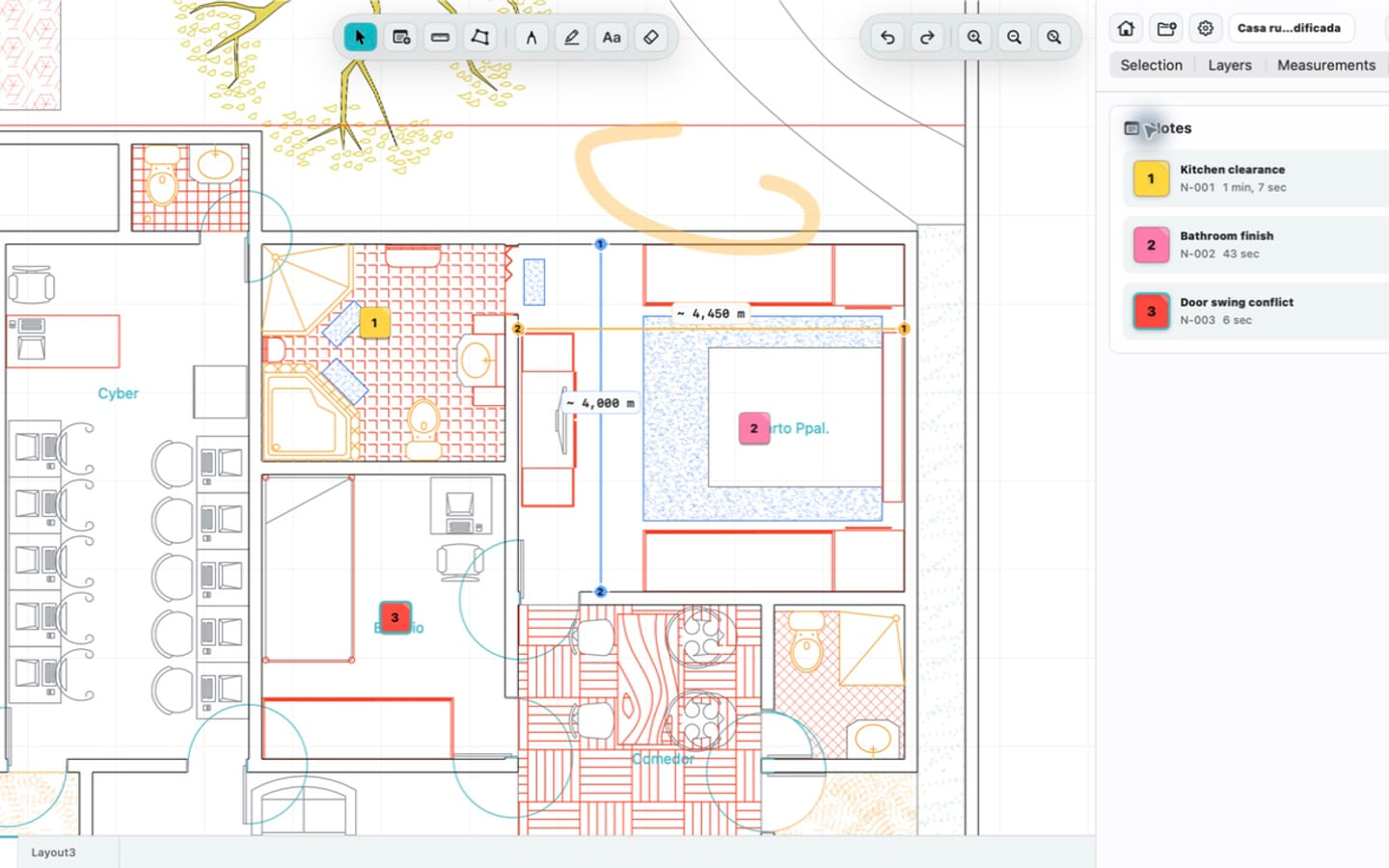
Do not choose a viewer just because it has a ruler button. A PDF can look exact at any zoom while the active page has been reduced, scanned, cropped, or issued at a different effective scale. A trustworthy workflow lets you calibrate the current page from a known dimension or set a known effective scale, then check a second labeled distance.
Adobe's PDF measurement guidance follows the same principle: establish the scale before using a distance or area tool. On a construction plan, repeat that check whenever you change to a sheet with another scale. For the Mac-specific sequence, see how to calibrate and measure a PDF floor plan.
In PlanInspect, scale is confirmed per PDF page. You can use a manual ratio or two-point calibration before measuring distances or areas. A vector PDF may provide supported paths for snapping; a scanned page can still be viewed, calibrated, measured manually, and annotated, but it does not become vector geometry or OCR text.
4. Can an observation stay attached to the right location?
The useful question is not whether an app can draw a circle. It is whether a reviewer can locate the circle later and understand what it means. Test a small but realistic instruction such as “Confirm clearance at door swing before installation.” Add only the evidence that explains that condition: a concise note, a markup, a photo when it is genuinely useful, or a checked measurement.
This is where general readers and construction-focused tools begin to differ. Construction products may also advertise broad takeoff, OCR, revision comparison, or task-management features. Those may be appropriate requirements, but they should be explicit requirements—not accidental consequences of choosing a viewer. PlanInspect is designed for focused PDF plan review: notes, photos, pen, highlighter, text markups, measurements after scale confirmation, and reviewed exports. It does not offer full CAD editing, OCR, automatic revision comparison, PDF optional-content layer controls, locked-PDF support, or formal takeoff outputs.
For a review-only markup workflow, marking up PDF plans on Mac shows how to preserve the difference between an observation and a source-plan edit.
5. Does the viewer match your local and offline requirements?
Decide what “local” means before you install anything. For some teams, a browser platform and mandatory account are correct because shared online coordination is the core job. For a desk or site review, you may instead need the current PDF to open from Finder, remain usable after it is available on the Mac, and avoid a required upload before anyone can see the plan.
Test this on the exact Mac and project folder you will use: open the file locally, move between sheets, make one review action, and check what needs an account or a network connection. This is not a universal security claim; the team still needs its normal file-access and sharing controls. It is a practical way to avoid discovering a workflow dependency during the review.
If that distinction is central to your choice, read when an offline PDF plan viewer on Mac matters.
6. Can you inspect the final handoff before it leaves the Mac?
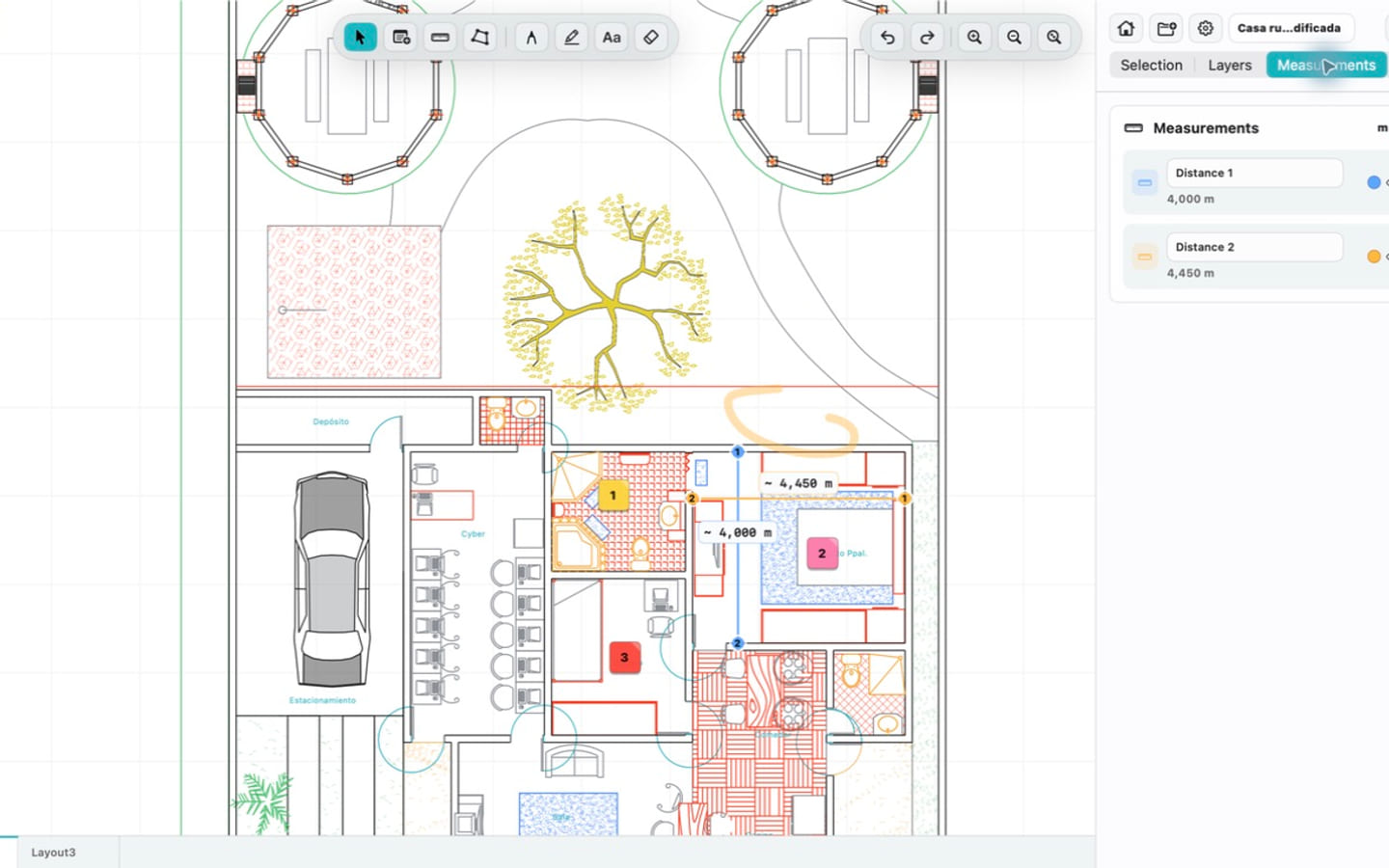
The final test is easy to skip: export one marked-up page or report, then reopen it as the recipient would. Confirm that the sheet, note locations, measurements, and any selected photos still make sense. The output should answer the next person's question without sending them back to a screenshot thread.
In PlanInspect, PDF exports preserve the source page and add review overlays. You can also export images, a notes report, or print depending on the review and access tier. The source PDF remains the reference; review overlays do not rewrite the underlying drawing content. Exporting PDF plan markups into a clear review report is the companion guide for that last check.
A practical construction PDF viewer scorecard
Use this scorecard to compare candidates without letting one category's extra features obscure the job you need to finish.
| Evaluation point | Pass condition on a real plan set | Red flag |
|---|---|---|
| Local opening | Opens the issued multipage PDF from Finder and preserves page navigation | You must upload, split, or convert before basic review |
| Sheet context | The active sheet, title block, and surrounding set remain easy to recover | Review happens on anonymous crops or screenshots |
| Measurement trust | Scale can be set or calibrated per page and checked against a second known distance | A ruler appears without a scale-confirmation step |
| Review evidence | Notes and markups can stay tied to the relevant plan location | The output loses the location or requires a separate explanation |
| Handoff | A PDF, image, report, or print result can be reopened and checked | Export is an afterthought or cannot be verified |
| Scope fit | The product does the review job without forcing unwanted system complexity | You buy full CAD, estimating, or cloud coordination for a simple local review |
The scorecard is deliberately not a feature ranking. A takeoff system can be the best fit for estimating. A browser workspace can be the best fit for live coordination. A native PDF reader can be the best fit for reading. The right construction PDF viewer is the one that proves its fit against your current plan and actual next action.
When PlanInspect is the right fit
PlanInspect is strongest when you need a local, native PDF plan review path on Mac: open the multipage plan from Finder, establish scale before relying on a distance or area, keep observations on the plan, and export a handoff you can inspect. The measure plans feature explains the PDF scale boundary in the product workflow, while the offline plan-review feature covers the local-first use case.
It is a weaker fit if your main need is full CAD authoring, automatic revision comparison, OCR or text search, optional PDF layer controls, password-protected PDFs, live multi-user collaboration, or formal quantity takeoff. Those requirements deserve tools built specifically for them.
Try the six tests above with one real plan set. If the local opening path, page context, scale check, review overlays, and final output all hold together, you have found a useful plan-review workflow—not simply a PDF reader with a longer feature list.