
How to mark up PDF plans on Mac for a clear review handoff
To mark up PDF plans on Mac, start with the current issued sheet, make each observation easy to locate, and export a result you can reopen and check. Apple Preview is a good fit for quick reading and light markup. Use a plan-review workflow when the note needs its sheet, scale, photo, or surrounding plan context to survive the handoff.

Construction PDFs invite a deceptively simple request: “put a note on it.” The hard part is not drawing a circle. It is making sure that the circle still means something when a superintendent, architect, consultant, or client opens the result later.
This guide covers a local Mac workflow for plan-set markup. It does not turn a PDF into editable CAD, perform automatic revision comparison, or replace quantity takeoff and project-management systems.
Decide whether Preview is enough before you start
Preview can annotate a PDF with notes, shapes, highlights, text, and sketches. For a one-off visual comment, that may be the fastest honest choice. Apple also explains the difference between retaining editable annotations and flattening them through a printed PDF, which matters when the recipient needs to reuse the markup.
Move to a dedicated plan-review workflow when the annotation needs to preserve more than an ink stroke:
| If the review needs to… | Treat this as… | A practical Mac move |
|---|---|---|
| Flag a small visual change for yourself | Light markup | Use Preview and save a copy with a clear name. |
| Explain a field condition | Location-aware observation | Put a concise note and optional photo at the exact plan location. |
| Support a distance or area decision | Scale-aware review | Confirm the active PDF page’s scale before relying on a measurement. |
| Go to another person for action | Review handoff | Export the plan with its overlays, then reopen the result once. |
This is why a generic PDF editor and a plan-review app do not always solve the same problem. Construction-oriented tools commonly center the comment on the sheet, room, detail, or revision it describes; for example, Caliper presents callouts, clouds, arrows, and freehand markup for plan review. The useful test is not the longest feature list. It is whether the person receiving your export can identify the plan location and next step without a second message.
1. Open the whole issued PDF plan set
Begin in Finder with the PDF your team intends to review. Confirm the file name, issue or revision convention, and the page set before you add anything. A single cropped page can hide the sheet number, drawing title, nearby detail, or scale reference that makes a redline understandable.
The PDF plan viewer workflow for Mac explains how to keep multipage review deliberate. First locate the sheet that actually contains the condition; then keep enough surrounding context to answer a follow-up question. If you need help with the Finder opening path itself, follow how to open PDF plan sets on Mac.
2. Write an observation, not just a symbol
A cloud, arrow, or circle is a pointer—not the instruction. Give every meaningful markup a short note that answers three things:
- What is the condition or question?
- Where is it on this sheet?
- What decision or action is requested?
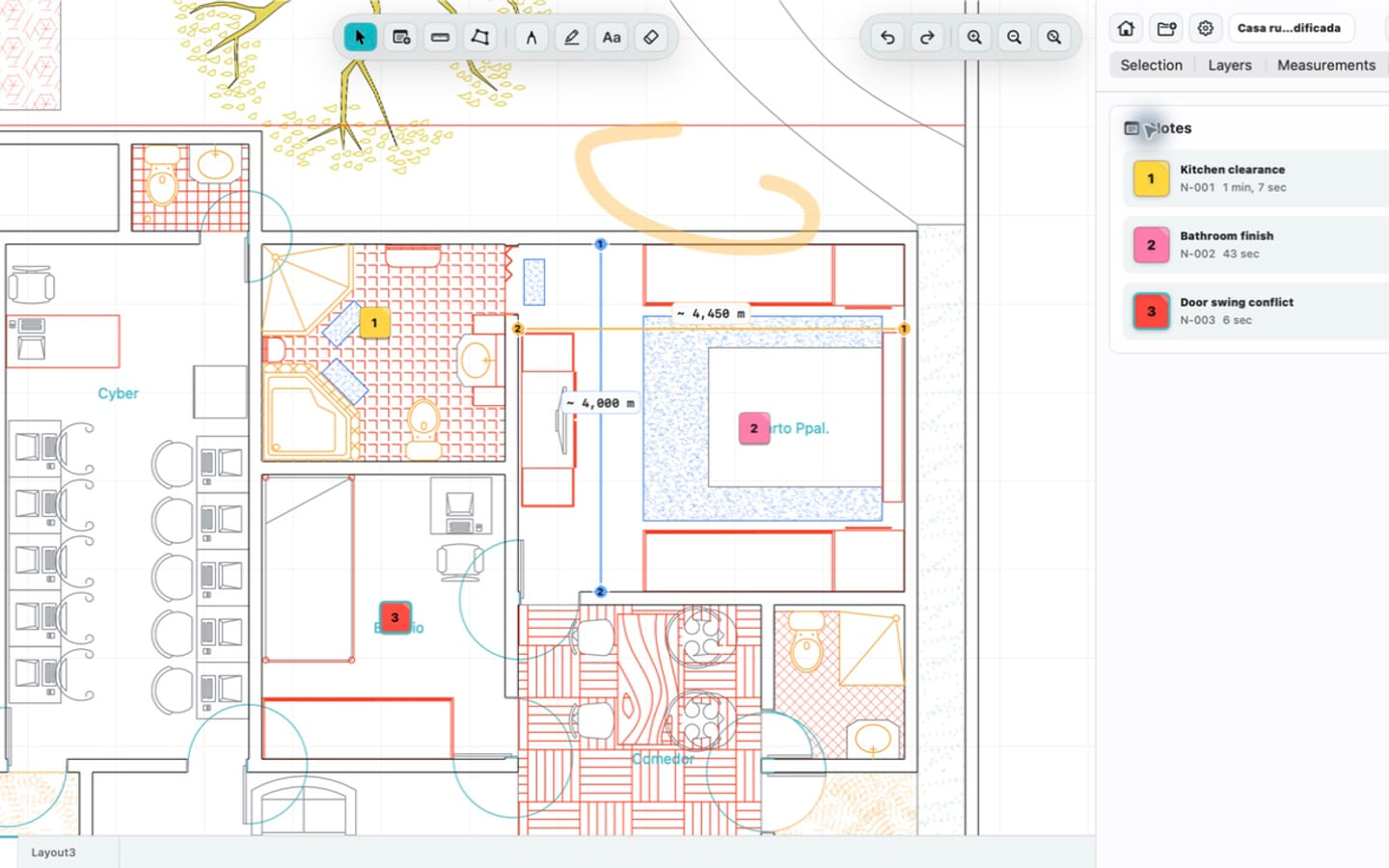
For example, “Confirm clearance at door swing before installation” is more recoverable than “check.” If a photo or a measured distance is relevant, attach only the evidence that helps the reader understand that exact condition. Do not add a photo simply because the app can hold one.
In PlanInspect, notes, photos, pen strokes, highlighter marks, and text are review overlays. They document the conversation around the plan; they do not edit the PDF’s underlying drawing content. That distinction keeps a reviewer from accidentally presenting a markup as a revised construction document.
3. Confirm scale before you annotate a measurement
You can mark up a PDF without calibrating it. Calibration matters only when a distance or area will influence the review. A title-block scale is useful evidence, but it is not proof that the PDF page now open has the same effective scale: a scan, crop, print setting, or reduced export can change it.
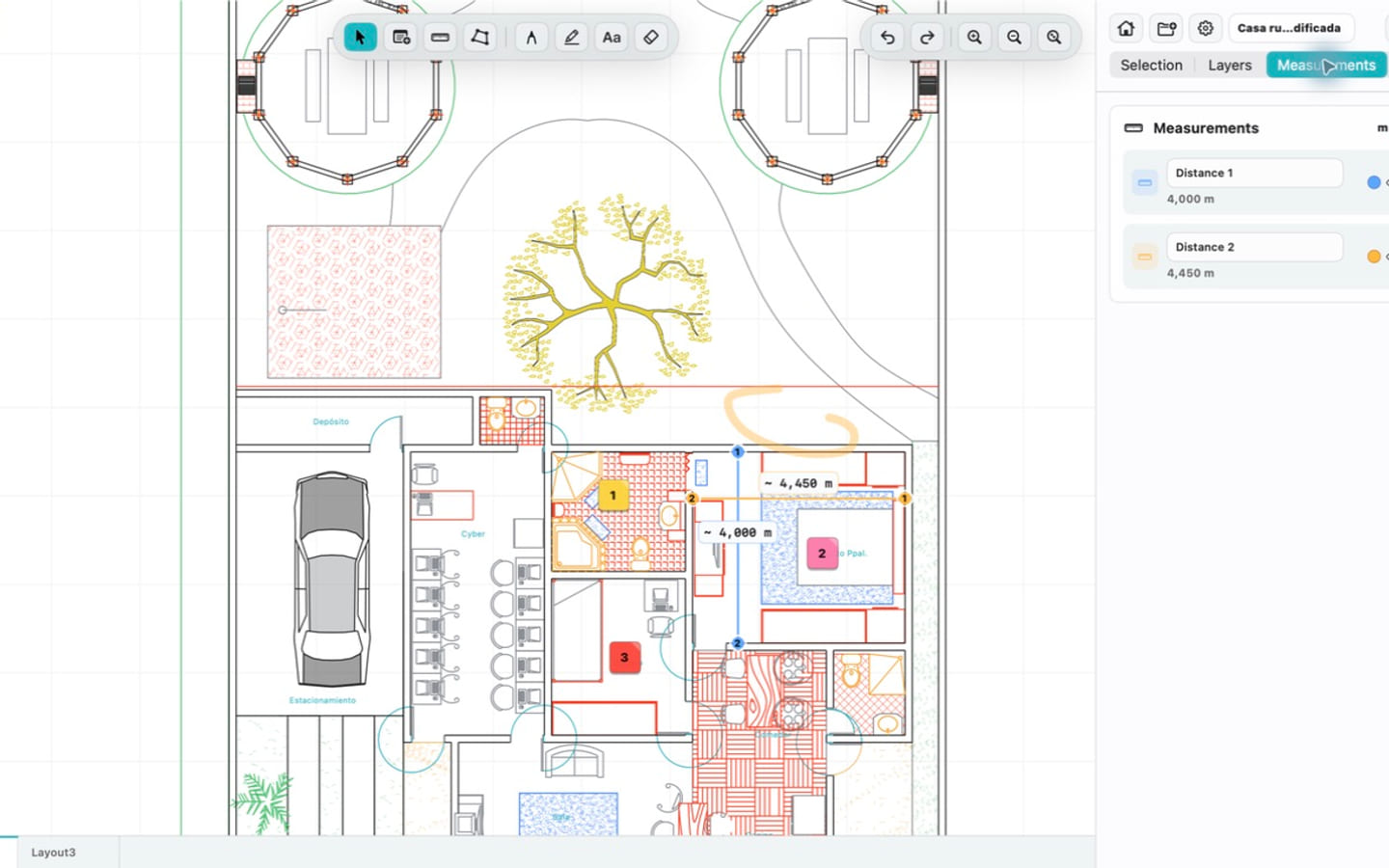
For a measurement that will be cited in a note, select the active page, calibrate from a known dimension, and verify a second labeled distance before relying on the result. The Mac PDF floor-plan measurement guide walks through that sequence in detail. In PlanInspect, scale is retained per PDF page, so a new sheet deserves its own confirmation.
Vector PDFs can offer paths to help with point placement. A scanned plan can still be calibrated, measured manually, and marked up, but it does not supply vector geometry for snapping. PlanInspect does not add OCR or automatically convert a scan into editable CAD geometry; place points deliberately when the source does not contain usable vectors.
4. Make the markup legible at the handoff scale
Before exporting, zoom out to roughly the scale at which the recipient will read the result. A thin line or tiny note that looks perfect at 300% may disappear when the plan is opened on another screen or printed.
Use a restrained visual hierarchy:
- One color or mark style for one kind of question.
- A short note close to the relevant geometry, without covering the detail it explains.
- A photo only when it resolves uncertainty better than the plan alone.
- Fewer, clearer observations rather than a screen full of overlapping symbols.
When the page becomes dense, split the review into a focused export or use a second markup only when it refers to a distinct decision. The goal is not to make the plan look busy; it is to remove ambiguity.
5. Export the result, then reopen it as the recipient will
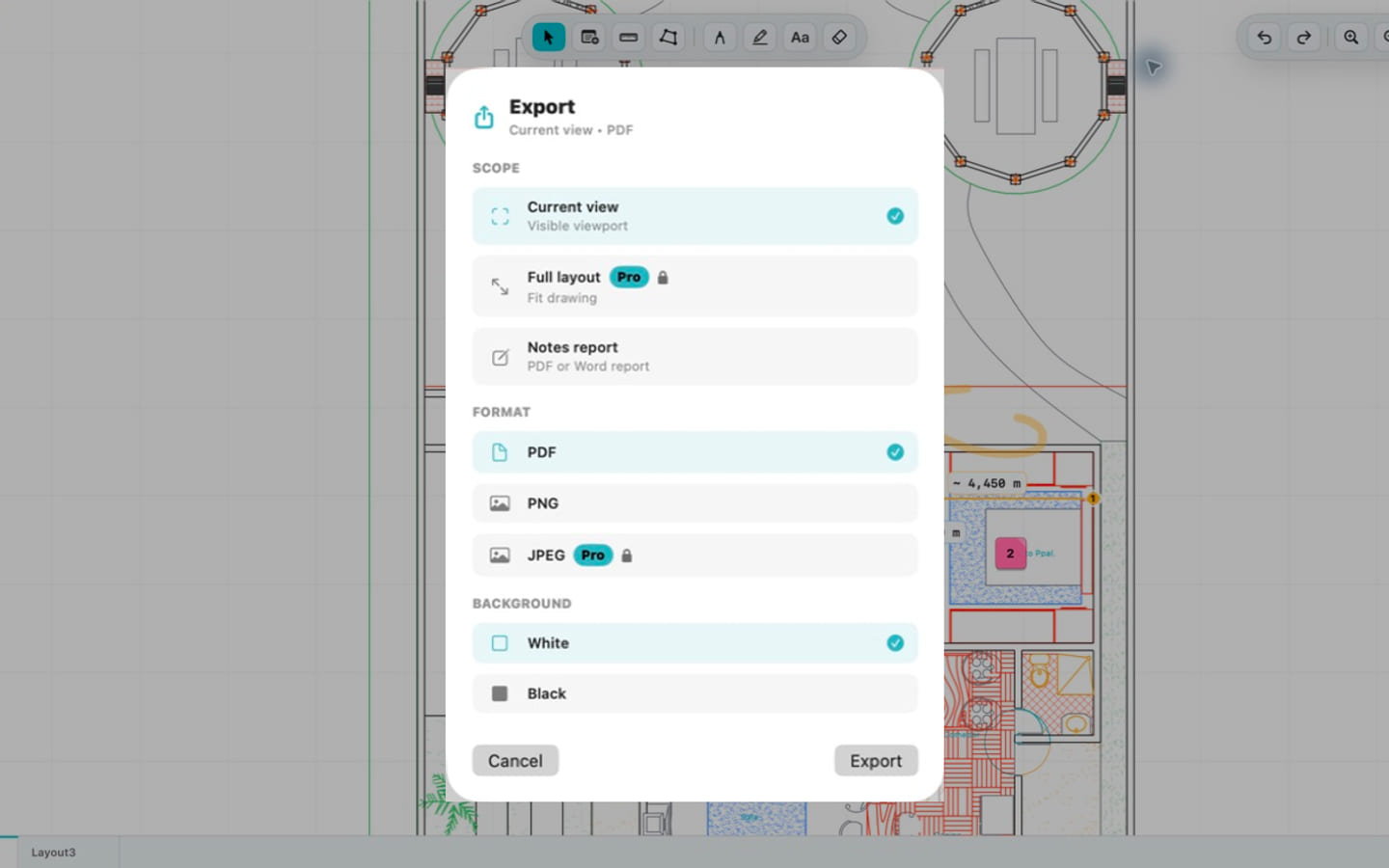
The export is part of the review, not an afterthought. In PlanInspect, a multipage PDF export keeps the source page at the center while adding the review overlays. Depending on the job, you may also choose an image, notes report, or print workflow.
Open the exported output once before it leaves your Mac. Confirm that the right sheet is included, the observation is visible, any evidence remains connected to the note, and the page still makes sense without your live explanation. The broader annotation-to-report workflow is useful when several observations must become a clear field handoff.
A five-minute PDF plan markup check
Before you share a reviewed plan, confirm the following:
- The PDF is the current issued file and includes the intended sheet set.
- Every important note identifies a condition and an action, not only a location.
- Any distance or area was calibrated and checked on the active page.
- A scan is treated as a scan: manual placement, no assumed snapping or OCR.
- The recipient-facing export has been reopened and checked at a normal reading zoom.
If your job is a quick comment, Preview may be enough. If the work depends on local PDF access, page-specific scale, location-aware notes, and a readable export, try the workflow with one live plan in PlanInspect for Mac. The result should be easier to recover, not merely more decorated.