
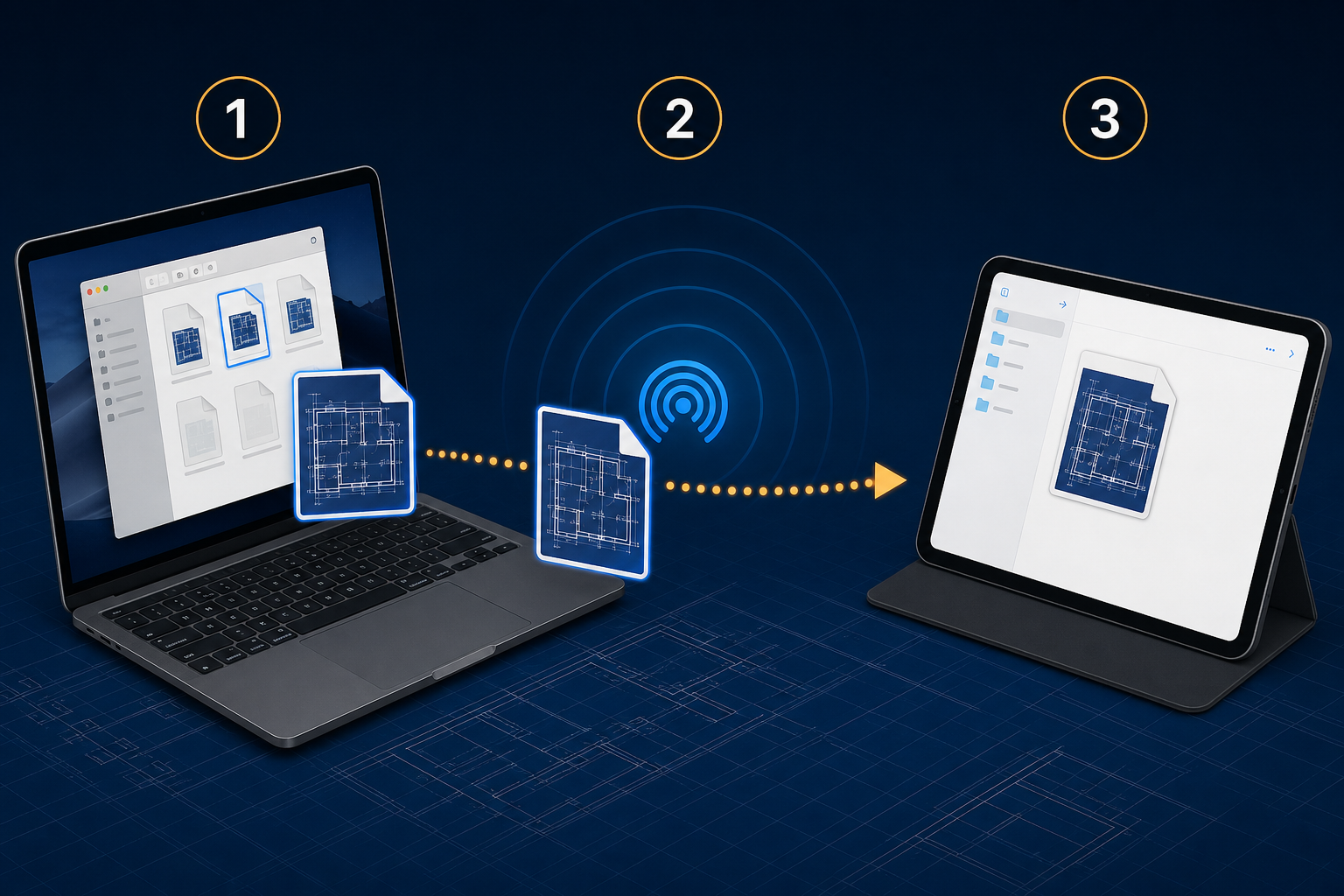
You can AirDrop a DWG from Mac to iPad without converting it: select the .dwg in Finder, share it with AirDrop, accept it on the iPad, save or locate the received file in Files, then open that exact copy in a DWG viewer. Before reviewing, confirm the filename, revision, layout, and a known drawing detail. AirDrop transfers a file; it does not synchronize later changes.

That distinction is the key to a dependable AirDrop DWG Mac-to-iPad workflow. The wireless transfer is usually easy. The avoidable errors happen afterward: opening a preview instead of the saved file, reviewing an older revision, or assuming changes will flow back to the Mac automatically.
The short version: Mac to iPad in five steps
- In Finder on Mac, identify the exact
.dwgand confirm its revision. - Control-click the file, choose Share, then AirDrop and select the iPad.
- On iPad, accept the transfer if prompted and let it finish.
- Find the received DWG in Files, then use Share or Open With to open it in PlanInspect.
- Confirm the filename, active layout, visible layers, and one recognizable detail before adding measurements or notes.
Apple says AirDrop uses Wi-Fi and Bluetooth for nearby discovery and lets recipients accept or decline transfers. Transfers between devices signed in to the same Apple Account may be accepted automatically. The current details are in Apple’s AirDrop guide for iPad.
Before you send the DWG, identify the source of truth
AirDrop preserves the file you select. It cannot tell whether that file is the latest approved drawing.
Before sending, check:
- the full filename and
.dwgextension; - the revision or issue code used by your team;
- the file’s modified date;
- whether external references, fonts, or plot resources are needed for the intended review;
- whether the recipient needs the editable DWG or a fixed PDF handoff.
For a single drawing, a filename such as A-101-Level-01-Rev-C.dwg is safer than final.dwg. If several people exchange files, add the revision to the filename or keep a short transmittal note. Do not rely on the AirDrop notification as revision control.
If the drawing is already on the Mac, first open it in a viewer and confirm the intended sheet. Our guide to opening DWG files on Mac covers the Finder-first side of that check.
How to send a DWG from Mac with AirDrop
1. Select the file in Finder
Use Finder rather than exporting from an unrelated preview. This makes it clear which source file you are transferring. If two copies have similar names, use Quick Look or open the candidate in PlanInspect on Mac before sending it.
2. Share it to the iPad
Control-click the file and choose Share > AirDrop, or open AirDrop in the Finder sidebar and drag the DWG onto the recipient. Apple documents both paths in its Mac AirDrop guidance.
The Mac and iPad should have Wi-Fi and Bluetooth enabled and be near each other. If the iPad does not appear, check the receiving setting on iPad. Contacts Only requires the Apple Account contact details to match; Everyone for 10 Minutes is useful for a controlled one-off transfer, but change it back afterward.
3. Wait for completion
A large DWG can take longer than a small document. Do not begin review from an incomplete download indicator or resend immediately and create duplicate copies. Wait for the transfer to finish, then move to Files.
Where does an AirDropped DWG go on iPad?
An AirDropped document can be offered to a compatible app or saved where iPadOS routes the received item. Apple notes that some received items are found in the Files app. For a repeatable DWG workflow, make Files the checkpoint even when another app opens first.
In Files:
- Check Recents or Downloads.
- Long-press the DWG and choose Move if you want it in a project folder.
- Rename only if your team’s revision convention requires it.
- Long-press again and choose Share or Open With.
- Select PlanInspect to import and open the local drawing.
Keeping one known project folder makes the next review much easier. Apple’s guide to transferring files between iPad and other devices also lists AirDrop, iCloud Drive, connected storage, and other transfer choices. Those are different handoff methods, not interchangeable forms of live DWG synchronization.
Verify the file before reviewing it
The best time to catch a wrong revision is before the first measurement or markup.
| Check | What to compare | Why it matters |
|---|---|---|
| Filename | Mac source vs iPad copy | Catches the wrong file immediately |
| Revision | Title block or issue code | Prevents comments on an obsolete drawing |
| Layout | Model space and named sheets | Ensures the same review context |
| Layer state | Critical disciplines visible | Avoids mistaking hidden geometry for missing work |
| Known detail | Grid, room, dimension, or note | Confirms the drawing loaded as expected |
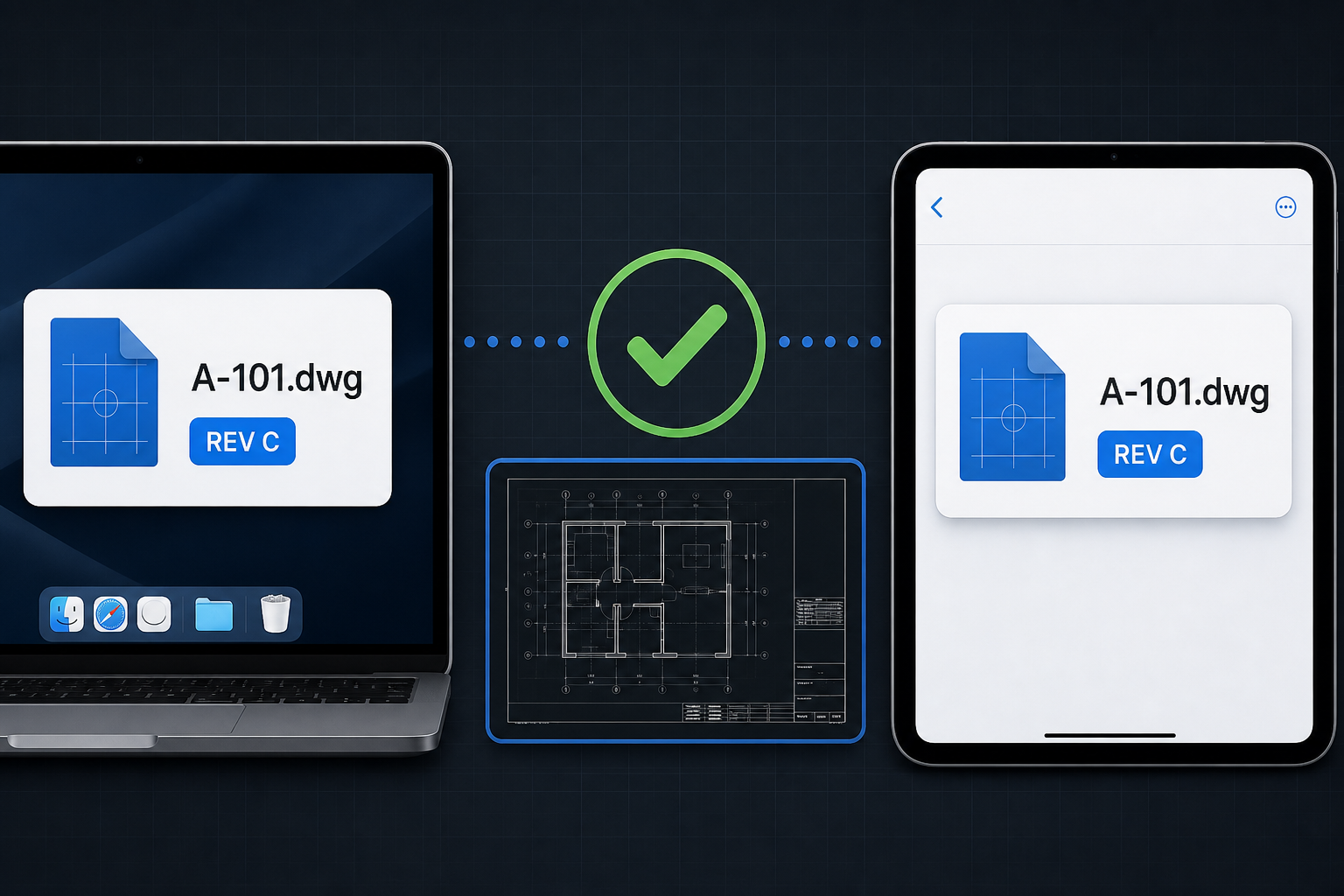
In PlanInspect, switch to the intended layout, fit the drawing, and inspect a known grid intersection or room. If the drawing appears empty or incomplete, check layouts and layers before converting it. The iPad DWG opening guide explains that first-open sequence in more detail.
AirDrop is transfer, not sync
After the DWG reaches iPad, the Mac copy and iPad copy are separate files. A markup, note, or measurement created during review does not silently rewrite the original DWG on the Mac. That separation is useful when the goal is review rather than drafting, but the return path must be explicit.
Choose the handoff that matches the result:
- Send the original DWG once: best for starting a local review.
- Export a PDF or report back: best when feedback should be easy to read without changing CAD geometry.
- AirDrop a deliberately exported file: useful for a nearby reviewer or a quick return to Mac.
- Use a shared Files location: useful when a team has an agreed folder and naming process, but still requires revision discipline.
For the desk side of the workflow, the DWG viewer for Mac guide explains why Mac suits Finder-based review and multi-window comparison, while iPad is stronger for mobile inspection and Apple Pencil input.
A practical field-to-desk example
An architect receives A-101-Level-01-Rev-C.dwg on a Mac, confirms the title block, and AirDrops it to an iPad before walking the site. In Files, the architect moves it into the project folder and opens it in PlanInspect. After confirming layout A-101 and the main stair grid, the review begins.
On site, the architect adds a note at a doorway and checks one distance. Back at the desk, the useful return item is not a vaguely renamed DWG. It is a clearly exported review result tied to Rev C, shared back to the Mac or project team. The source drawing stays identifiable throughout.

For a broader iPad transfer workflow that also covers email and shared storage, read how to send and open DWG files on iPad.
What to do when AirDrop does not work
Use this order so the troubleshooting remains quick:
- Confirm Wi-Fi and Bluetooth are on for both devices.
- Keep the Mac and iPad nearby and awake.
- Check the iPad’s AirDrop receiving setting.
- If using Contacts Only, confirm the correct Apple Account details exist in Contacts.
- Temporarily use Everyone for 10 Minutes in a safe setting.
- Check whether a VPN or network policy interferes with local connectivity.
- Restart both devices if discovery remains stuck.
- If AirDrop is still unreliable, move the file through an agreed Files location or connected storage and verify the copy in exactly the same way.
Do not convert the DWG merely because the transfer path failed. Autodesk’s Mac DWG viewing guidance lists web-based options, but a transfer problem and a file-format problem are different diagnoses.
Frequently asked questions
Can iPad open a DWG received by AirDrop?
Yes. Save or locate the transferred .dwg in Files, then use Share or Open With to pass it to a compatible DWG viewer such as PlanInspect. Confirm the layout and revision after opening.
Does AirDrop reduce DWG quality?
AirDrop transfers the selected file rather than flattening it into an image. The main risk is choosing the wrong source file or opening the wrong received copy, not intentional visual compression.
Will iPad markups appear automatically on Mac?
No. AirDrop does not create ongoing sync between two copies. Export and share the review result deliberately, or use a separately agreed shared-file process.
Should I send a DWG or PDF?
Send the DWG when the reviewer still needs layouts, layers, geometry, or drawing-based measurements. Send a PDF when the deliverable should be fixed, broadly readable, and easy to archive. The DWG versus PDF site review guide explains the tradeoff.
Keep the handoff boring and verifiable
A good Mac-to-iPad DWG handoff has one source file, one confirmed destination, and one explicit return deliverable. Use AirDrop for the nearby transfer, Files as the iPad checkpoint, and PlanInspect for the drawing review. Then verify the revision before work starts and export the result instead of assuming the two devices remain synchronized.