
To open a large DWG on Mac, first copy the complete file to a local folder, open the original in a native DWG viewer, and wait for the first parse to finish. Then confirm the correct layout, fit the drawing, and hide layers you do not need. File size matters, but slow or confusing drawings are often caused by network access, references, dense geometry, hatches, or the wrong review context rather than megabytes alone.
The useful goal is not merely to make the file appear. It is to keep enough DWG context to inspect the right sheet, verify geometry, measure a condition, add a note, and prepare a handoff.
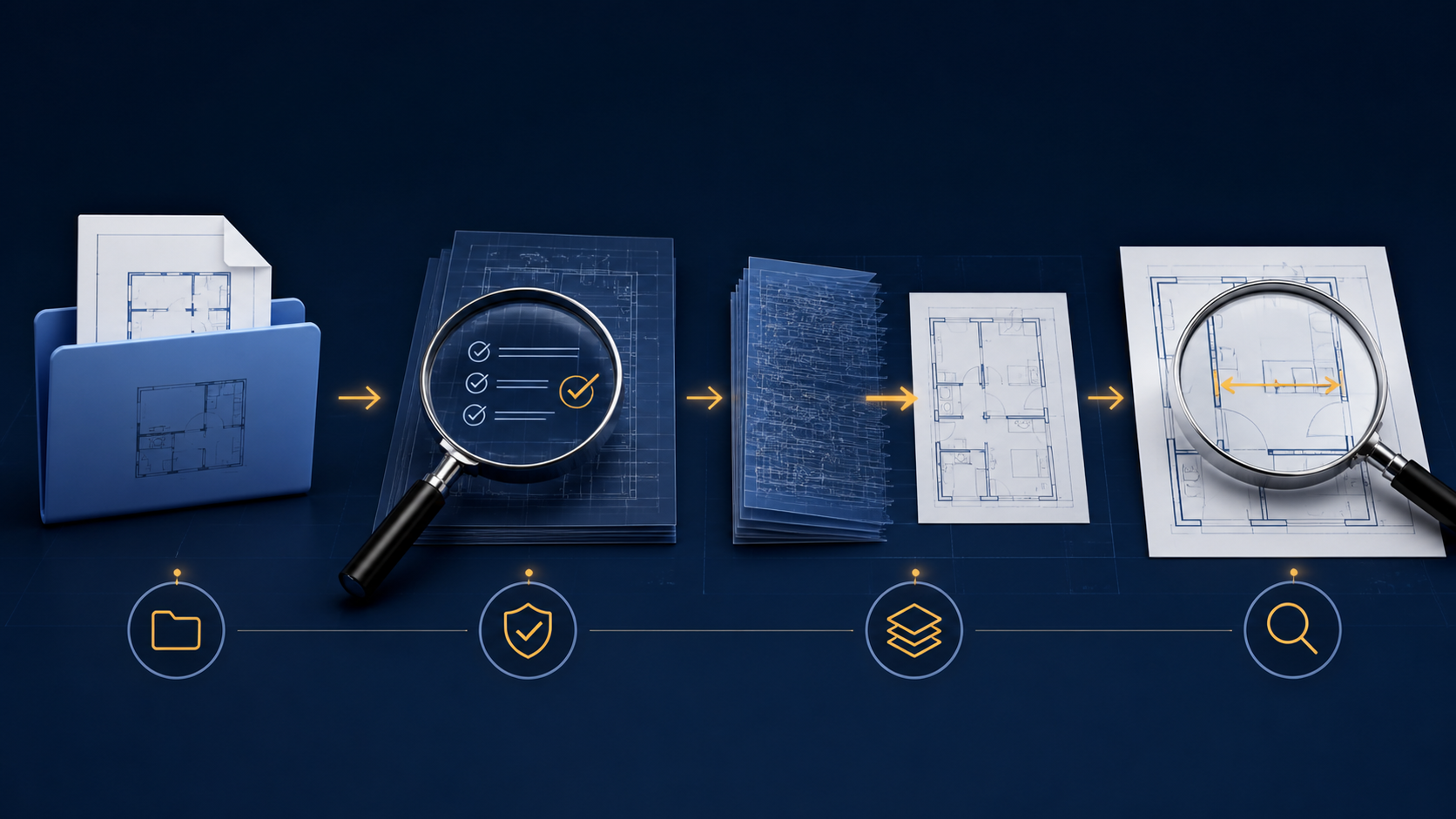
Quick diagnostic checklist for a large DWG on Mac
Use this order before converting the drawing or replacing your Mac:
| Symptom | Likely issue | First useful check |
|---|---|---|
| The DWG does not begin opening | Incomplete download, temporary attachment, or incompatible file | Copy it to a local Finder folder and confirm a plausible file size |
| Opening stalls for a long time | Network path, external references, corruption, or genuinely dense data | Test the same local file and ask the author to audit the source drawing |
| The file opens but looks blank or cropped | Wrong layout, distant geometry, or viewport context | Switch layouts and use Fit to drawing |
| Navigation feels overloaded | Dense hatches, repeated blocks, text, or too many visible disciplines | Hide nonessential layers and focus on one review area |
| A PDF seems just as slow | The output may still contain extremely dense vector geometry | Simplify at the source instead of assuming conversion removes complexity |
Autodesk's current support guidance separates slow Mac performance from drawing-specific problems and recommends repairing a drawing when only that file is affected. Its broader troubleshooting also lists network locations and referenced content among possible causes of slow opening. That is a better mental model than treating every slow DWG as a hardware failure.
1. Make the first test local and repeatable
A heavy drawing should not be diagnosed from a Mail preview, an incomplete cloud placeholder, or an unreliable network share. Save the issued .dwg to a known project folder in Finder and confirm that the transfer is complete. Apple's guide to choosing which Mac app opens a file also explains the Open With path when the wrong application launches.
Keep the original filename and revision. If the drawing opens locally but not from the remote location, the problem is the access path, not necessarily the geometry. Autodesk documents that network, WAN, VPN, and referenced network content can slow drawing opens.
If you still need the basic Finder workflow, start with how to open DWG files on Mac without converting them.
2. Separate viewer trouble from source-drawing trouble
A file that is slow in one viewer is not automatically corrupt. A file that fails in several current tools may need attention from the CAD author.
Run three controlled checks:
- Open a smaller known-good DWG in the same app.
- Reopen the problem file from local storage.
- Ask whether the source contains unresolved external references, proxy objects, unusually dense hatches, or a very high layout count.
Autodesk's AutoCAD for Mac performance article explicitly distinguishes general sluggishness from a problem specific to one drawing. When the source really needs purge, audit, repair, reference cleanup, or a clean re-save, send it back to the authoring workflow. A review viewer should not pretend to repair design data.
This distinction also keeps tool selection honest. Autodesk Viewer offers browser-based viewing, measurement, markup, and sharing on Mac, while native Mac viewers such as CST CAD Navigator emphasize local format support and measurement. Upload-driven collaboration, full CAD repair, and focused local review are different jobs.
3. Reduce context without flattening the drawing
Once the DWG opens, the next bottleneck is often visual complexity. A coordination model may contain architecture, structure, services, hatches, annotations, and several issued sheets. You rarely need all of that for one question.
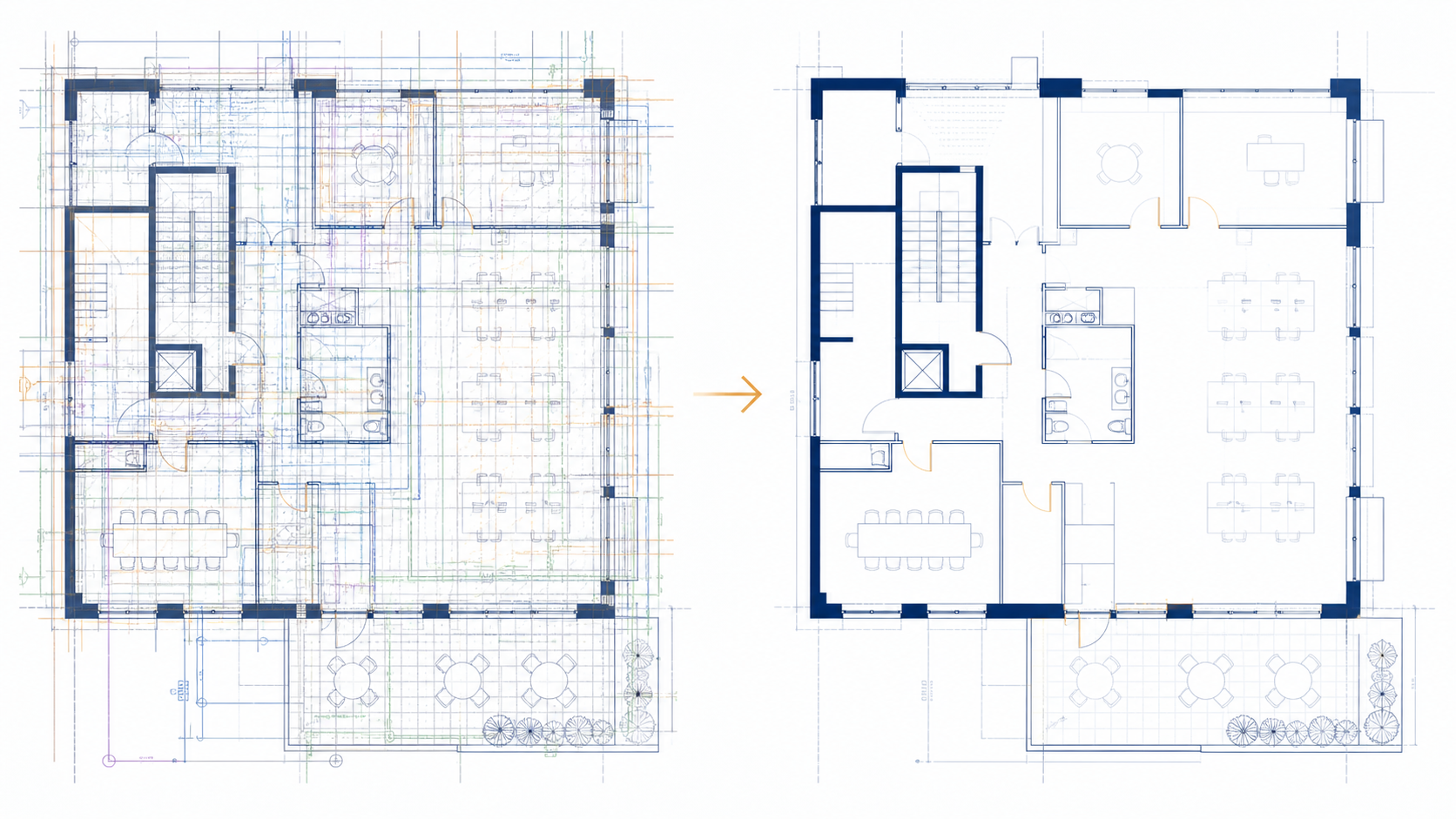
Use a reversible sequence:
- choose the layout that matches the issue or meeting
- use Fit to drawing before assuming geometry is missing
- hide disciplines and annotation layers that do not affect the decision
- zoom into one bounded review area
- restore layers when you need to check coordination context
This is not a claim that hiding layers makes the underlying file smaller. It makes the review surface clearer and can reduce rendering work in viewers that skip hidden content. More importantly, it lets you determine whether the file is usable for the actual task.
The same principle applies on iPad; the large-DWG iPad guide covers the mobile version of this diagnosis. For Mac viewer criteria beyond performance, see how to choose a DWG viewer for Mac.
4. Test one real review action
A large DWG is not successfully open just because the first frame rendered. Test the action that justified opening it:
- inspect one room, detail, or coordination zone at a useful zoom
- switch to the expected paper-space layout
- isolate the layers needed for the question
- verify one known distance or geometry relationship
- add one concise note if feedback is required

In PlanInspect, this workflow stays focused on review: open a local DWG, switch layouts, control layer visibility, pan and zoom the drawing, measure with snapping, add notes or markups, and export the result when the handoff is ready. It does not require an account before opening the file.
PlanInspect is a strong fit when the Mac is being used to inspect and communicate around the original drawing. Use a full CAD application when you need to audit, purge, repair, bind references, edit geometry, or issue a revised DWG.
When should you convert a large DWG to PDF?
Convert after the review context is settled, not as the first troubleshooting reflex. PDF is useful when the recipient needs a fixed sheet for printing, email, or archival handoff. It is a weaker substitute while you still need layouts, layer control, or drawing-native measurements.
Conversion also does not guarantee a light result. A PDF made from dense vector geometry can remain slow. If both the DWG and exported PDF are overloaded, ask the CAD author for a clean review issue: the correct sheets, resolved references, sensible layer state, and only the detail required by the recipient.
Keep the heavy drawing tied to the decision
The best way to open a large DWG on Mac is to diagnose the workflow in order. Verify a complete local file, separate compatibility from source corruption, choose the right layout, reduce visible layers, and test one real review action. Convert only when the team is ready for a fixed handoff.
That approach preserves the reason for using the DWG in the first place: the ability to keep drawing context available while you make a trustworthy review decision.