
01
Visual markups
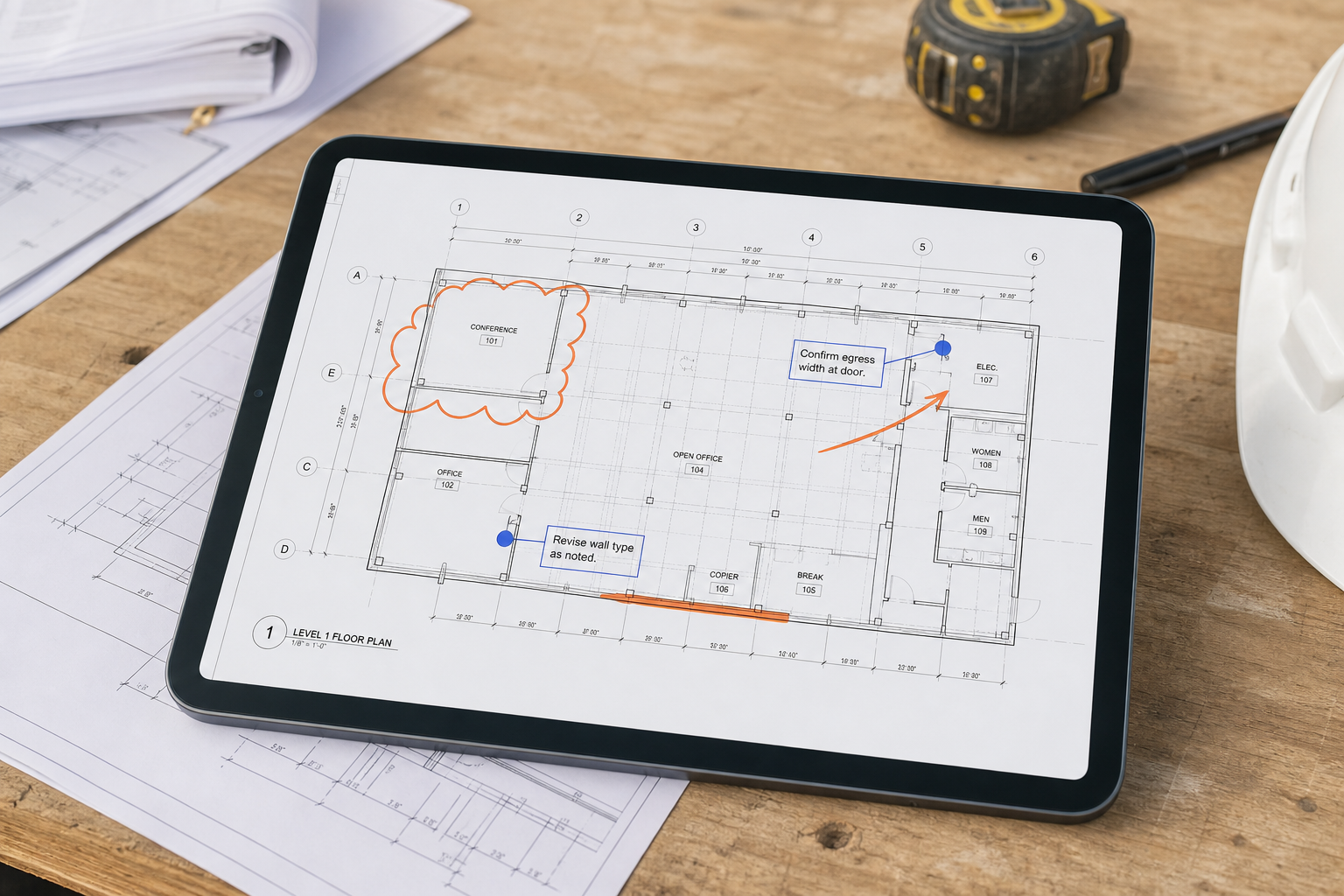
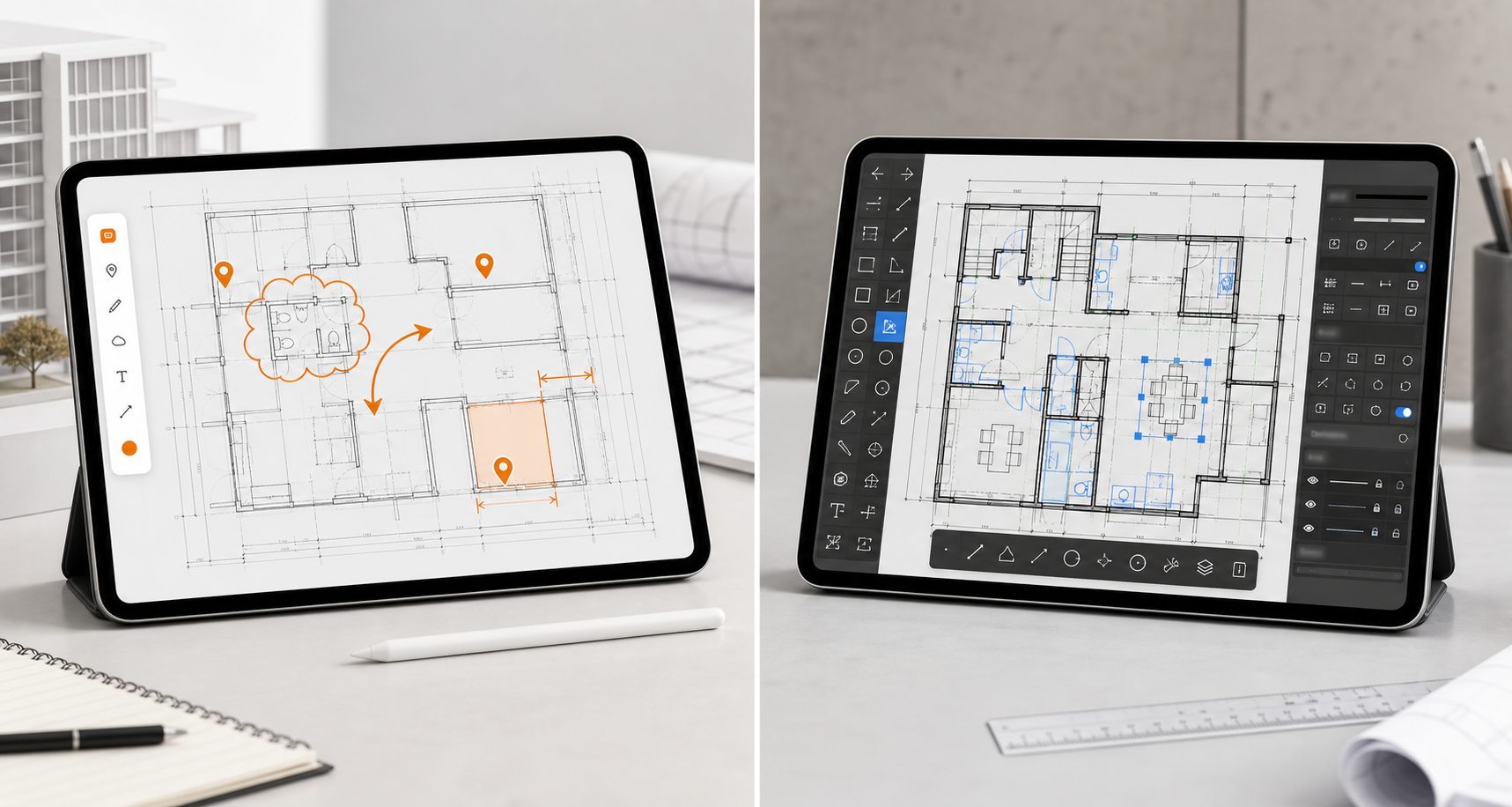
Use pen, highlighter, text, and drawing tools to make the affected zone unmistakable.
Draw attention to the exact location with pen, highlighter, text, and structured notes. Markups belong to the review state, so the team can understand the issue without silently rewriting the source drawing.
Why it matters
A screenshot in a chat thread loses the plan context. A CAD edit can go too far when the job is only to flag a discrepancy, confirm a dimension, or ask for a decision.
PlanInspect keeps the source plan visible and the review information above it. That separation makes redlines easier to find, revise, hide, and export as a clear record.
Capabilities
Use pen, highlighter, text, and drawing tools to make the affected zone unmistakable.
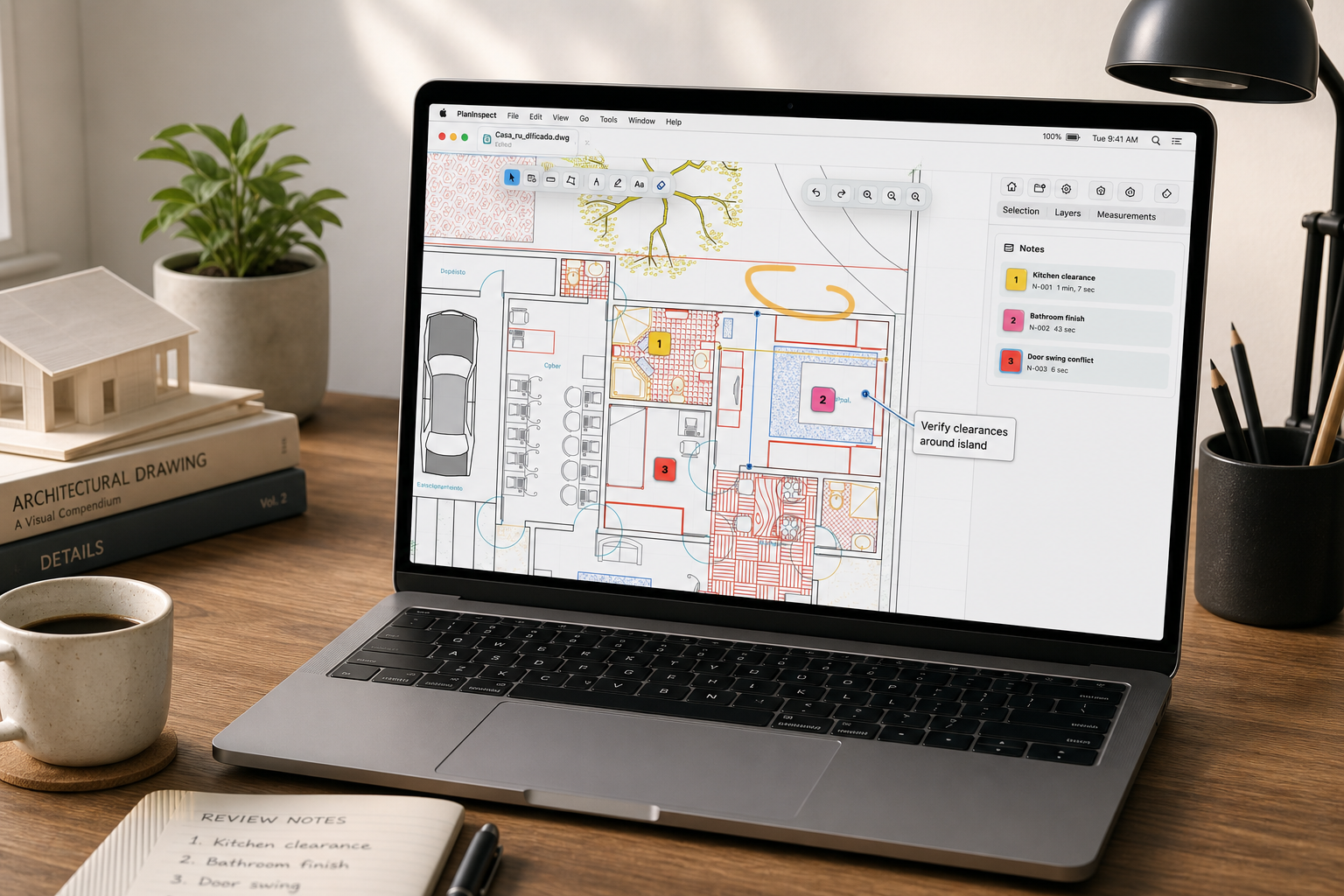
Add notes and photos when a line or arrow cannot explain the site condition alone.
Organize review annotations independently from native DWG layers and supported plan geometry.
DWG and PDF
CAD / DWG
Keep CAD layouts and layer context visible while review overlays remain separate from the original drawing geometry.
PDF / PLANS
Move through multipage sheets, mark the relevant page, and preserve the source PDF beneath the exported review overlays.
Workflow
Open the correct layout or PDF page and zoom into the affected area.
Highlight, draw, add text, or place a structured note depending on the issue.
Confirm that the markup is readable without hiding the plan information beneath it.
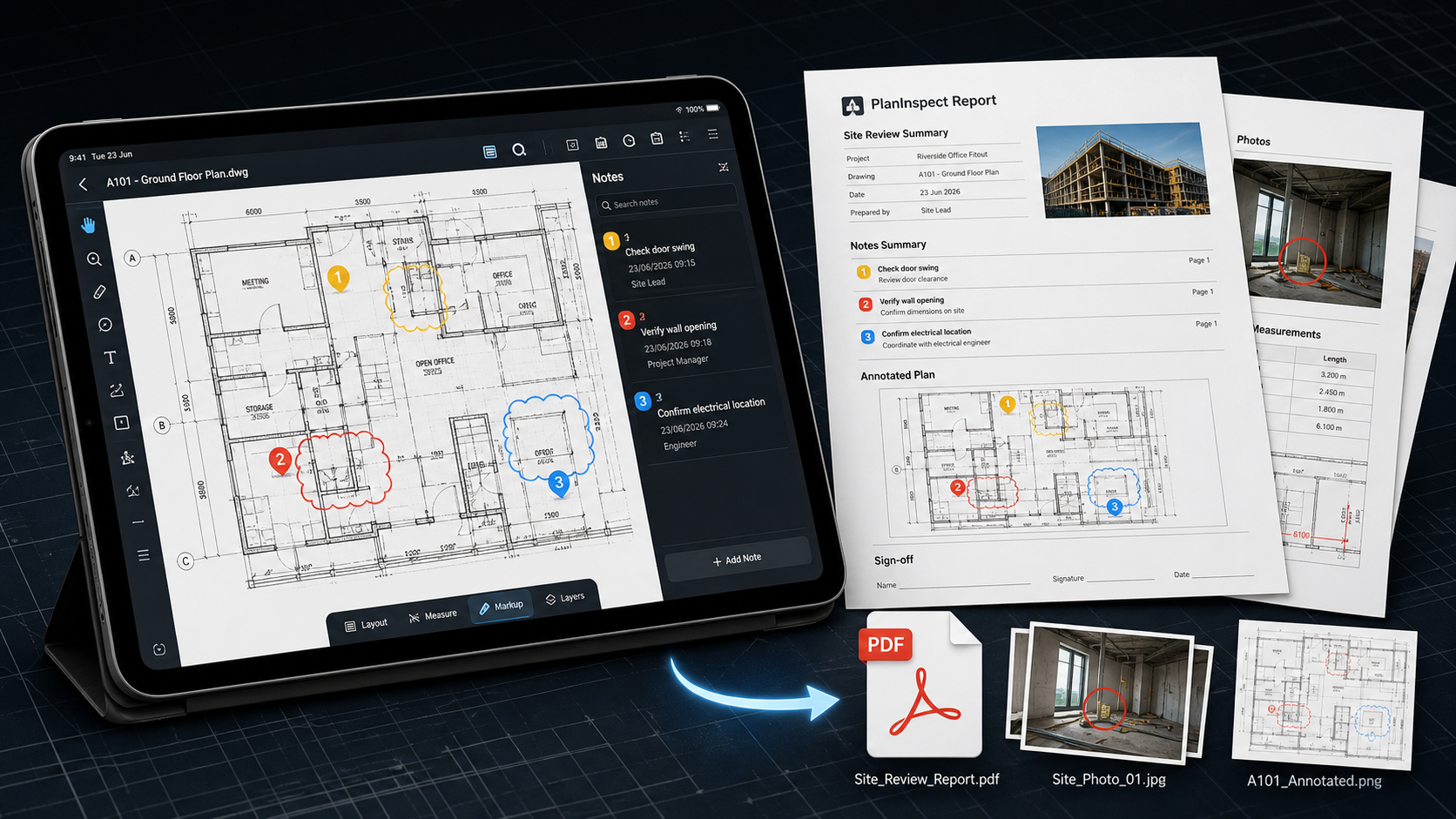
Send a reviewed plan or report that opens without requiring the recipient to edit CAD.
Product views
Verified boundaries
FAQ / Annotate plans
Yes. Review annotations stay separate from source DWG geometry.
Yes. You can navigate the sheets and add markups or notes to the relevant page.
The review workflow includes notes, photos, pen, highlighter, text, and other visual markups, subject to feature access.
Yes. Export options include common handoff formats such as reviewed PDFs, images, and reports depending on platform and access.
Practical guides
Open a local plan, add one clear annotation, and export the review.