
01
Choose the space
Start from model space or a supported paper-space layout that matches the sheet being reviewed.
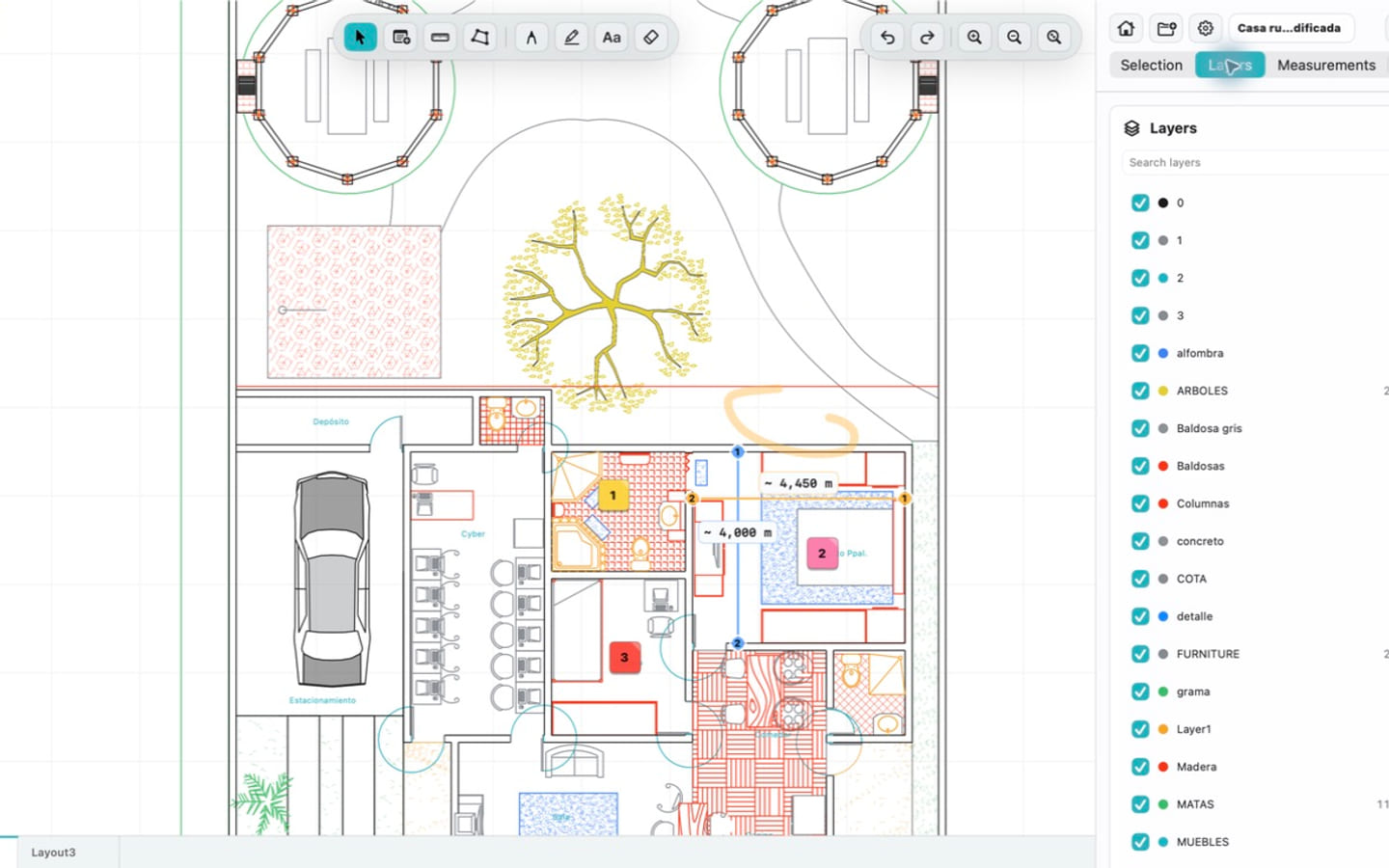
Move between model space and supported layouts, then reduce drawing noise by controlling layer visibility. The goal is not to redesign the file; it is to reveal the information needed for the review.

Why it matters
Architectural, structural, MEP, and annotation layers can occupy the same drawing. Seeing everything at once may be technically complete but operationally useless on a small screen.
PlanInspect lets the reviewer choose the relevant layout and temporarily control supported layer visibility while preserving that viewer state with the document.
Capabilities
Start from model space or a supported paper-space layout that matches the sheet being reviewed.
Hide unrelated supported layers to expose the geometry, labels, or trade context needed now.
Return to the document with active layout and hidden-layer choices preserved in its workspace state.
DWG and PDF
CAD / DWG
Supported CAD layers are part of the parsed drawing and can be shown or hidden for review.
PDF / PLANS
PDF review annotations can use their own layers, but PlanInspect does not currently expose optional-content-group layers embedded in the source PDF.
Workflow
Confirm that the visible sheet or model view matches the task.
Identify which supported layers contribute to the question and which add noise.
Hide unrelated layers without altering the original DWG file.
Complete the review against the clearer drawing context.
Product views


Verified boundaries
FAQ / DWG layers & layouts
Yes. Supported DWG layers can be shown or hidden during review.
Yes. Model space and supported layouts are available in the viewer.
No. Layer visibility is viewer state and does not rewrite the source drawing.
PlanInspect supports its own review annotation layers, but does not currently expose OCG layers embedded in a source PDF.
Practical guides
Open a layered DWG and isolate the view your next decision needs.